Texture Filtering and Seam Padding
A canvas is Closest by default: every texel a sharp square, the pixel art look. Want the texture smooth, or the N64 look? Texture Filtering switches it to Linear or N64 (3 Point), and Seam Padding keeps the UV seams from showing a step at every face, in Blender and in the game engines.
Left to right: Closest, Linear before Seam Padding (a step at every seam) and Linear with Seam Padding.
Texture Filtering
The Filtering row under Paint On, in Setup (3D Viewport and Image Editor), for the texture Paint On names (a greyed out Closest when the model has no texture):
Closest(default): every texel a sharp square, the pixel art look.Linear: texels blended into each other. Nothing else to set up, in Blender or in the game engines.N64 (3 Point)(optional): the N64’s own filter, three texels blended a sample, through a node group in the material. In Blender only: the exports carry it asLinear(see In the game engines and the exports).
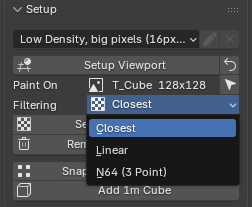
How it works:
Every material that samples the texture follows, in this .blend (a material linked from another .blend is that file’s).
It reads the
Image Texturenodes, so a node you set toLinearby hand in the Shader Editor showsLinearhere too (CubicandSmarttoo).One undo step.
Picking
LinearorN64 (3 Point)raisesMargin (px)to4(Unwrap Options) when it’s lower, for the next unwrap (see The margin for a filtered texture).Closestleaves it as it is.A painted texture whose UV islands sit too close asks first, see UV islands too close for filtering.
It stays: the first stroke on a texture that isn’t a canvas yet sets it to
Closest(every import comes in on Blender’sLinear, see Painting a texture the model already has), unless you picked its filtering here. Pick it before or after the first stroke and it’s kept.
Seam Padding
Why did Linear show the seams? Quick Unwrap Model gives every face an island of its own, and a filtered texture blends each texel with its neighbours. At the edge of an island the neighbour is a margin texel, and it holds the background, transparent texels or the face’s own colors, never what the model shows across the seam. That’s the step at every seam in the middle picture above.
Seam Padding fills the margin with what the model shows across the seam, so the blend at the edge of an island reads the right color:
Automatic, while the texture is filtered (
Linear,N64 (3 Point)or a node set by hand). Nothing to click.A
Closesttexture is never touched: back onClosest, the texture is exactly what your layers make.It’s in the texture: the Image Editor shows it (copies of the island colors around every island), and so do the saved PNG,
Export Texture,Image > Save Asand every export.It never becomes paint: it isn’t in your layers, the eyedropper on a padded texel picks the color it was copied from, and the texture brought back in as a layer (
Import PNG,Paste Image as Layer) leaves it out.The Layers panel says so while it’s on:
Seam padding fills the margin/while the texture is filtered.It follows the UVs: after an unwrap or UVs moved by hand it’s laid again (on a big texture it takes a moment, the seams show until it’s there). UVs edited in Edit Mode get it when you leave Edit Mode.
Hard Edges(under theFilteringrow, off by default): for a texture with the light painted in, where a lit face meets a dark one at a hard edge. On, the padding stops at the edges marked sharp and at the edges sharper than the angle beside it (60°by default,180°for the sharp edges only), so each face’s margin keeps its own color there and the edge stays crisp.
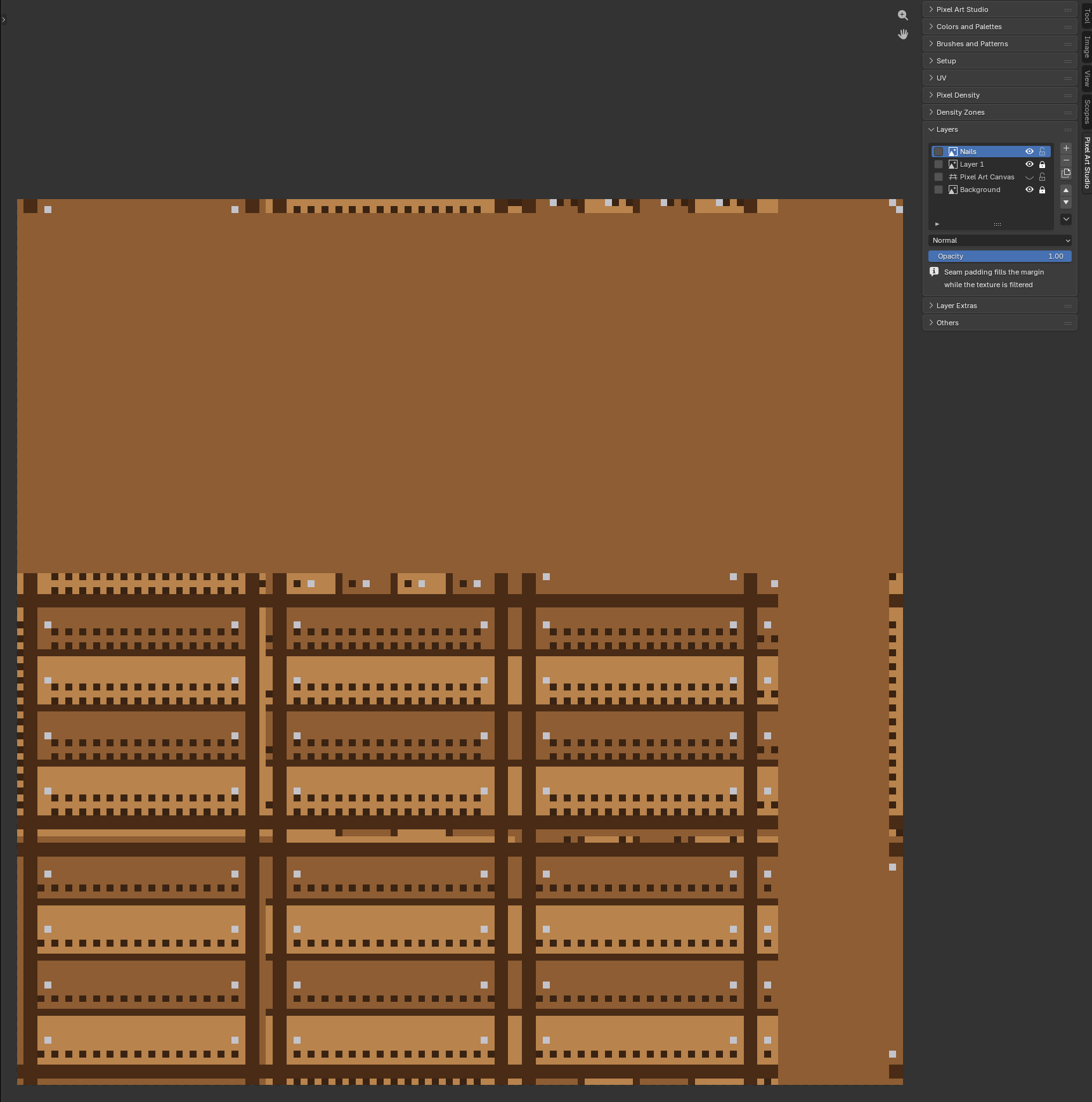
Above: the crate after Lay Out Again, on Linear. Every island is ringed with the colors from across its seams, and Layers ends with the note.
Note
Painted in the margin while the texture is filtered? Your layers keep it, but the texture shows the padding there. Back on Closest, your painting shows again.
Note
Texture Dilation grows each island’s own colors into the empty texels around it (see Texture Dilation). While the texture is filtered, the margin next to the islands is Seam Padding’s, and the dilation fills what’s farther out.
What it can’t do:
A seam on a texel line is hidden exactly. A diagonal seam (a face edge that cuts through texels) can keep a faint step, much less than without the padding.
The islands need 2 texels between them. Closer, a margin texel sits between two islands and both read it, so no fill is right for both (see below).
UVs that run past the texture (a texture repeated over the model) get no padding, and the report says so:
No seam padding on T_Cube: the UVs run past the canvas.
The margin for a filtered texture
At least 2 texels between the islands for a filtered texture: each island needs a ring of its own.
1(the default) is plenty forClosest.Picking
LinearorN64 (3 Point)raisesMargin (px)to4, so the seams stay hidden from far away too (a filtered texture is mipmapped, in Blender and in the game engines). It never lowers it, and you can still type your own.Under 2, the unwrap lays out at 2 anyway while the texture is filtered, and
Unwrap Optionssays so underMargin (px):Filtered: laid out at 2. The report too (Cube: 16 px/m on the 64x64 texture T_Cube (margin 2 for Linear filtering)).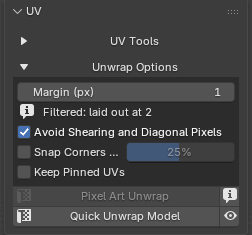
A bigger margin takes texture space: a model that just fit may need the next texture size (
Grow Texture to Fit, see Grow Texture to Fit).
UV islands too close for filtering
The new margin is for the next unwrap. UVs laid out before (at 1, or your own layout) stay where they are, so Pixel Art Studio tells you when they’re too close:
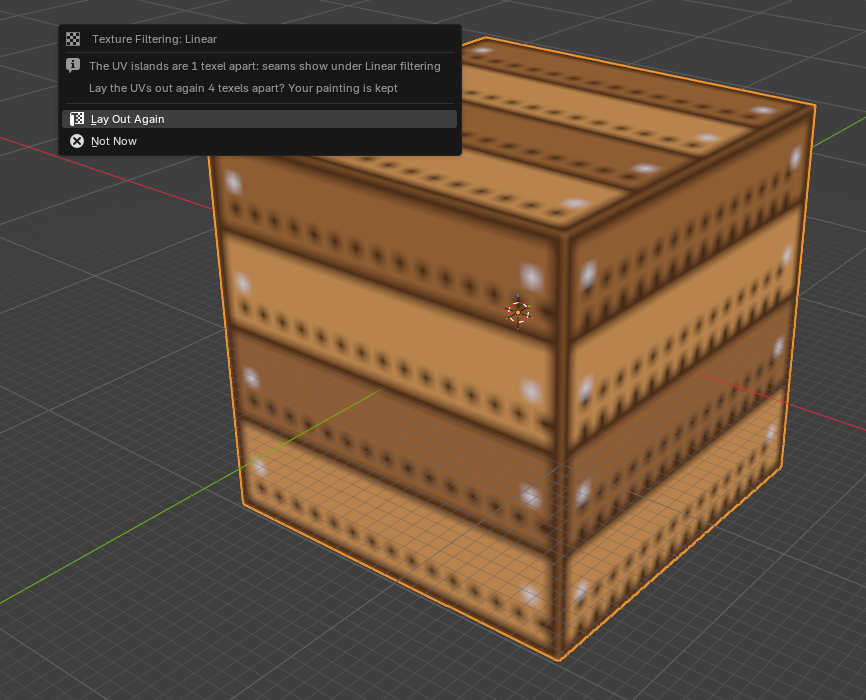
The question: picking
LinearorN64 (3 Point)on a texture with painting on it, with the islands closer than 2 texels, asksThe UV islands are 1 texel apart: seams show under Linear filtering/Lay the UVs out again 4 texels apart? Your painting is kept.Lay Out Again: new UVs at the margin (Quick Unwrap Model’s layout, at the model’s own pixel size), and every layer is carried onto them. One undo step.Not Now(or Esc): the texture stays filtered and the UVs stay as they are.
The note in
Setup, under theFilteringrow, for as long as the texture is filtered and the islands are too close:UV islands 1 texel apart:/seams show while filtered(UV islands touch:when there’s no margin at all), withLay Out Againunder it, the same as the question’s.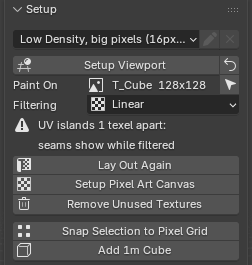
Object Mode only: from Edit Mode it says
Leave Edit Mode first: the UVs are laid out again in Object Mode.A texture with nothing painted yet asks nothing: click
Quick Unwrap Modeland it’s laid out at the new margin.
Note
Lay Out Again works like Apply New Density in Try Pixel Densities (see Try Pixel Densities): the scene’s pixel density goes to the model’s own too, and a texture that isn’t a canvas yet becomes one first (its own undo step).
In the game engines and the exports
A filtered texture leaves filtered, with mipmaps and with the padding in it. Nothing to set up in the engine, the integrations write it for you:
glTF and GLB (
Unlit Pixel Art in glTF, your ownFile > Export > glTF 2.0included): linear filtering with mipmaps.Godot: linear filtering with mipmaps.
Unity: trilinear filtering with mipmaps.
Unreal Engine: the
Defaultfilter, with mipmaps.Generic Exporter: GLB and glTF as above. FBX writes the same two files as always: FBX has no word for filtering, so the PNG carries the padding and the tool you import into does the filtering.
A
Closesttexture exports exactly as before: nearest filtering, no mipmaps. Back onClosest, the next save puts the engine’s texture back to nearest.
Warning
N64 (3 Point) exports as Linear through glTF, the game engine integrations and the Generic Exporter. Blender’s own FBX and OBJ export find no texture while it’s on (the node group hides it from them): switch to Linear before a File > Export > FBX or OBJ.
Troubleshooting
Seams still show under
Linear: theSetupnote says when the islands are too close, clickLay Out Again. A faint step on a diagonal seam is expected.Seams show from far away with a margin of 2 or 3: type
4inMargin (px)and lay the UVs out again.The Image Editor shows color around every island: that’s the padding, it goes away on
Closest.The FBX or OBJ came out with no texture: the texture is on
N64 (3 Point), see the warning above.