UVs Without the UV Editor
Are you worried about UVs? Don’t be. With Pixel Art Studio you can unwrap a model for pixel art, paint the same pixels on many faces, and keep a face in one piece, without ever opening the UV Editor.
In this tutorial:
The flashlight: one click unwrap, then the handle’s sides painted once for all of them.
The dachshund’s head: the face kept as one piece of the texture.
Before you start
You need a model with a canvas, and the viewport set up (see Your First Model: a Crate, or Setup and Canvas). This tutorial uses Medium Density (50px/m) and the Pixel Grid Layer of the canvas wizard, so you can see the pixel sizes on the model.
Everything happens in the 3D Viewport sidebar (N), tab Pixel Art Studio, panel UV.
Warning
Unwrap before you paint: an unwrap gives the faces new places in the texture, and the pixels you already painted stay where they were.
Part 1: the flashlight
One click unwrap
Let’s select the flashlight, in Object Mode.
Click
Quick Unwrap Model.
That’s it. Every face is laid flat at the same pixel size and packed on the texture: the head, the caps and the handle. The status bar says the density and the texture it used (Flashlight: 50 px/m on the 256x256 texture T_Flashlight).
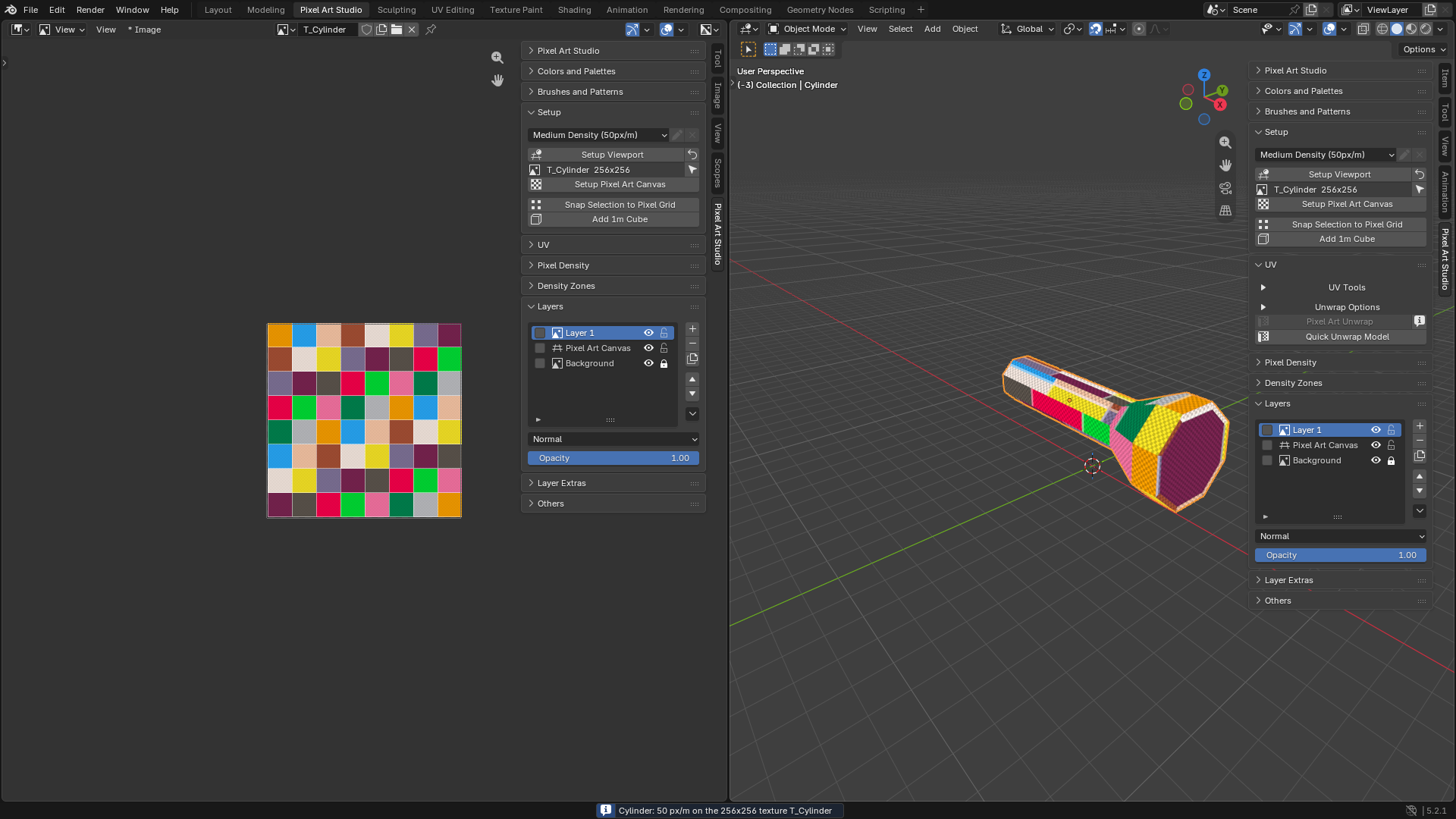
Look at the grid layer on the model: every square is one texel, and they’re the same size on every face, slanted or flat.
Tip
Quick Unwrap Model works from any mode, and puts you back in the mode and the selection you had. One Ctrl+Z takes it back.
Paint the handle once
The handle has eight side strips, all the same. Let’s put them on one UV spot, so painting one paints all of them.
Press Tab for Edit Mode and 3 for face select.
Click the first strip, then Shift+click the others one by one. The strip you click last is the one the others follow.
Open
UV Toolsand clickStack UVs.
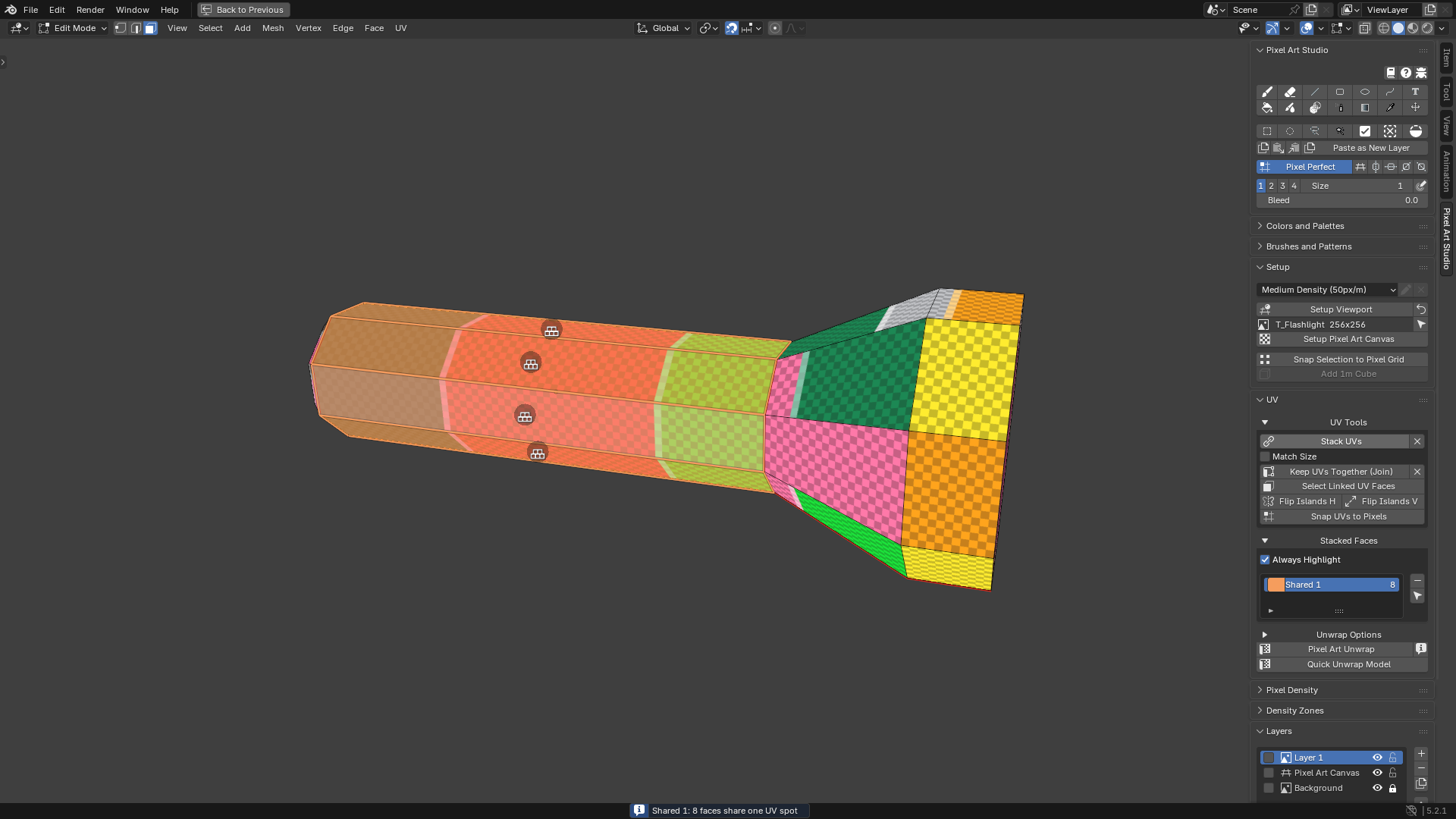
The status bar says
Shared 1: 8 faces share one UV spot.A
Stacked Faceslist shows up withShared 1in it.Hover any strip: the whole stack lights up in its color, with a stack icon on every strip.
Click
Quick Unwrap Modelagain. The eight strips are one spot now, so they take the room of one strip in the texture.Arm the Brush (its icon in the
Pixel Art Studiopanel) and paint a stripe on any strip.
Every strip shows it. And every unwrap from now on keeps them stacked.
Tip
Faces of different sizes (the quads and the tip triangles of a cone, for example)? Tick Match Size before Stack UVs, and they’re all resized onto the last one.
Part 2: the dachshund’s head
A face is a picture: you want it in one piece of the texture, the snout next to the eyes next to the ears. By default Quick Unwrap Model gives every face its own island, so let’s join the head.
Let’s select the dachshund and press Tab for Edit Mode.
Select the faces of the head (the snout, the cheeks, the forehead).
UV Tools>Keep UVs Together (Join).
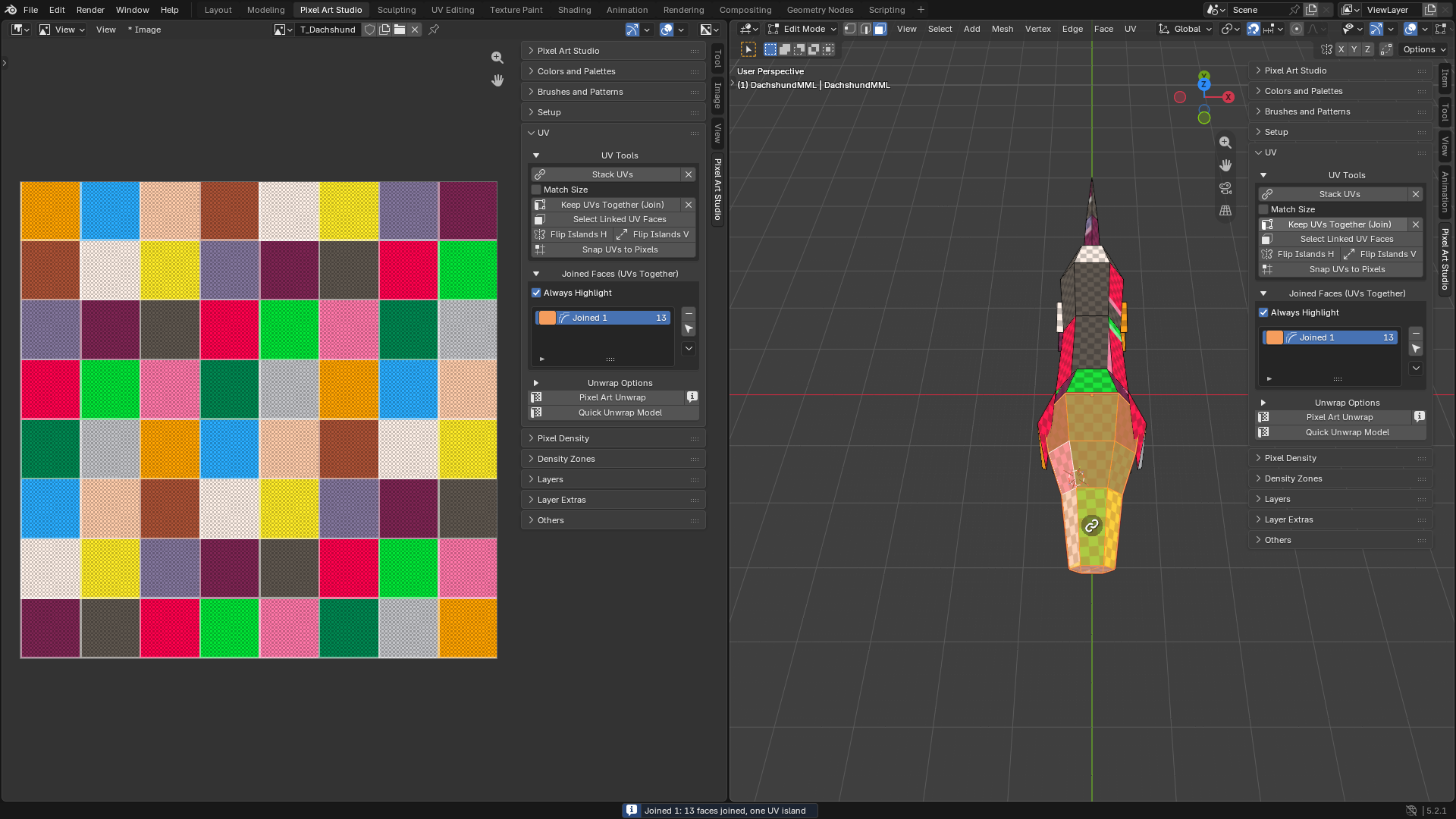
The status bar reports
Joined 1, one UV island.A
Joined Faces (UVs Together)list shows up withJoined 1in it.No UV moved yet: the group is recorded on the model, the unwrap does the rest.
Click
Quick Unwrap Model.
The head comes out as one island. Joined Faces Layout (in Unwrap Options) is Auto: it unfolds the group when it can lie flat, and relaxes it when it’s curved, like a head.
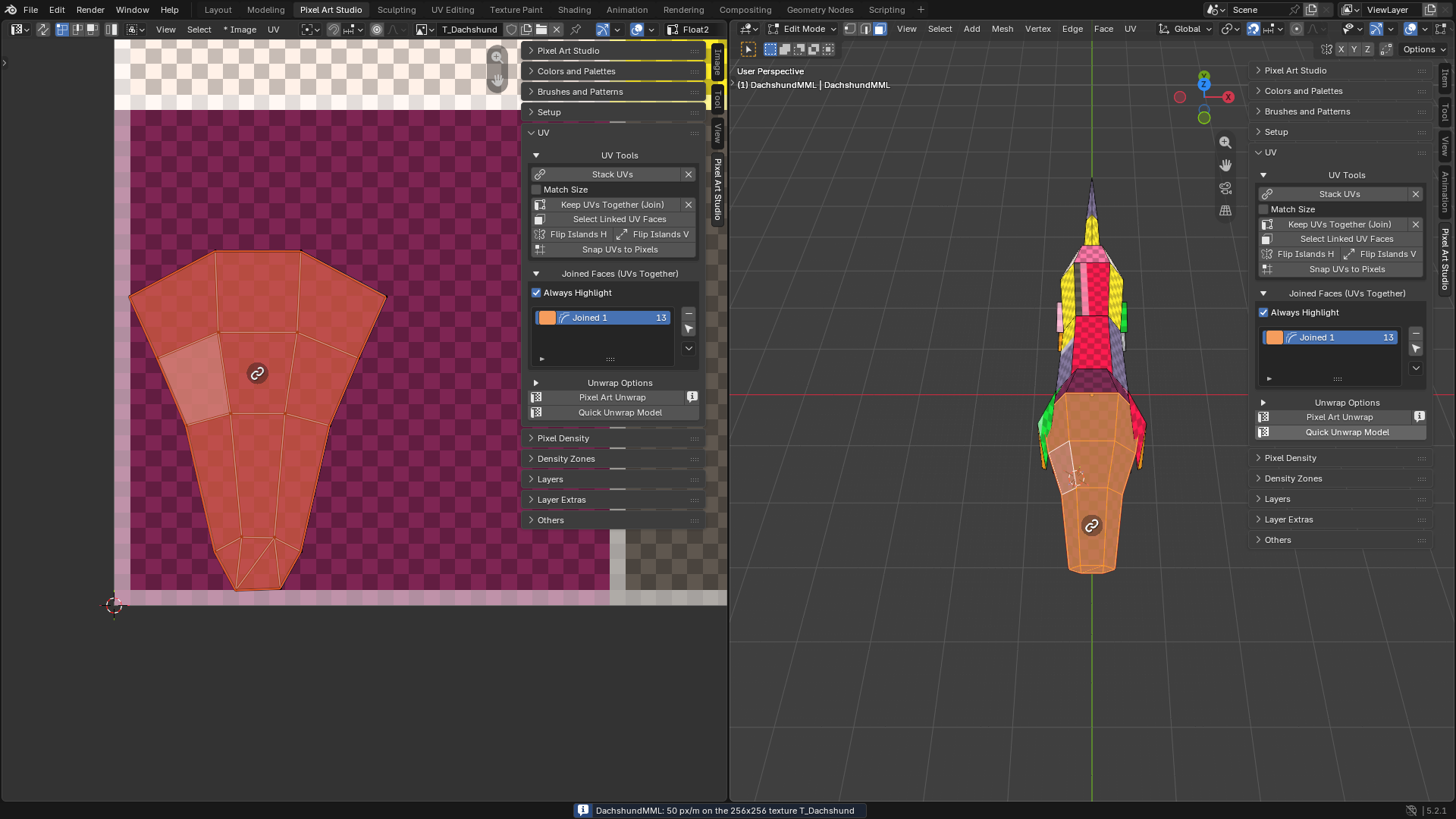
Paint the face on the model, or open the canvas in the Image Editor (the arrow button beside the canvas name in
Setup) and paint it there, as a picture.
Tip
Want the head cut open somewhere else? Mark a seam inside the group (Edge > Mark Seam) and unwrap again: the unwrap opens it there.
Tip
Did you lay out the head’s UVs by hand and like them? Pick Joined 1 in the list, open the arrow beside it and choose Keep Shape. Every unwrap from then on keeps that shape, only scaled to the density.
Find your groups again
Still no UV Editor:
Hover the model in Edit Mode: a stack or a joined group lights up in its color.
Click a row in
Stacked FacesorJoined Faces (UVs Together): its faces are selected.Select Linked UV Faces: select one face, click it, and the rest of its stack or group is selected too.Change your mind: the X beside
Stack UVsorKeep UVs Together (Join), or the-beside the list, and the next unwrap gives each face its own island again.
Every button is explained in UV Tools. Next, give the dachshund’s head smaller pixels than its body: Multiple Pixel Sizes on One Model.