Setup and Canvas
The Setup panel has the pixel size, Blender’s viewport on the pixel grid, and the texture the model paints on (the canvas).
It’s in the sidebar (N), tab Pixel Art Studio, in the 3D Viewport and in the Image Editor (the same panel in both). It starts collapsed: the quick ways in are elsewhere now.
A model that already has a texture: nothing to set up, click a tool and paint (see Painting a texture the model already has).
A model with no texture: the big
Setupbutton at the top of thePixel Art Studiopanel opensQuick Setup(see Quick Setup and Try Pixel Densities).
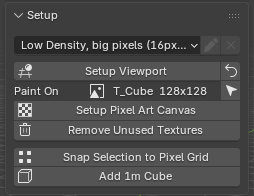
Top to bottom:
Pixel density preset: the dropdown, with a pencil (rename) and an X (remove) for the presets of your own.
Setup Viewport, plus a loop arrow (Restore Viewport) once the viewport is set up.Paint On: the texture the selected model paints on, a canvas already or not yet, with its size (a dropdown when the model has several color textures), and an arrow button that shows it in the other editor.Setup Pixel Art Canvas.Remove Unused Textures(see Remove Unused Textures).Snap Selection to Pixel Grid(see Pixel Density).Add 1m Cube(only onceSetup Viewportis ready).Warnings: coral lines with what went wrong last (click any line or its X to dismiss).
Tip
None of these buttons has a shortcut and Blender’s search (F3) doesn’t find them, but you can right click one and Add to Quick Favorites (Q).
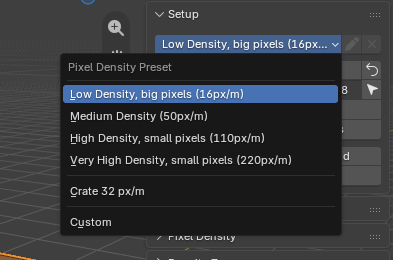
Pixel density presets
A preset is a pixel size picked by name. It sets three things at once: the texel density (how many texture pixels cover one meter of the model, see Pixel Density), the texture size Setup Pixel Art Canvas opens with, and Blender’s grid, so one grid square is exactly one texel.
Preset |
Density |
Texture size |
One pixel on the model |
|---|---|---|---|
|
16 px/m |
64 x 64 |
6.25 cm |
|
50 px/m |
256 x 256 |
2 cm |
|
110 px/m |
512 x 512 |
~9 mm |
|
220 px/m |
512 x 512 |
~4.5 mm |
Your own presets |
saved |
saved |
|
|
your |
unchanged |
Low Densityis MortMort’s pixel art setup: chunky pixels, small textures.Customis picked by itself when you type your ownTexel Density(Pixel Densitypanel), and when the add-on measures a model (Detect Texel Density,Detect Density Zones, or the firstSetup Viewporton a textured model). Painting a textured model never changes the preset.Picking a preset, the model waits: the grid moves to the new density (once you ran
Setup Viewport), but a model that already has a pixel size keeps it:Apply Texel Densityturns red with(needed), andTry Pixel Densitiesturns red above it (Pixel Densitypanel), until you apply it. Picking the old preset back clears the red.
Presets of your own
Found a pixel size you like? Save it once and it’s in the dropdown of every .blend file.
Save as Preset(Pixel Densitypanel): saves the density, the texture size and the grid the scene is on now, under a name (50 px/mto start with).Update Preset(Pixel Densitypanel, only while a preset of your own is selected): pick your preset, type a newTexel Density, clickUpdate Preset.Rename and remove: the pencil and the X beside the dropdown (greyed out for the four presets that ship with the add-on).
Edit > Preferences > Add-ons > Pixel Art Studio, tabPresets, boxPixel Density Presets: every preset you saved, with an X to remove it, andRestore Default Presetsto remove them all.
Note
Your presets live in the add-on preferences, and every change is written to Blender’s preferences right away. Ctrl+Z doesn’t undo a preset you saved, renamed or removed.
Setup Viewport
Optional: one click makes Blender a pixel art viewport, on every workspace of the file, for modelling and unwrapping on the pixel grid. Painting doesn’t need it, and it never turns red. It changes the scene, so know what it does before you click it on an old model of yours:
The grid: the unit system goes to
Noneand every 3D Viewport’s grid is set to one texel per square at the preset’s density.Colors: the
View Transformgoes toStandard, so the colors you see are the colors you painted (no Filmic or AgX wash).Shading: every 3D Viewport goes to
Solid,Flatlighting,Texturecolor.Snapping: on, set to
IncrementwithAbsolute Grid Snap, so a vertex you move lands on a pixel.UVs: every Image Editor gets
Round to Pixels: Corner, so UVs you drag by hand land on texel corners.EEVEE: the viewport
Samplesgo to 1, so the texels stay sharp in the viewport.
It does a bit more on the model you have selected:
A textured model the add-on never measured: it first measures the pixel size the model already uses and puts the grid on that (the preset becomes
Custom), so the grid matches the art that’s already there.A model that isn’t at the scene’s pixel size (you picked another preset): it scales the selected models’ UVs to the new density, the same way
Apply Texel Densitydoes. A texture with painting on it is asked about first,Keep my paintingorStart with a blank texture(see The same question from Apply Texel Density and Setup Viewport).
The loop arrow beside it, Restore Viewport, puts every setting back the way it was before your first click (the UVs and the pixel size stay as they are).
Setup Viewport preferences
Edit > Preferences > Add-ons > Pixel Art Studio, tab General, box Setup Viewport:
Setup Viewport applies these settings automatically(on): off, the button asks first with a dialog, so you can leave parts out for one click (the dialog remembers your answer until Blender closes).Configure grid and grid units,Set shading to Flat Texture,Enable Snap (with Snap Target: Increment)andSet Round to Pixels: Corner(all on): what the button changes.

With Configure grid and grid units off, the button leaves the grid and the units alone, and stops turning red because of them.
Setup Pixel Art Canvas
The canvas wizard: select a mesh, click Setup Pixel Art Canvas, check the options, OK. It builds the texture, its layers, an unlit material and the right pixel density for the model, as one undo step (the dialog’s title is Create Texture and Setup Canvas).
Tip
Quick Setup (the big Setup button) makes the same texture, after showing you the pixel size on the model, and can give the model new UVs in the same click. See Quick Setup and Try Pixel Densities.
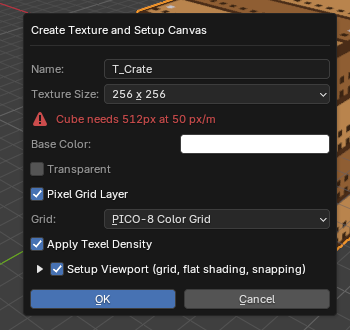
The options:
Name:T_plus the object’s name (T_Crate).Texture Size: from16 x 16to1024 x 1024, three tall ones (16 x 32,32 x 64,64 x 128) andCustom(typeWidthandHeight, up to 8192).It opens on the preset’s size (or the last one you picked), or on the size your model needs at the current density when that’s bigger. Measured on the whole mesh, it suggests up to 2048 x 2048 (bigger than that, you type it yourself).
A red line says when the size you picked is too small (
Crate needs 512px at 50 px/m). You can still clickOK.
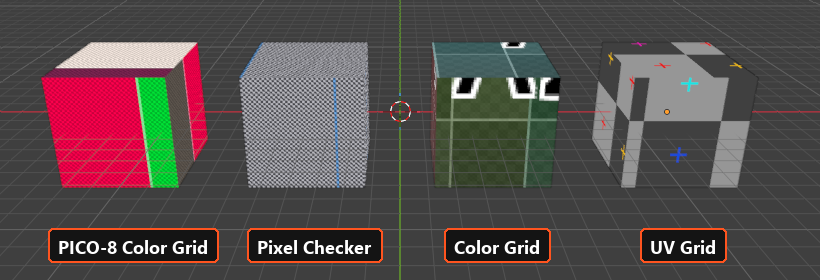
Base Color: the color of the lockedBackgroundlayer (white by default).Transparent: the canvas starts fully transparent, with noBackgroundlayer.Pixel Grid Layer(on): adds a layer with a grid on it, one cell per texel, so you can count pixels on the model.Grid:PICO-8 Color Grid(default, eight color blocks with every other texel shaded),Pixel Checker(one checker square per texel),Color GridandUV Grid(Blender’s own).
Apply Texel Density(on): scales the model’s UVs so every texel has the pixel size you picked. Your UV layout is kept as it is (it doesn’t unwrap).Keep Density Zones(on): only shown on a model with two density zones or more; each face goes to the density of its zone (see Density Zones).
Setup Viewport (grid, flat shading, snapping)(on): runsSetup Viewportright after. The arrow left of it (Viewport Options) shows its four parts,Configure grid and grid units,Set shading to Flat Texture,Enable SnapandSet Round to Pixels: Corner, to leave some out for this click. They open on the answer you gave last (here or inSetup Viewport’s own dialog), else on the preferences (Change default values in the Add-on Preferences).
What you get:
The canvas, at the size you picked, saved inside the .blend (see How the canvas is saved).
Three layers, top down:
Layer 1(empty, the one you paint on),Pixel Art Canvas(the grid) andBackground(locked). See Layers.An unlit material,
M_Crate: the model shows the exact colors you painted whatever the lights, with hard edged texels and the transparent pixels cut out.The canvas in every open Image Editor of the screen.
Warning
The wizard doesn’t unwrap. It scales the UVs the model already has. A model with no UVs, overlapping UVs or a layout that runs off the texture needs Quick Unwrap Model afterwards (see UV Tools).
Note
What happens with a model that already has materials?
No material: the wizard’s material is added.
One material: the wizard’s material takes its place.
Several materials: the wizard adds its material in a new slot and leaves yours alone. Assign it to the faces you want to paint (
Edit Mode > Material > Assign), the report says so too.
Select only the model you’re setting up: the wizard scales the UVs of every selected mesh, and only the active one gets the material.
Running it again makes a second texture and scales the UVs again. To keep painting the texture you already have, select it in
Paint On.Remove Unused Texturescleans up the ones nothing uses any more.Hide the grid layer before exporting: while
Pixel Art Canvasis visible it’s part of the texture, in the saved PNG and in every export.
Painting a texture the model already has
There’s no button for it: the first thing you do on a texture turns it into a canvas, with layers, and then does what you asked. A model with UVs and a texture is painted right away.
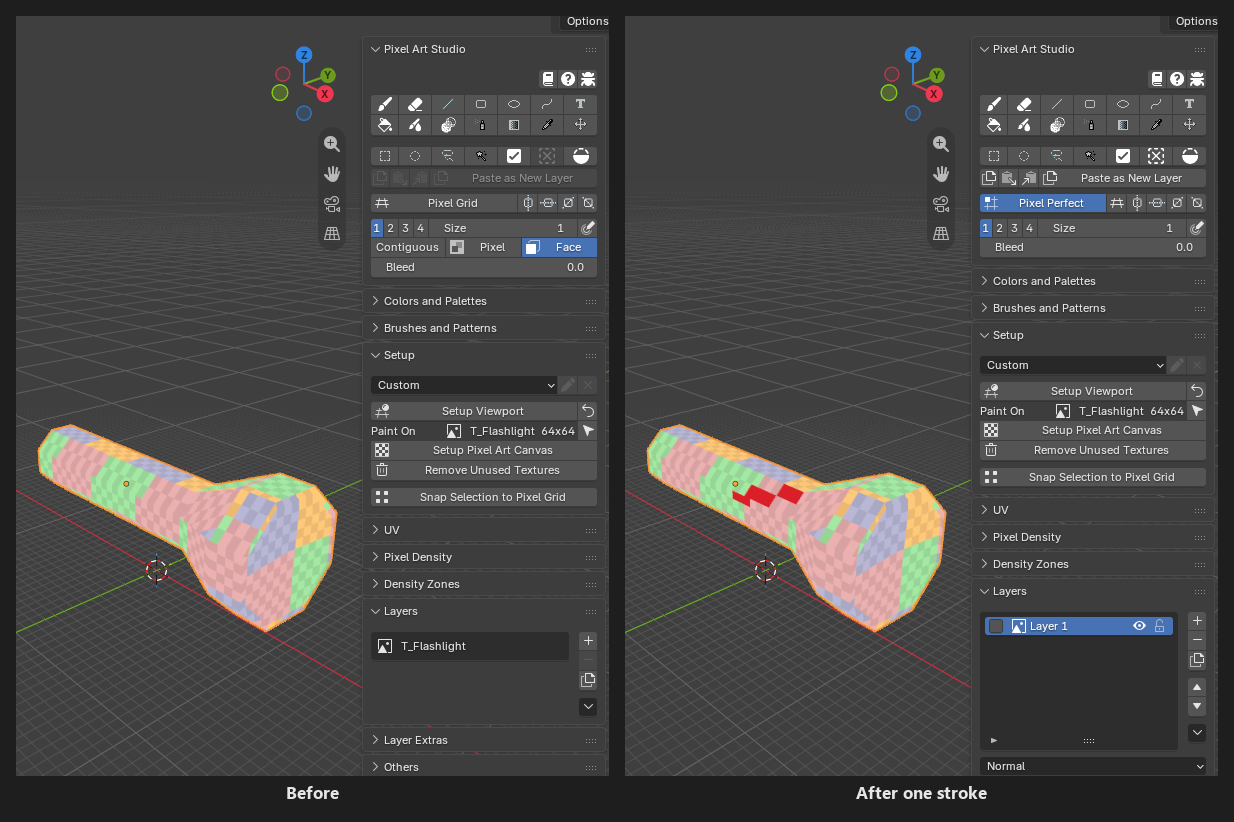
Before:
Layersshows the texture as the one layer it’s going to be (T_Flashlightabove), and the buttons are ready to use.After: the texture is
Layer 1of a layer stack, exactly as it was. Your material, UVs and texture size stay as they are.Two undo steps: the canvas, then what you did. Ctrl+Z takes the stroke back, a second Ctrl+Z gives the texture back exactly as it was, and its file on disk too.
What makes the canvas:
A tool’s click on the texture: on a face that uses it in the 3D Viewport, inside the image in the Image Editor. Any tool: the brush, the shapes, the bucket, the gradient, the selection tools, the move, the text…
A stroke started beside the model and dragged onto it, and a selection drawn around it (once its shape reaches the texture).
The buttons and keys that change the texture:
Add Layer,Duplicate Layer, grouping,Select All,Invert,Transform, the flips,Delete Pixels, a paste (when something was copied),Import PNG,Paste Image as Layer,Add Pixel Grid Layer, the adjustments,Texture Dilation, and selecting a plain texture inPaint On.
What never makes it (your texture stays untouched, and its file byte for byte):
Arming a tool, hovering, the brush preview, the eyedropper (any way you sample a color).
Pixel Art Unwrap,Quick Unwrap Model,Apply Texel Density,Detect Texel Density,Setup Viewport.Saving the .blend, and every export (glTF, FBX, the game engines).
Export PNGwrites the texture’s own pixels.A selection that only takes pixels away (
Deselect, a wand click with Alt).
Which texture:
The color texture: the image on the material’s color path (
Base ColororEmission, through node groups andMixnodes), a canvas first when there is one there.Normal maps, roughness maps and other data textures are never made canvases, and only the color texture’s
Image Texturenodes are set toClosest, in every material that samples it.Your pixel density stays as it is: the preset in
Setupdoesn’t change.
A texture that can’t be painted says why, in Layers and in the status bar when you click (nothing is changed):
<image> is a render result, not a texture. Open or create an image to paint on.<image> is a sequence image; a canvas has to be one still picture we can write back: image sequences, movies and UDIMs can’t be canvases.Blender has no pixels for <image>. Check the image's file path, then try again: fix the path withFile > External Data > Find Missing Files.<image> comes from another file. Open that file to paint on it: a linked image (or a material linked from another file).
Note
In Edit Mode (and Blender’s paint modes), Ctrl+Z takes your strokes back one by one and the canvas stays. A Ctrl+Z back in Object Mode gives the plain texture back.
Note
A model with no texture at all? A click on it with any tool opens Quick Setup (see Quick Setup and Try Pixel Densities).
Add 1m Cube
Adds PixelCube at the 3D cursor: one meter, scale applied, already unwrapped with Pixel Art Unwrap, so every face is exactly as many texels as the density (50 by 50 at Medium Density). It’s the reference everything in the setup is measured against.
Only shown once
Setup Viewportis ready (greyed out outside Object Mode).It has no texture yet: click the big
Setupbutton (orSetup Pixel Art Canvas) next.
Models with several textures
When the model’s materials carry more than one color texture, the Paint On row in Setup becomes a dropdown: every color texture (two images mixed into one Base Color count as two), its size and the materials using it, with not a canvas yet on the plain ones.
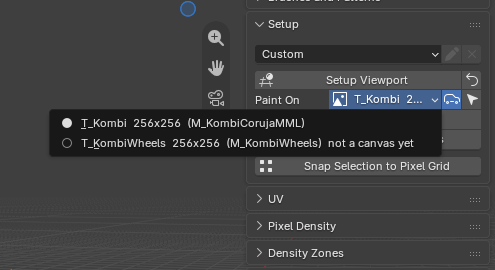
Select one and the tools paint on that texture (a plain one becomes a canvas on the spot). Only the faces whose material carries it take a stroke.
Auto-select Textures(the toggle beside the dropdown, on): painting or selecting on a face in the 3D Viewport switches to the texture that face uses, and a plain one becomes a canvas with that click. Off, only the dropdown changes it.The arrow button beside it:
Show in Image Editorfrom the 3D Viewport,Show in 3D Viewportfrom the Image Editor.
Note
The eyedropper never switches the texture, and never makes a canvas.
How the canvas is saved
You don’t have to do anything: every time you save the .blend, the layers and the canvas are saved inside it. A .blend with a canvas is self contained, you can move it to another computer and the art comes with it.
A canvas from the wizard has no file on disk. To get a PNG:
Image > Save Asin the Image Editor (from then on the file is kept up to date on every save),Export PNGper layer (see Layers), or a game engine integration (see Game Engines).A canvas made from a texture file keeps its file: after you paint, every .blend save also writes the texture file, in its own format (PNG, 16 bit PNG, JPEG, Targa, OpenEXR, BMP, TIFF, WebP and the others Blender can write).
Undo past the first stroke and the file is given back as it was before Pixel Art Studio wrote it (unless something else wrote it since, then it’s left alone).
A file Blender can’t write back (a Photoshop PSD, for example) is left untouched on disk, and
Setupsays so. The canvas is still saved inside the .blend.A canvas linked from another .blend is never written by this file (see Layers).
When the texture changes outside the layers
Do you edit the texture in another program too (Aseprite, Photoshop)? Turn on the watch and Blender asks what to do with the changes, instead of painting your layers over them.
Others panel:
Watch for external file changes(off): checks the canvas file every few seconds (Every2seconds). It also catches changes made inside Blender behind the layers (Image > Reload, Blender’s own Texture Paint).Even with the watch off, an
Image > Reloadof a canvas still asks, and switches the watch on.
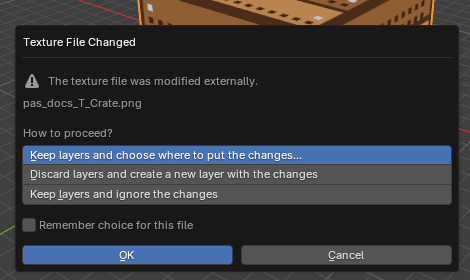
The first question, Texture File Changed:
Keep layers and choose where to put the changes...(default): asks where they go, next.Discard layers and create a new layer with the changes: the whole stack becomes oneLayer 1with the file in it.Keep layers and ignore the changes: your layers are painted back over the file.
Then, Reloaded Texture:
As a new layer on top(default): the file comes in as aReloadedlayer above everything, nothing you painted is touched.Replace the bottom layer.Replace the active layer.
Both have Remember choice for this file, which answers the same way every time this texture changes, without asking. The Others panel shows the remembered answer, and Reset makes it ask again.
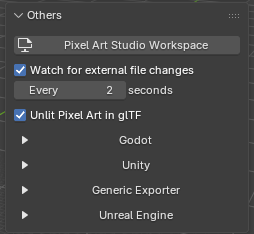
Each answer is one undo step. Closing the dialog keeps the layers as they are.
No tool paints while a question is open.
Resized the texture in the other program? Only
Discard layers and create a new layer with the changesworks then, the layers can’t be kept at the old size.
Questions when a file opens
Files from older versions of the add-on can open with one of these (the current version packs every canvas into the .blend, so they show at most once):
Texture File Missing: the canvas’ file is gone, but its layers are still in the .blend.OKrebuilds the canvas from them and packs it. Closed it?Layerssays the file is gone, with aRebuild From Its Layersbutton.CONFLICT: Texture Image File (Canvas) and Layers Contents: the texture file and the layers saved with it are different (another .blend or program wrote the PNG). Keep the texture as a layer, make it the only layer, or keep the layers and paint them over it.