Quick Setup and Try Pixel Densities
Try pixel sizes on the model, live, before anything is made or changed, then make the texture (Quick Setup) or give a model that already has a texture its new pixel size (Try Pixel Densities). Nothing is made or changed until you click Create Texture or Apply New Density, and each of them is one Ctrl+Z.
Both are the same mode: Quick Setup for a model with no texture, Try Pixel Densities for a model that has one.
Opening it
The big
Setupbutton, at the top of thePixel Art Studiopanel, between the help buttons and the tools. It shows while the selected object is a mesh with no texture of its own (in the 3D Viewport and in the Image Editor; from the Image Editor it opens over the biggest 3D Viewport of the window).A click on the model with any tool, on a mesh with no texture.
Try Pixel Densities, at the top of thePixel Densitypanel (3D Viewport), for a mesh with a texture. Greyed out, with the reason in its tooltip, when that texture can never be painted (a sequence, a movie, a file that’s gone).The eye beside
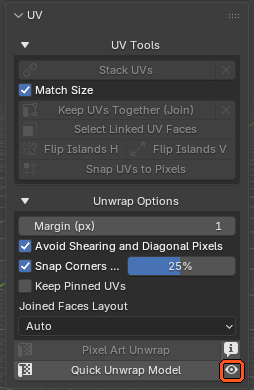
Quick Unwrap Model(UVpanel, 3D Viewport): opens onPreview UVs: Quick Unwrap, to try new UVs without changing your model and texture (see Preview UVs: Quick Unwrap or The Model UVs).
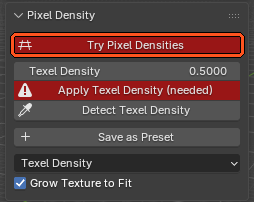
When the model’s pixel size isn’t the scene’s (you picked another preset after setting it up), Try Pixel Densities turns red, in its usual place at the top of the Pixel Density panel, so you know the model and the scene disagree. A model Pixel Art Studio never measured (a textured model you just opened) doesn’t turn it red.
What happens when it opens
Every armed tool is put away, and no tool can be armed until you leave (
Leave Quick Setup to use the tools).The 3D Viewport is maximized (Blender’s own Ctrl+Space) and cleaned up: the toolbar, the floor grid, the axes, the 3D cursor and the other overlays hide, X-Ray goes off and Wireframe shading goes to Solid. The model is framed in the middle.
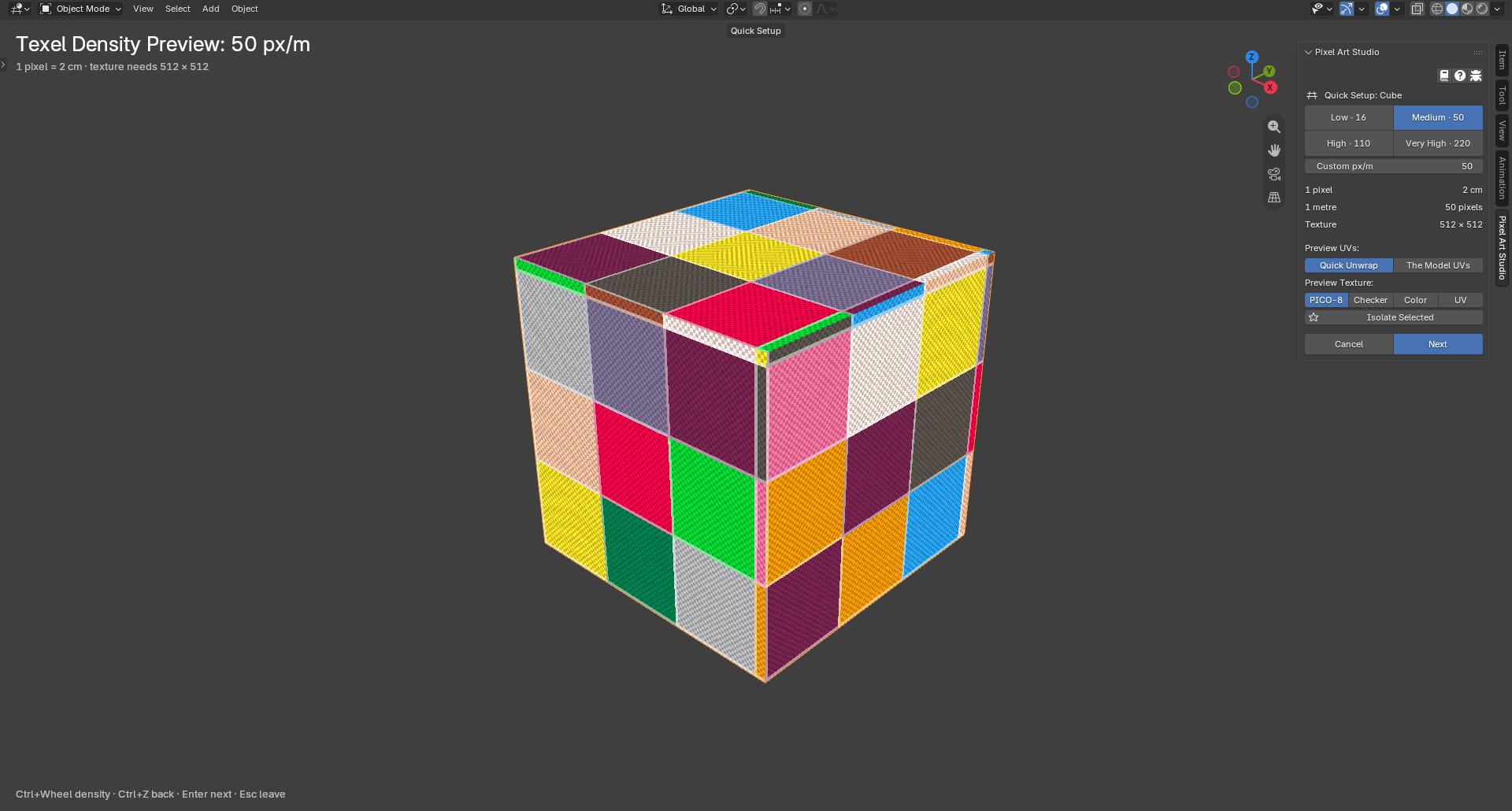
The grid is drawn on the model at the density you’re trying, one cell per pixel, and it follows the model as you orbit and zoom. Nothing is written into the model or the file: it’s only drawn.
The text at the top left says the density (
Texel Density Preview: 50 px/m), what one pixel is (1 pixel = 2 cm) and the texture size it needs. The keys are listed at the bottom.The sidebar becomes the mode’s panel, and the other Pixel Art Studio panels hide until you leave.
Navigation stays Blender’s: orbit, pan, zoom, the numpad views, the navigation gizmo and the trackpad all work as always.
Nothing goes into Blender’s undo history while you try.
Step 1: select a pixel size
From the top:
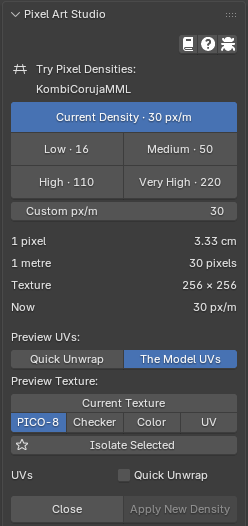
Current Density(Try Pixel Densitiesonly): back to the density the model has now, for exampleCurrent Density · 30 px/m.The presets:
Low · 16,Medium · 50,High · 110,Very High · 220, then your own presets (see Pixel density presets). Hover one for what one pixel is at that density.Custom px/m: type your own density.The numbers:
1 pixel(its size on the model),1 metre(how many pixels),Texture(the size the model needs at this density; red, withThis model needs more than that at this density, past 2048).Try Pixel Densitiesalso saysNow, the density the model has.Preview UVs:Quick UnwraporThe Model UVs(see Preview UVs: Quick Unwrap or The Model UVs).Preview Texture:Current Texture(Try Pixel Densitiesonly, see Current Texture), then the grid:PICO-8,Checker,Color,UV.Isolate Selected: shows only the selected objects, the model and the lights (Blender’s own Local View). Click it again, or press Numpad /, to show everything again.Quick Unwrapbox (Try Pixel Densitiesonly, underUVs).CancelandNext(Quick Setup), orCloseandApply New Density(Try Pixel Densities).
Keys while it’s open (everything else is Blender’s):
Key |
What it does |
|---|---|
Ctrl+Wheel |
The next preset up or down. |
Ctrl+Z, Ctrl+Shift+Z |
Back and forward through the densities you tried (Blender’s undo history is never touched). |
Enter |
|
Esc |
Leave with nothing made. In step 2, back to step 1. |
Numpad / or / |
|
Preview UVs: Quick Unwrap or The Model UVs
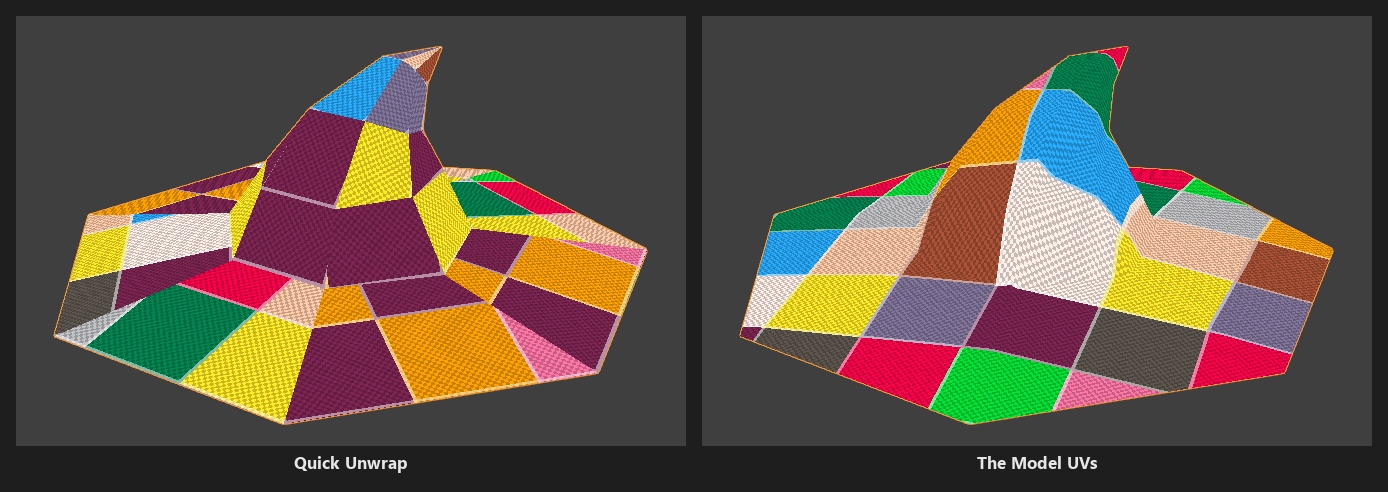
Quick Unwrap: the UVsQuick Unwrap Modelwould give the model, every face flat at the pixel size, joined faces in one piece, stacked faces on one spot, each density zone at its own pixel size (see UV Tools). What you see is whatCreate TextureandApply New Densitylay out, and the texture size follows that layout.The Model UVs: the grid through the UVs the model already has, at the size they get when they’re kept. Stretched pixels show right away (above: the hat’s UVs projected from a bad angle). Greyed out for a model with no UVs.
Picking The Model UVs unticks the Quick Unwrap box, picking Quick Unwrap ticks it.
Note
A model whose modifiers change its faces (a Subdivision, a Mirror that mirrors the UVs) is previewed face by face, and the text at the top left says so.
Step 2: create the texture
Quick Setup only. Click Next (or Enter):
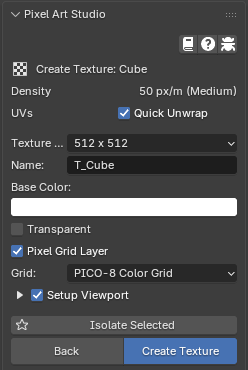
Density: the one you picked,50 px/m (Medium).UVs: theQuick Unwrapbox.Ticked (default): the model gets new UVs at that pixel size, the ones the preview showed.
Unticked: the model keeps its own UVs, scaled to the pixel size and snapped on whole pixels.
Held ticked (greyed) for a model with no UVs.
Texture Size: opens on the size the model needs. A smaller one shows a red line (Cube needs 512px at 50 px/m).Name(T_and the model’s name),Base Color,Transparent,Pixel Grid LayerandGrid(on the grid you previewed): the same as the canvas wizard (see Setup Pixel Art Canvas).Setup Viewport: runs it too, with the parts ticked under the arrow (see Setup Viewport).BackandCreate Texture.
Create Texture leaves the mode and makes everything as one undo step: the texture with its layers, the unlit material, the UVs, the scene’s density and the viewport. The status bar says T_Cube ready (512x512) at 50 px/m.
Try Pixel Densities
For a model that already has a texture, painted or not.
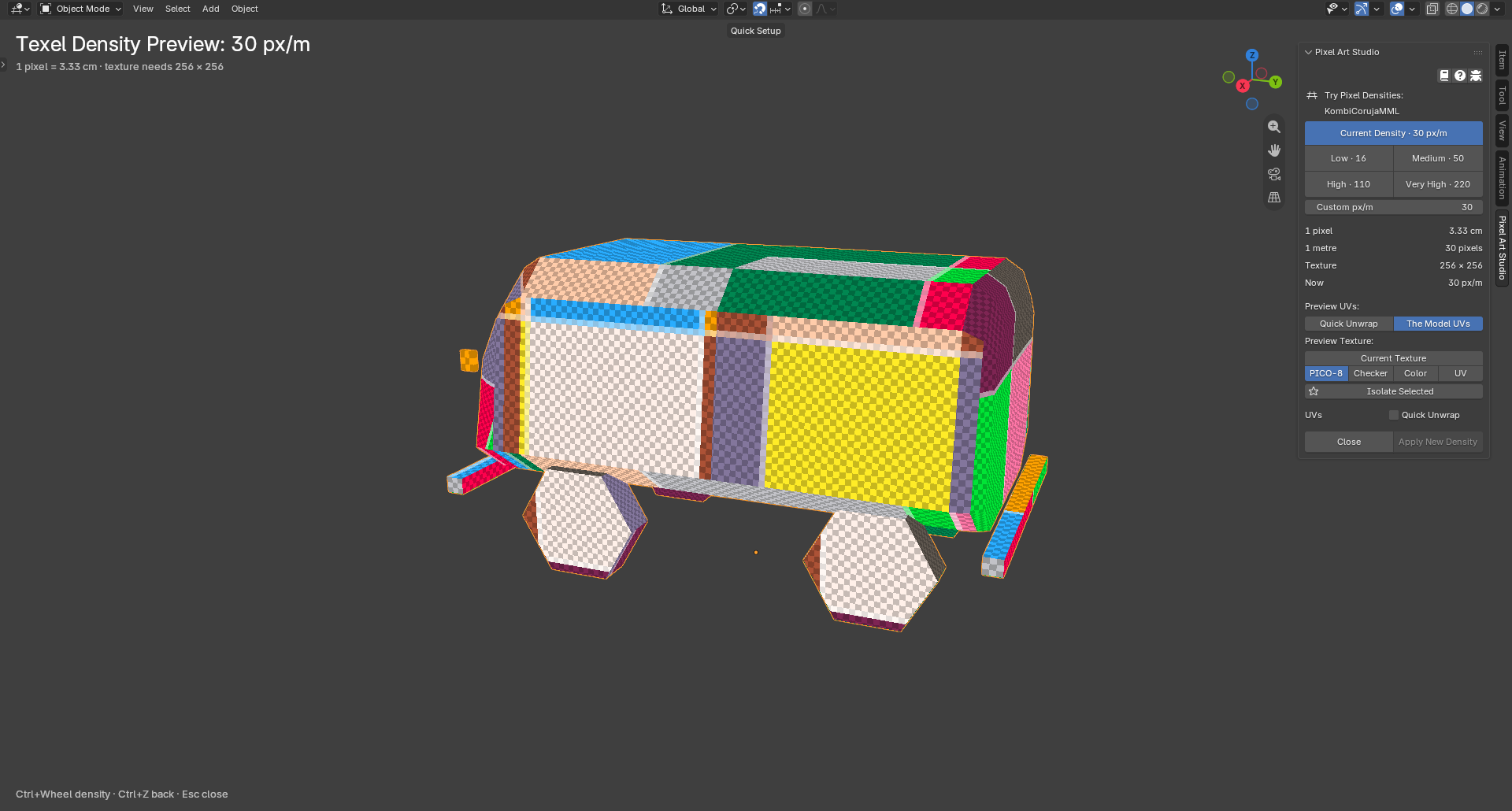
It opens on the model’s own density (
Current Densitypressed), onThe Model UVs, with theQuick Unwrapbox unticked.Apply New Densityis live once the density you try gives the model another pixel size, or with theQuick Unwrapbox ticked (new UVs, even at the pixel size it has).
Current Texture
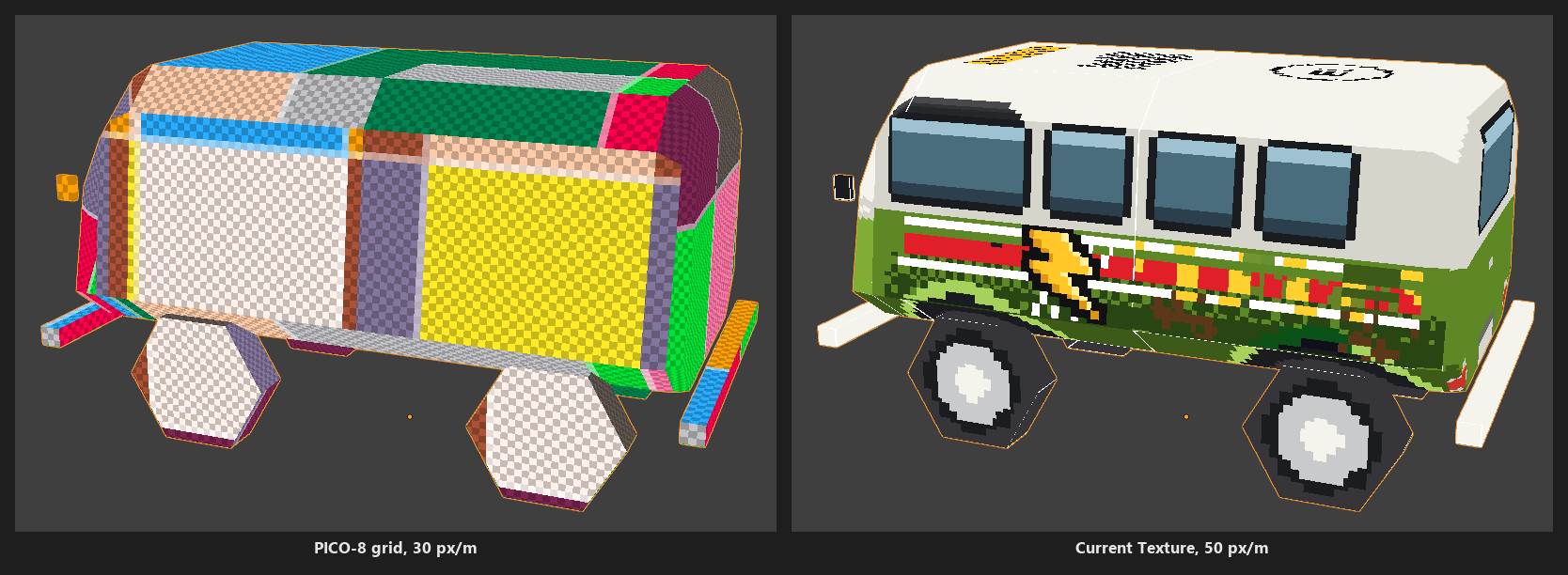
Preview Texture: Current Texture shows the model’s own texture at the density you try, the way Keep my painting would scale it:
Up by a whole ratio (2 times, 3 times): every pixel is repeated.
Down by a whole ratio: each new pixel takes the most common color of the pixels it covers.
Any other ratio: each new pixel takes the color of the pixel under its middle.
A pixel grid layer nobody painted on is drawn again at the new pixel size.
Apply New Density
Nothing painted on the texture: applied right away.
Painted: it asks first. A texture that came with the model counts as painted.
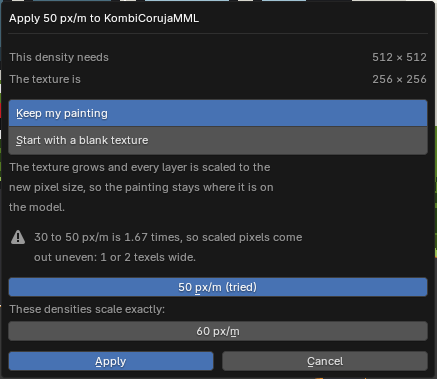
This density needsandThe texture is: the sizes before and after.Keep my painting: the painting stays where it is on the model, every layer scaled to the new pixel size (and the texture grows when it needs to). With theQuick Unwrapbox ticked, the model gets new UVs and every layer is carried onto them.Start with a blank texture: the same texture, with the same name and file, emptied and resized.Shrink texture to fit(going down only): makes the texture as small as the new density needs. Off, it keeps its size.Not a whole ratio (30 to 50 px/m is 1.67 times): the scaled pixels come out uneven, and it says so.
These densities scale exactly:offers the nearest densities that don’t (60 px/m, 2 times, above).One Ctrl+Z brings everything back. On a texture that wasn’t painted with Pixel Art Studio yet, it’s two: the apply, then the canvas (see Painting a texture the model already has).
When something stops it, nothing changes and a popup says why (Nothing was applied), before the question shows: the model is in Edit Mode, the texture comes from another file, keeping the painting needs a texture bigger than 4096, and so on.
Note
Going to a density that isn’t a whole number of pixels per Blender unit with new UVs (63.6 px/m, for example), the new UVs land on whole pixels: 64 px/m. The question, the report and the model all say 64.
Trying the other parts of a model
Click another mesh while the mode is open (in the 3D Viewport or the Outliner) and it becomes the model, at the same density, so you can compare the parts of a model at one pixel size:
A mesh with a texture opens in
Try Pixel Densities, a mesh with none inQuick Setup’s step 1.An Armature, an Empty or a linked mesh can’t be the model: the last one stays (you can still select the rig).
Create TextureandApply New Densitymake the model the active object first.
Leaving
Cancel, Close, Esc, Create Texture or Apply New Density: the view is put back exactly as it was. It also ends, putting everything back, on Blender’s own Ctrl+Space or Back to Previous, closing the sidebar, another editor or workspace, opening a file, or Blender’s undo. Ctrl+S saves with no trace of the mode, and the mode stays open.
The same question from Apply Texel Density and Setup Viewport
Apply Texel Density and Setup Viewport never rescale a painted texture without asking: when the scene’s density would move the faces of a painted texture, they ask the same Keep my painting / Start with a blank texture question (one undo step for the answer). Other meshes are laid out as usual, and the report says which texture was left alone.
Remove Unused Textures
Tried a few densities and made a texture each time? Remove Unused Textures (Setup panel) lists the textures a setup made that nothing uses any more (no material samples them and no Image Editor shows them), and removes them with their layers, grid and material, as one undo step.
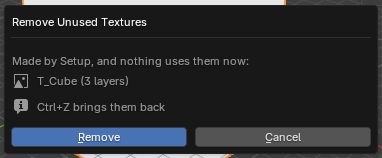
Only textures made by
Setup Pixel Art CanvasorCreate Textureare listed, never one you made yourself or one that came with a model.No unused textureswhen there’s nothing to remove.
Good to know
Quick Setup always lays the UVs at the density you try, even when the unwrap density in
Pixel DensityisFit Texture. The otherUnwrap Options(margin, density zones, pixel aspect, the joined faces layout) are followed.Density zones:
Try Pixel Densitiesscales every zone by the new density over the model’s own, exactly asApply New Densitydoes.Quick Setupkeeps the zones as they are, and only faces in no zone take the density you try (see Density Zones).Blender 3.6 and 4.0: the sidebar can’t be brought to the
Pixel Art Studiotab by itself, so the text at the top left says where the controls are.Disabling the add-on while a visit waits on another workspace leaves that view as it was during the visit: Ctrl+Space puts it back.