A Model That Already Has a Texture
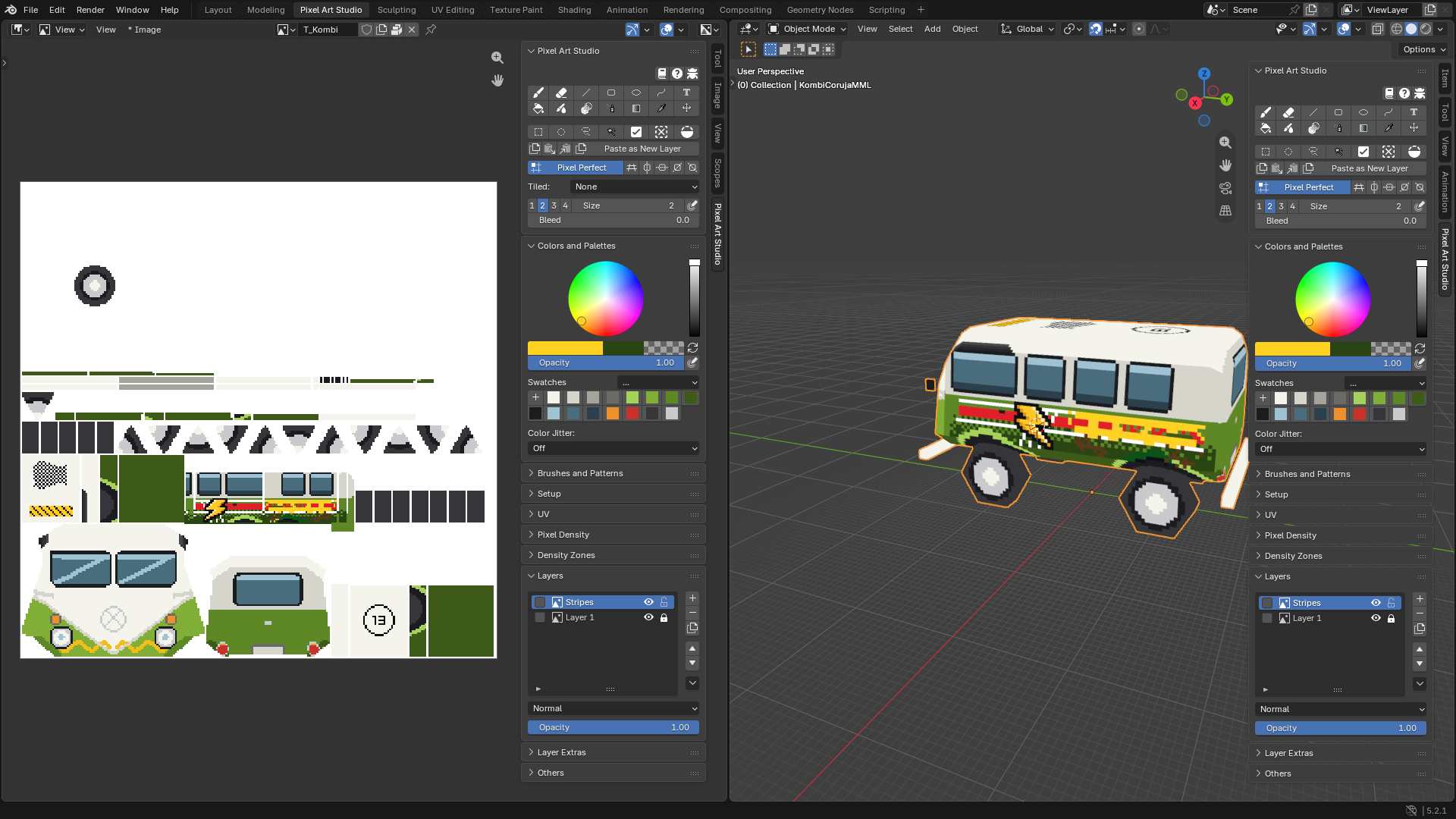
Let’s take a model that already has UVs and a texture (made by you, or by somebody else, in any program) and paint on top of it with Pixel Art Studio, without losing the original art. There’s nothing to set up: click a tool and paint. The tools work from the model’s UVs and the texture’s own texels, so they line up with the pixels you already have.
Warning
When you save the .blend after painting, the canvas is packed inside it and the texture file on disk is written with the painted result (in its own format). Keep a copy of the original file if you want to go back to it.
1. Open the model
Open the
.blendfile with the model (or import the model into a new file).Click the
Pixel Art Studioworkspace tab at the top of the window: the texture on the left, the model on the right.Select the model in the 3D Viewport.
2. Add a layer for your paint
In
Layers, click+(Add Layer). Before your first action the panel shows the texture as the one layer it’s going to be (T_Kombiabove): the first action, a click on+here, turns the texture intoLayer 1of a layer stack, exactly as it was, and the new layer goes above it as the active one.Double-click the new layer’s name to rename it.
Click the padlock of
Layer 1: the original art can’t be touched by accident.
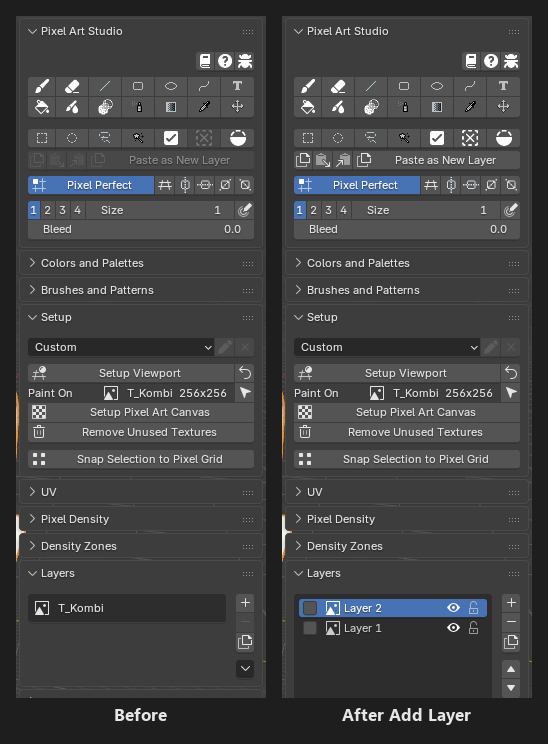
Your material, your UVs and the texture size are kept as they are. Only the texture’s interpolation is set to Closest, so the pixels stay crisp. If the material has other textures (a normal map, a roughness map), they are left alone: Pixel Art Studio paints the color texture.
That’s all the setup painting needs: no pixel density, no Setup Viewport, no density zones. Ctrl+Z takes the new layer back, and a second Ctrl+Z gives you the texture back exactly as it was.
Note
A mesh with several color textures (the body and the windows on separate materials, for example)? Paint On, in Setup, lists them all: select the one you paint on. A click on a face in the 3D Viewport paints that face’s texture.
Note
The texture can’t be painted? Layers says why: the image is a sequence, a movie, a UDIM or a render result, it comes from another .blend file (linked), or Blender can’t find its file. Fix the image path (File > External Data > Find Missing Files), or give the model a new texture with Quick Setup (see Quickstart Tutorial).
3. Paint on top
Arm the
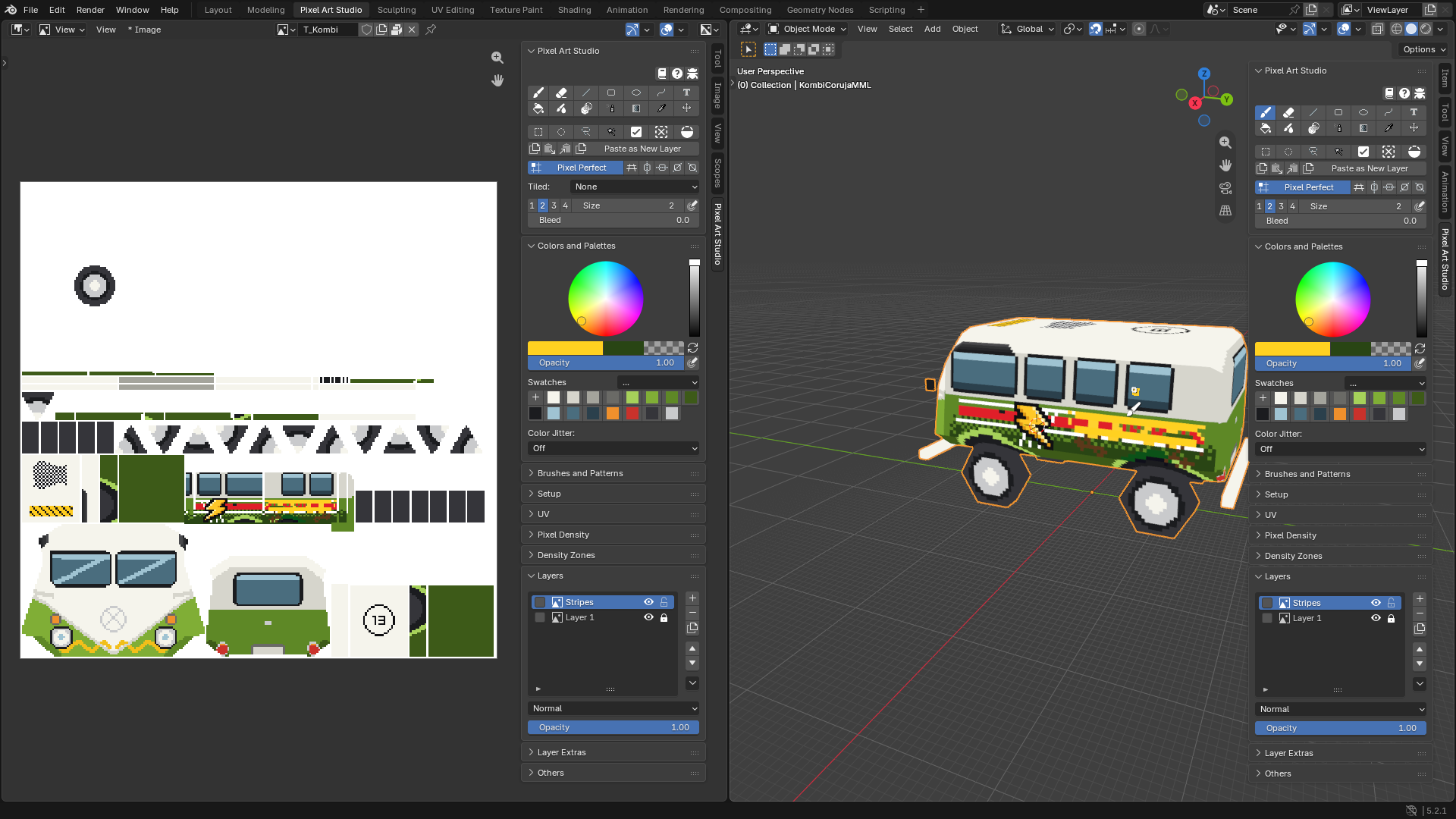
Brushand sample colors straight from the art with Alt+click, so the new paint matches the palette.Paint. The original art stays as it was on
Layer 1: hide your layer (its eye) to compare, lower itsOpacity, or erase without fear.
Tip
Press \ (with a tool armed) to toggle the pixel grid over the model, to see where each pixel of the texture is.
Tip
You don’t have to add a layer first: a stroke right away paints on the texture itself (Layer 1).
4. Save
Press Ctrl+S. The layers are saved inside the
.blend, and the texture file is written with the painted result, in its own format (PNG, JPEG, TGA and others).A format Blender can’t write back (a Photoshop PSD, for example) is left untouched on disk, and a warning in
Setupsays so. Your painting is still saved inside the.blend.Still editing the texture in another program too (Aseprite, for example)? Tick
Watch for external file changesin theOtherspanel, and Blender asks how to bring the changes into your layers. See Setup and Canvas.
Optional: other pixel sizes or new UVs with Pixel Art Studio
Only if you want to change the model’s pixel size, give it new UVs, or model more on it, with Pixel Art Studio. For painting, skip this whole part.
Other pixel sizes, new UVs: Try Pixel Densities (Pixel Density panel) shows other pixel sizes on the model, live, and Current Texture shows your texture at each of them. Apply New Density keeps your painting, scaled to the new pixel size; tick Quick Unwrap and the model gets new UVs, with every layer carried onto them. The eye beside Quick Unwrap Model (UV panel) opens it on new UVs right away. See Quick Setup and Try Pixel Densities.
One pixel size: Detect Texel Density (Pixel Density panel) makes the pixel size the model already uses the scene’s, so new models and UVs (Pixel Art Unwrap, Quick Unwrap Model, Apply Texel Density, Add 1m Cube, Quick Setup) match the pixels you already have. See Detect Texel Density.
Several pixel sizes (a character’s head drawn with finer pixels than the body, which is common in PS1 era models):
Expand
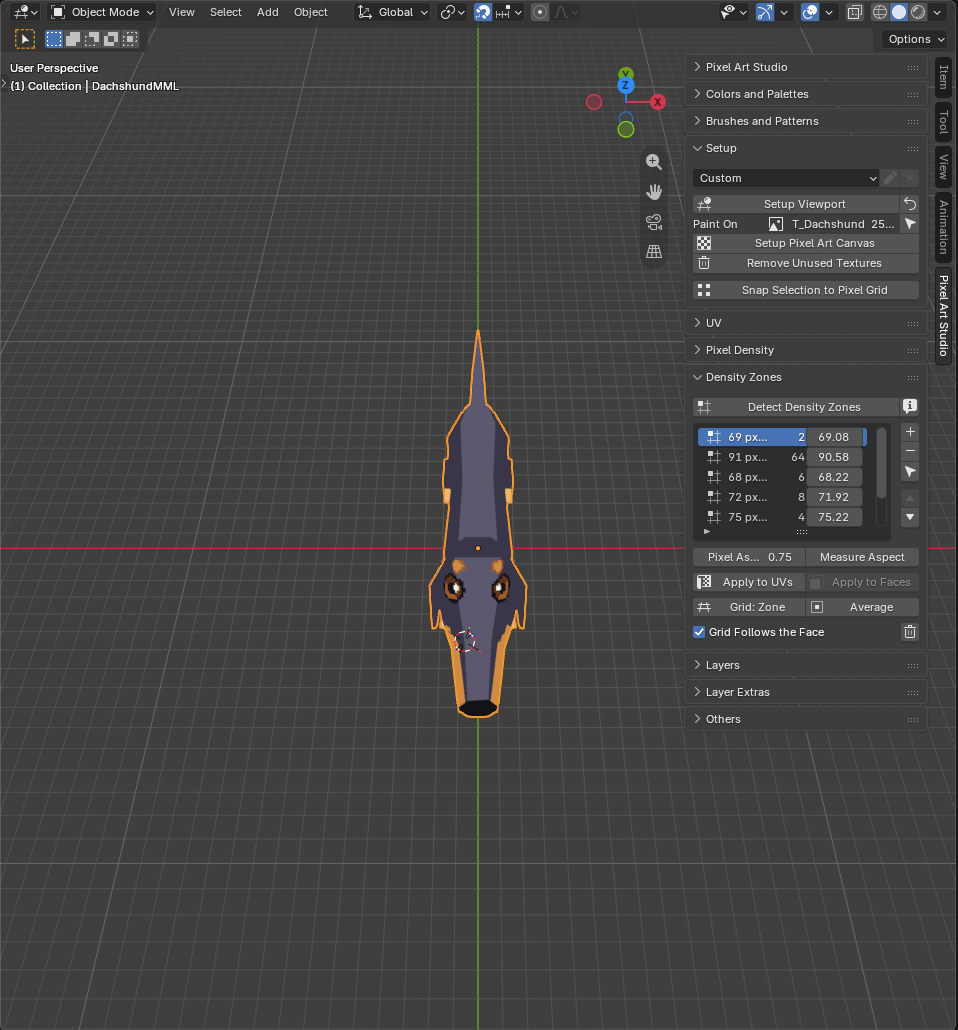
Density Zonesand clickDetect Density Zones. The status bar says how many zones it found and the range of pixel densities.One zone: the model has one pixel size after all. Click the trash button (
Clear Zones) andOK, and useDetect Texel Densityinstead.Several zones: keep them. Double-click a zone’s name to rename it (
Head,Body…).
Click
Averageunder the zone list: the viewport is set up, with the grid on the model’s average pixel size.
Note
Once the model has zones, Blender’s grid follows the pixel size of the face under the brush while you paint in the 3D Viewport (Grid Follows the Face, on by default). Want to keep your own grid? Skip the zones, or untick Grid Follows the Face (or the preference Automatically configure grid and grid units). See Density Zones.
The grid: Setup Viewport puts Blender’s grid on the pixel size (one grid square per pixel), for modelling and unwrapping on it. It changes the scene, see Setup Viewport for the whole list, and the loop icon beside it (Restore Viewport) puts it all back.
Where to go next
Change the pixel size of the model, or match the pixel size of other models: Pixel Density.
Manage and create zones: Density Zones.
Layers, blend modes, masks and adjustments: Layers.
Send the model to Godot, Unity or Unreal Engine on every save: Game Engines.