Multiple Pixel Sizes on One Model
Let’s give the dachshund’s head twice the density of its body: smaller and more pixels on the head, for the eyes and the snout, and chunky pixels on the body. One model, two pixel sizes, with Density Zones.
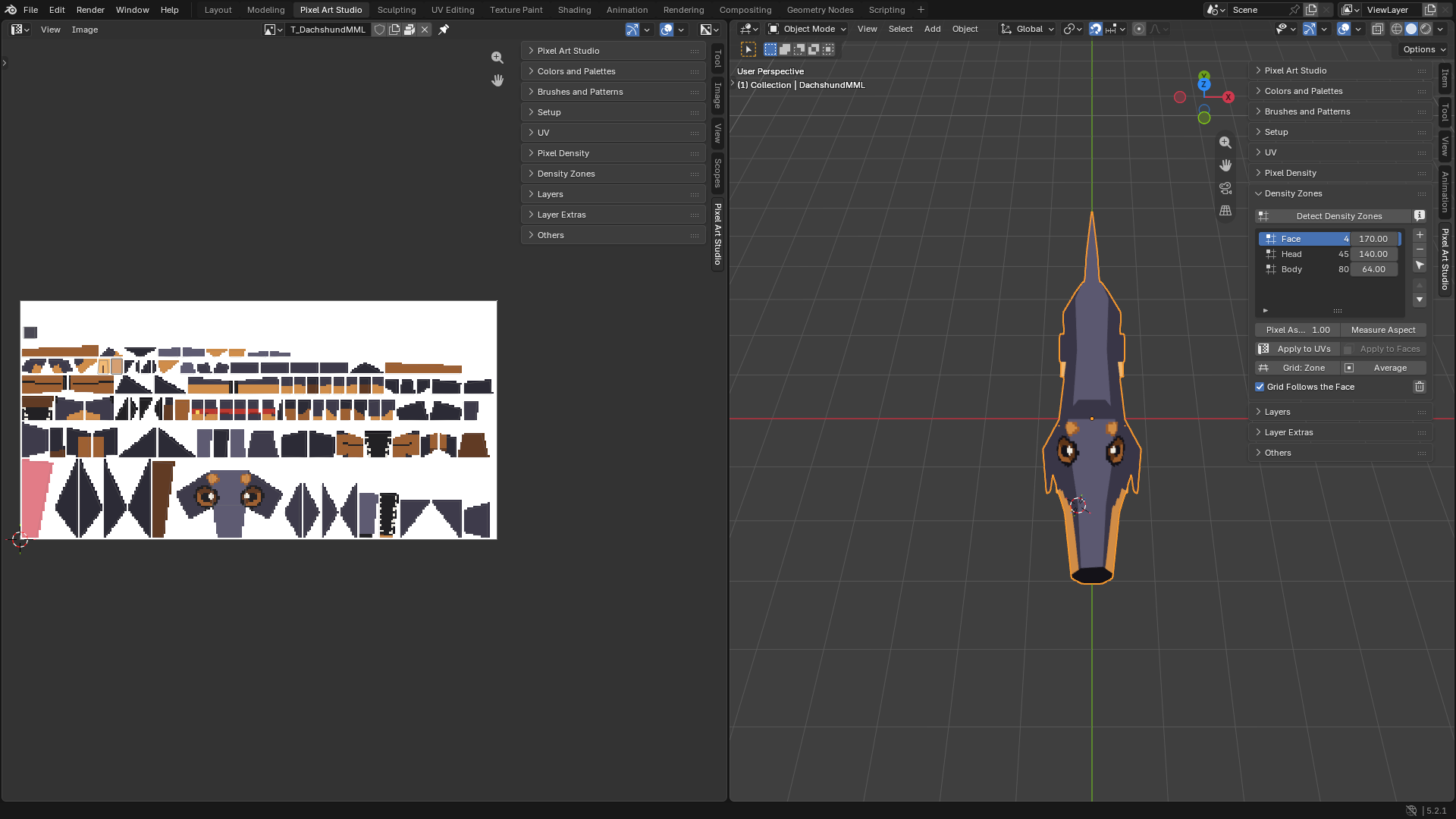
A finished model: sections 1 to 4, the dachshund.
A model you’re still building: section 5, try pixel sizes face by face with
Apply to Faceswhile you model.
Before you start
You need the model with a canvas, at one pixel size, unwrapped by Pixel Art Studio (see Your First Model: a Crate and UVs Without the UV Editor). This tutorial uses Medium Density (50px/m), so the head goes to 100 px/m.
Warning
Set the zones up before you paint: the unwrap at the end gives the faces new places in the texture, and the pixels you already painted stay where they were.
1. Measure the model
Let’s select the dachshund and open the
Density Zonespanel in the sidebar (N, tabPixel Art Studio).Click
Detect Density Zones.
The model is at one pixel size, so you get one zone, 50 px/m, with the faces in it. The preset in Setup reads Custom now (same density, the model just has zones of its own).
2. Make a zone for the head
Press Tab for Edit Mode and select the faces of the head.
Click
+beside the list (Zone from Selection).
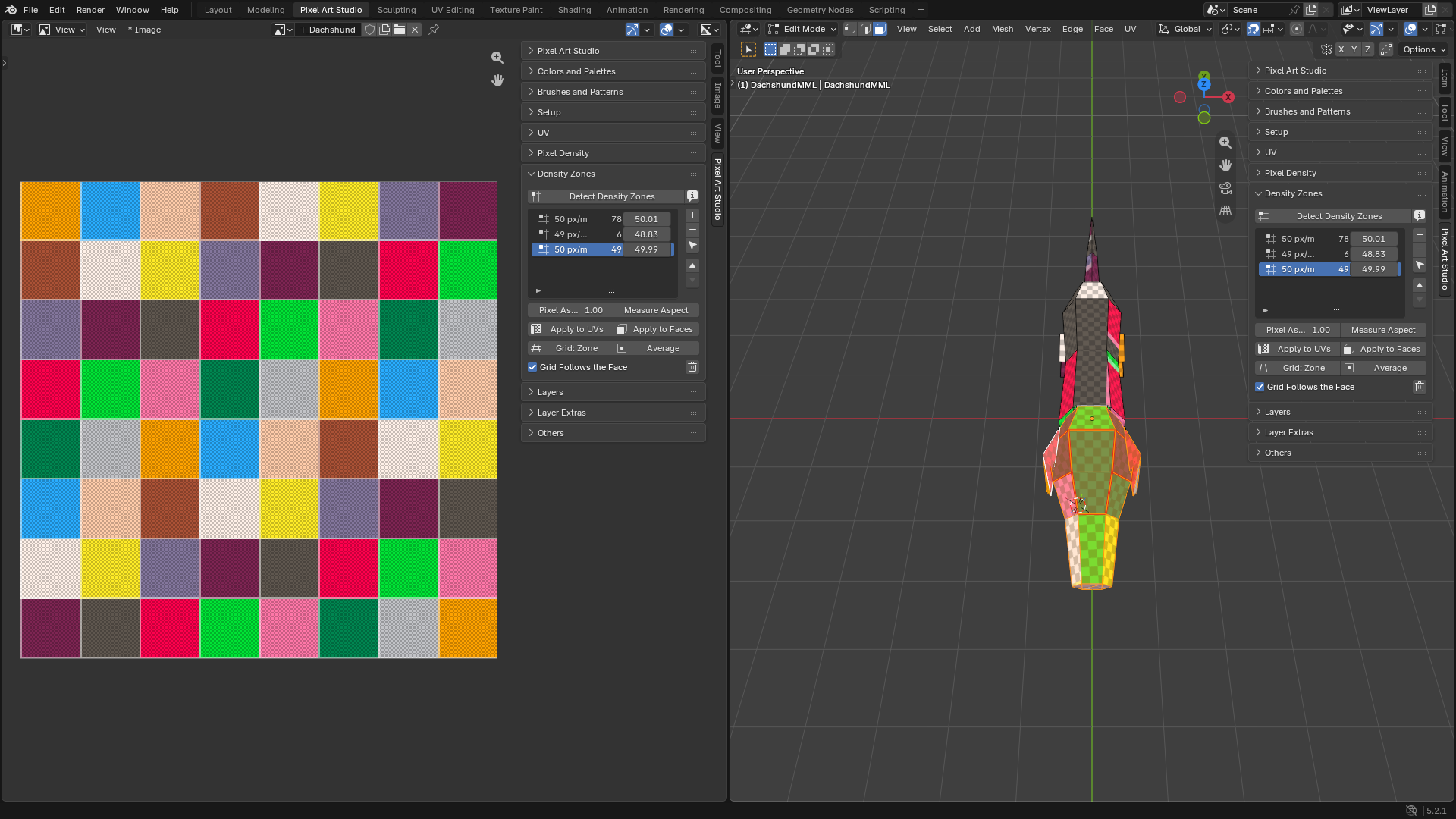
The head’s faces are in a zone of their own now, still at 50 px/m (the density they measure).
Double click the new zone’s
Densityand type100.Double click the names and rename them:
HeadandBody.
Nothing moved on the model yet: a zone’s density counts at the next unwrap.
3. Unwrap with the zones
Open the
UVpanel, thenUnwrap Options:Keep Density Zonesshows up now that the model has two zones, and it’s on.Click
Quick Unwrap Model.
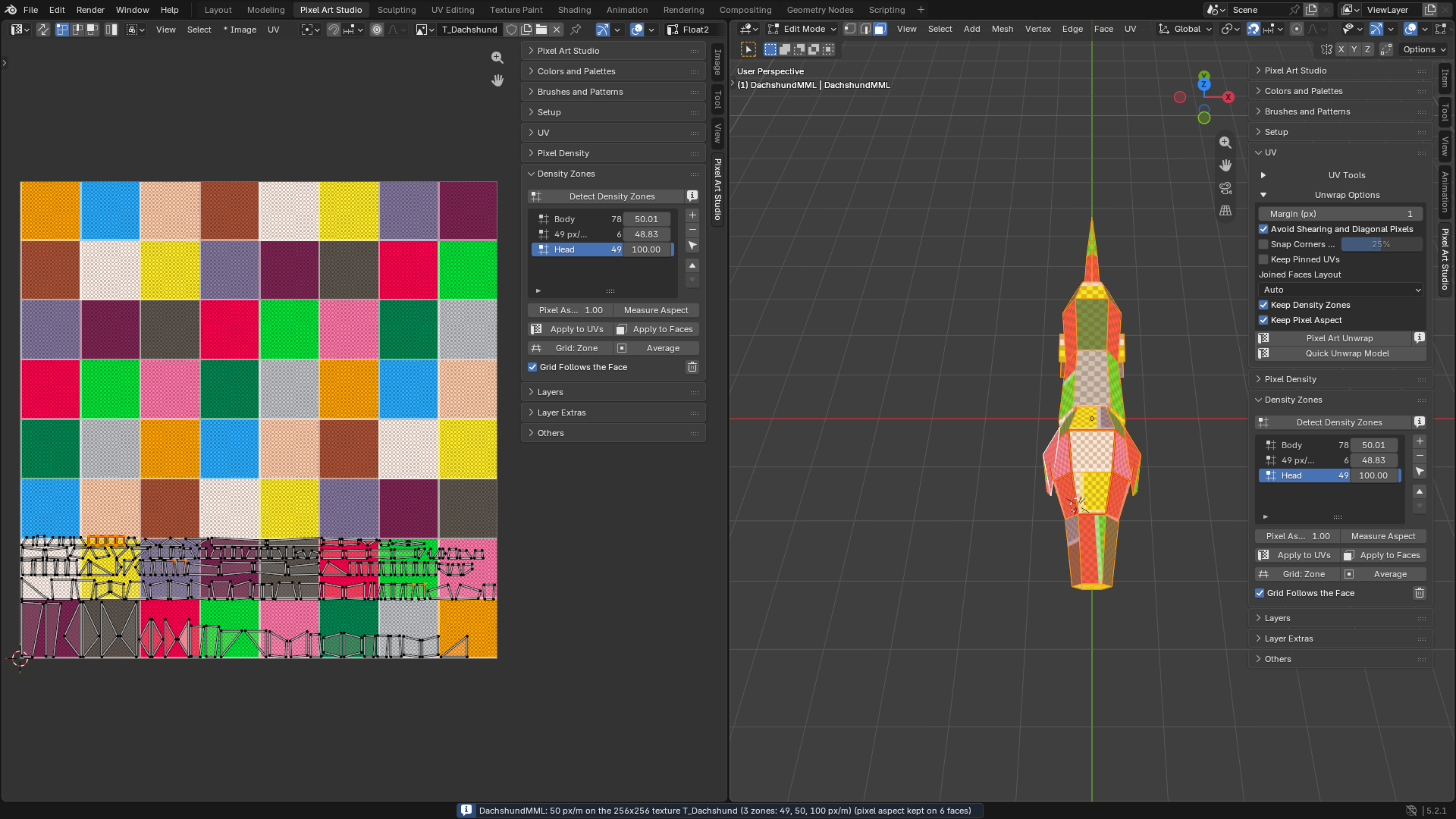
The report lists both:
(2 zones: 50, 100 px/m).The head takes four times the texels it had (twice across, twice up).
When the layout doesn’t fit the texture anymore,
Grow Texture to Fit(Pixel Densitypanel, on) grows the canvas.
Turn on the Pixel Grid overlay (\ while a tool is armed, see Pixel Grid overlay) to see the texels on the model: small squares on the head, big ones on the body.
4. Paint with the grid following the face
Arm the Brush in the 3D Viewport.
Hover the body, then the head.
Blender’s grid changes on the fly: one grid square is one pixel of the face under the pointer, on the body and on the head (Grid Follows the Face, on by default). Put the tool away and the grid goes back.
Now paint. The head takes the detail, the body stays chunky.
5. While you model: try pixel sizes with Apply to Faces
No need to finish the model first. While you’re still modeling, give any face its own pixel size, see it on the model right away, change your mind, and unwrap only at the end. Here with the cube from Add 1m Cube (Setup panel) at Low Density, big pixels (16px/m), with its canvas and the Pixel Art Canvas grid layer on, so you can count the pixels:
Press Tab for Edit Mode, 3 for face select, and click the top face.
In
Density Zones, clickDetect Density Zones(one zone, the cube’s 16 px/m), then+(Zone from Selection): a zone for the top face.Double click the new zone’s
Densityand type48.Click
Apply to Faces. The top face gets the new pixel size right away: pixels three times smaller than on the sides.
Not what you wanted? Type another
Densityand clickApply to Facesagain, or Ctrl+Z.Another face, another size: select it,
+, a density,Apply to Faces.Back to the size of the rest: select the face, pick the other zone in the list,
Apply to Faces.Faces you add later (an extrude, a loop cut): select them, pick their zone,
Apply to Faces.
When the model is done, click Quick Unwrap Model (Keep Density Zones on). Apply to Faces doesn’t repack, it only grows or shrinks the islands where they are, so a grown island can land on another one (Apply to Faces warns you when it does). The unwrap packs everything clean, every face at its zone’s pixel size.
Going further
Faces you add to the dachshund: the same as section 5, select them, pick their zone,
Apply to Faces, thenQuick Unwrap Model.Model a detail on the head’s grid: pick
Headand clickGrid: Zone. Pick your preset again inSetupwhen you’re done.More than two: as many zones as you want (the eyes at 200 px/m, for example).
Every button is explained in Density Zones.