Preferences
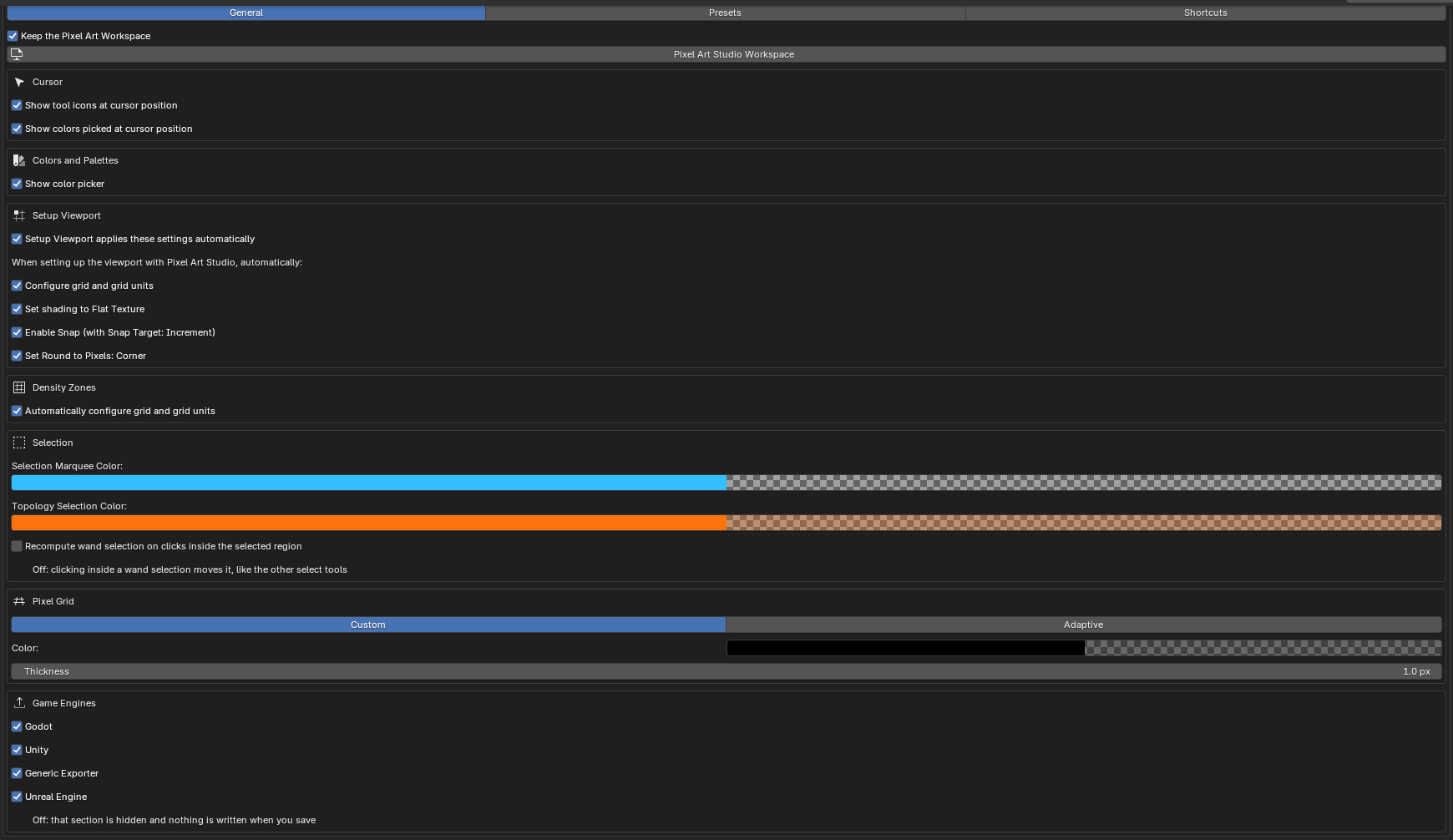
Pixel Art Studio’s preferences are in Edit > Preferences > Add-ons > Pixel Art Studio (expand the add-on’s entry). They’re split in three tabs: General, Presets and Shortcuts.
Everything here is global: the same in every .blend you open.
The
Generaltab and the shortcuts are saved like any Blender preference (with Blender’sAuto-Save Preferencesoff, clickSave Preferences).The
Presetslibraries are saved the moment you add or remove something.
General
At the top:
Keep the Pixel Art Workspace(on): every file you open gets thePixel Art Studioworkspace tab (the Image Editor on the left, the 3D Viewport on the right). Workspaces are saved inside the .blend, so without this the workspace is gone the next time you open Blender. Off, nothing is added when a file opens.Pixel Art Studio Workspace: takes you to the workspace, and builds it when the file has none (the same button is in the sidebar’sOtherspanel).
Cursor
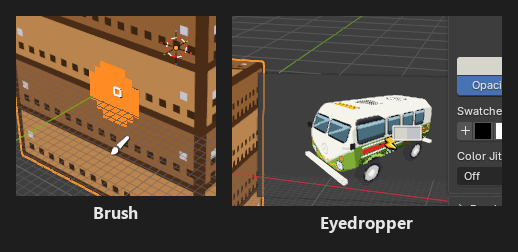
Show tool icons at cursor position(on): the armed tool’s icon is drawn under the pointer (and below the brush preview, so it never covers what you’re about to paint). Off, only Blender’s precision cursor is shown, and the selection tools also lose the+/-they show beside the pointer while adding or removing.Show colors sampled at cursor position(on): while sampling a color (theEyedropper, Alt+click or the hover eyedropper), the pointer becomes Blender’s eyedropper and the sampled color and the color it replaces are drawn beside it. Off, the eyedropper still samples, only the drawing goes.
Colors and Palettes
Show color picker(on): Blender’s color picker above the two colors inColors and Palettes. Its shape is Blender’s own setting,Preferences > Interface > Editors > Color Picker Type. See Colors and Palettes.
Setup Viewport
What Setup Viewport (Setup panel) does when you click it:
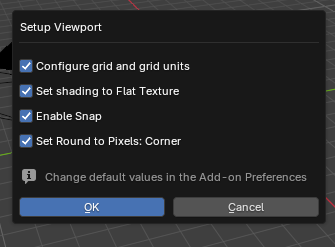
Setup Viewport applies these settings automatically(on): one click applies the ticked settings below. Off, the button asks first, with the same four checkboxes, so you can leave parts out for that one click (your answer is remembered until Blender restarts).Configure grid and grid units(on): turns the unit system off and sets the viewport grid to one grid square per texel, so you model on the grid the pixels sit on.Set shading to Flat Texture(on):Viewport Shading > Solid > Flat > Texture, in every 3D Viewport.Enable Snap (with Snap Target: Increment)(on): snapping on, to increments and absolute grid positions.Set Round to Pixels: Corner(on): the Image Editor’sRound to Pixelsset toCorner, so UVs you drag land on a texel corner, never in between pixels.
Note
Setup Viewport always sets Color Management’s view transform to Standard, whatever is ticked, so the colors on screen are the colors you painted.
Density Zones
Automatically configure grid and grid units(on): while you paint in 3D on a model with density zones, the viewport grid follows the density of the face under the cursor. Off, the grid stays whereSetup Viewportleft it. The model’s ownGrid Follows the Facehas to be on too, see Density Zones.
Selection
Selection Marquee Color(light blue, with its alpha at 0): the color washed over the selected texels, and how strongly (the alpha). At 0 there’s no wash and the marching ants alone show the selection. Raise the alpha to tint selections.Topology Selection Color(orange, alpha 0.3): the same for a selection that matches the topology (3D Viewport only). It’s a different color on purpose, that selection is tied to the geometry and can’t be moved.Clear selection when Pixel Art Studio is de-activated(on): putting the last tool away deselects the pixels, so the marching ants don’t stay on the texture (with the tool button, the activator, Esc, or by closing the sidebar or picking another of its tabs). One Ctrl+Z brings the selection back. With tools armed in both editors, the selection goes when the second one is put away. Off, the selection stays until you deselect it.Recompute wand selection on clicks inside the selected region(off): on, clicking inside aMagic Wandselection samples the region again (how you re-apply a tolerance change). Off, a click inside a wand selection moves it, like the other select tools.
Neither color is ever saved into the texture. See Selection and Transform.
Pixel Grid
How the Pixel Grid overlay looks, in the Image Editor and on the model (see Symmetry, Tiled Mode and Pixel Grid):
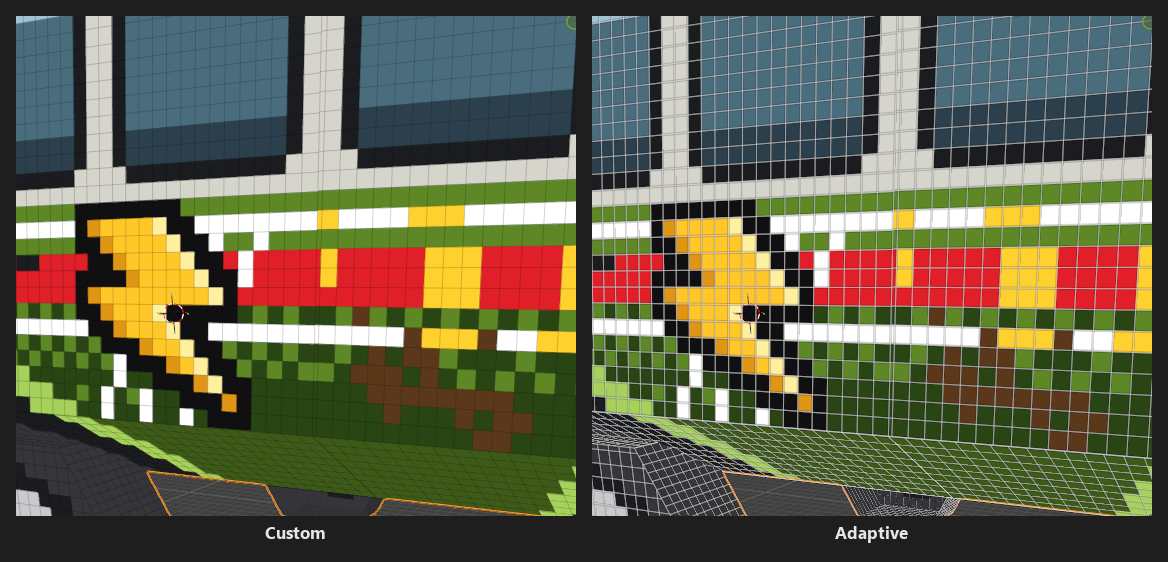
Custom|Adaptive(Customby default):Custom: the grid is drawn in theColorbelow, at its opacity.Adaptive: a light line with a dark halo under it, so the grid reads over dark art and light art alike. It only uses the opacity ofColor(the row is greyed out whileAdaptiveis picked).
Color: black at 35% opacity by default.Thickness: 1 to 8 pixels, 1 by default.
Tip
To change the opacity of Adaptive, switch to Custom, change the alpha of Color and switch back.
Game Engines
Godot,Unity,Generic ExporterandUnreal Engine(all on): off, that section is hidden from theOtherspanel and nothing is written for it when you save. The .blend keeps its settings, so ticking it again brings the integration back. See Game Engines.
Not in this tab: the two Always Highlight checkboxes at the top of the Stacked Faces and Joined Faces (UVs Together) lists (UV panel) are preferences too, the same in every file. See UV Tools.
Presets
Your own libraries, the ones that follow you into every file.
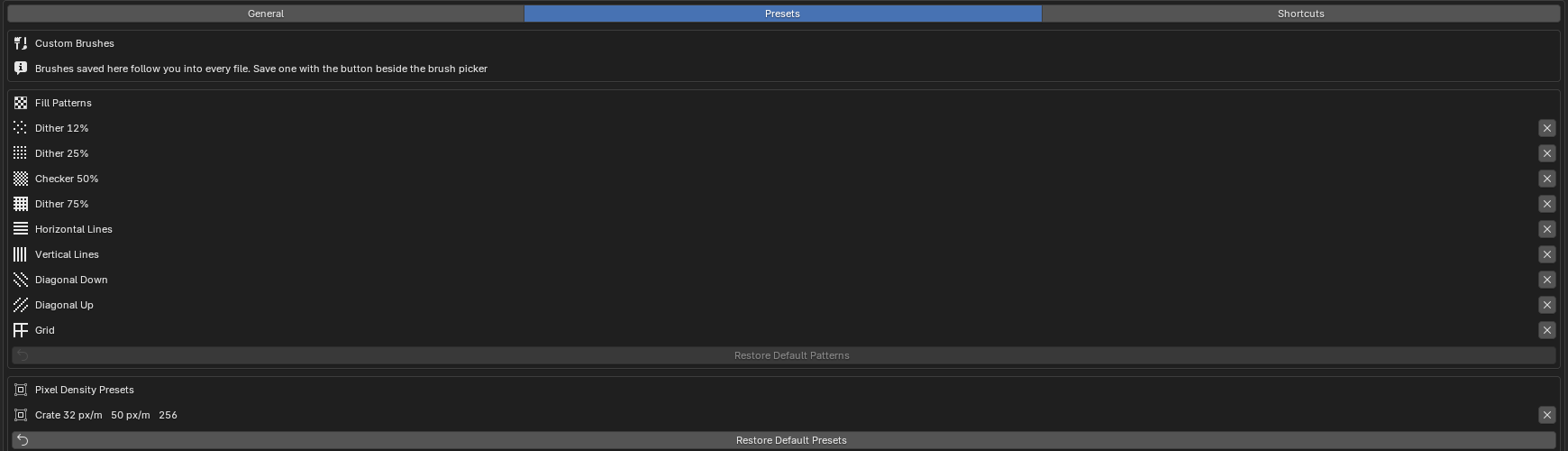
Custom Brushes: the brushes you saved to the preferences (name and size). Save one with the button beside the brush picker inBrushes and Patterns(see Brushes and Patterns).Pixel Density Presets: your own density presets (name, px/m and texture size). Make one withSave as Presetin thePixel Densitypanel (see Pixel Density).Xremoves one (it asks first). A scene that was on it goes toCustom, and its density doesn’t change.Restore Default Presets: removes every saved preset, leaving the ones the add-on ships with.
Fill Patterns: the built in patterns and the ones you saved.Xon a built in pattern hides it from the pattern menu,Xon one of yours removes it from the library.Restore Default Patterns: shows every built in pattern again and removes the ones you saved (it asks first).
Note
Removing a brush or a pattern from the library doesn’t remove it from the files that already use it. And a brush or a pattern saved to the library is copied into a file once, the first time Pixel Art Studio sets that file up: a file that already has its own brushes or patterns doesn’t pick up the ones saved later. Density presets show up in every file right away.
Shortcuts
At the top, Shortcut Mode:
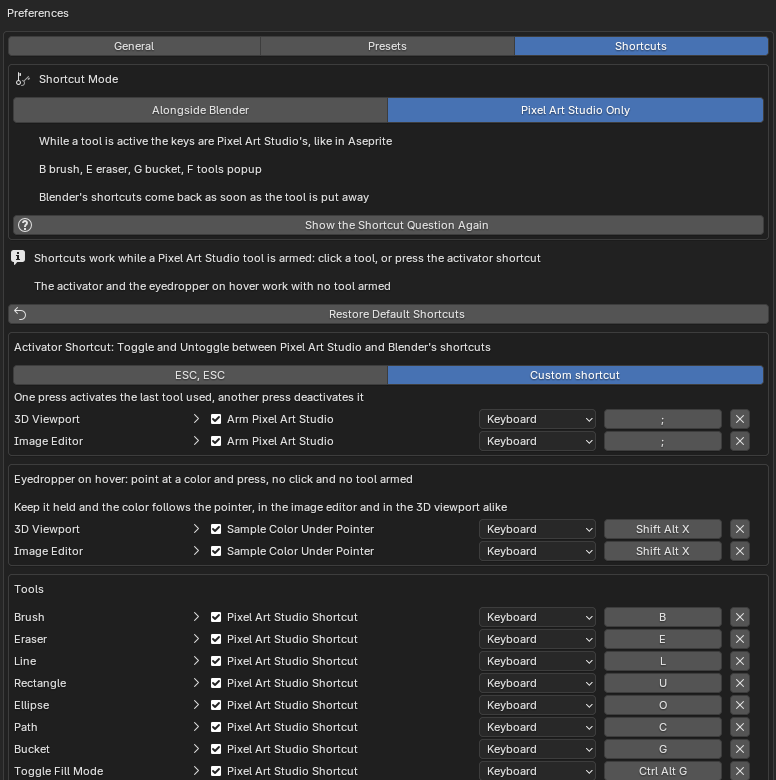
Alongside Blender(default): Blender’s shortcuts keep working while a tool is armed, and Pixel Art Studio’s use the keys Blender leaves free (D opens the tools popup, tools are Shift+Alt and their letter).Pixel Art Studio Only: the classic set, like in Aseprite. While a tool is armed the keys are Pixel Art Studio’s (B theBrush, G theBucket).Show the Shortcut Question Again: the question Pixel Art Studio asks the first time you arm a tool.
Under it, every key of the mode you’re on, the activator and the hover eyedropper, all rebindable with Blender’s own key editor. Each mode keeps its own set. See Shortcut Mode, and Custom shortcuts for how to rebind and restore them.