How to Blockout Colors Quickly
Fill by Face Selection in Edit Mode
If you want to block out colors quickly, filling big areas of the mesh with a single color, you can use the Bucket tool in Face mode:
Select the
Buckettool (Shift+Alt+F)Click
Faceto fill by faces instead of by pixelsGo to Edit Mode, select the faces you want to fill with a single color
Also make sure you are in the correct Pixel Art Studio layer or create a new one
Choose a color and fill the faces with a single click on the model with the bucket tool!
With no face selected (or in Object Mode), it fills every face of the model.
The texels the edges of the faces only partly cover are filled too, so diagonal edges are filled all the way to the geometry, with no stair step of empty texels to clean up later.
If you made a pixel selection before, the fill stays inside it.
Fill by using Pixel Selection
You can also fill areas of the mesh with a single color by using the pixel selection tools, using the Bucket tool in Pixel mode and then unchecking Contiguous and increasing the Tolerance to fill more pixels at once:
Make selections with any of the selection tools
Hold Shift to add to the selection
Select the
Buckettool (Shift+Alt+F) and make surePixelis onUntoggle
Contiguousto fill every matching pixel in the selectionIncrease the
Tolerance, so it doesn’t filter by the color underneath (1.00fills everything inside the selection)Choose a color and fill the pixels with a single click inside the selection with the bucket tool
Note
Pixel mode reads the active layer only. On an empty layer every texel has the same color (transparent), so even with a low Tolerance the whole selection gets filled.
Fill the Half Pixels Along Diagonal Edges
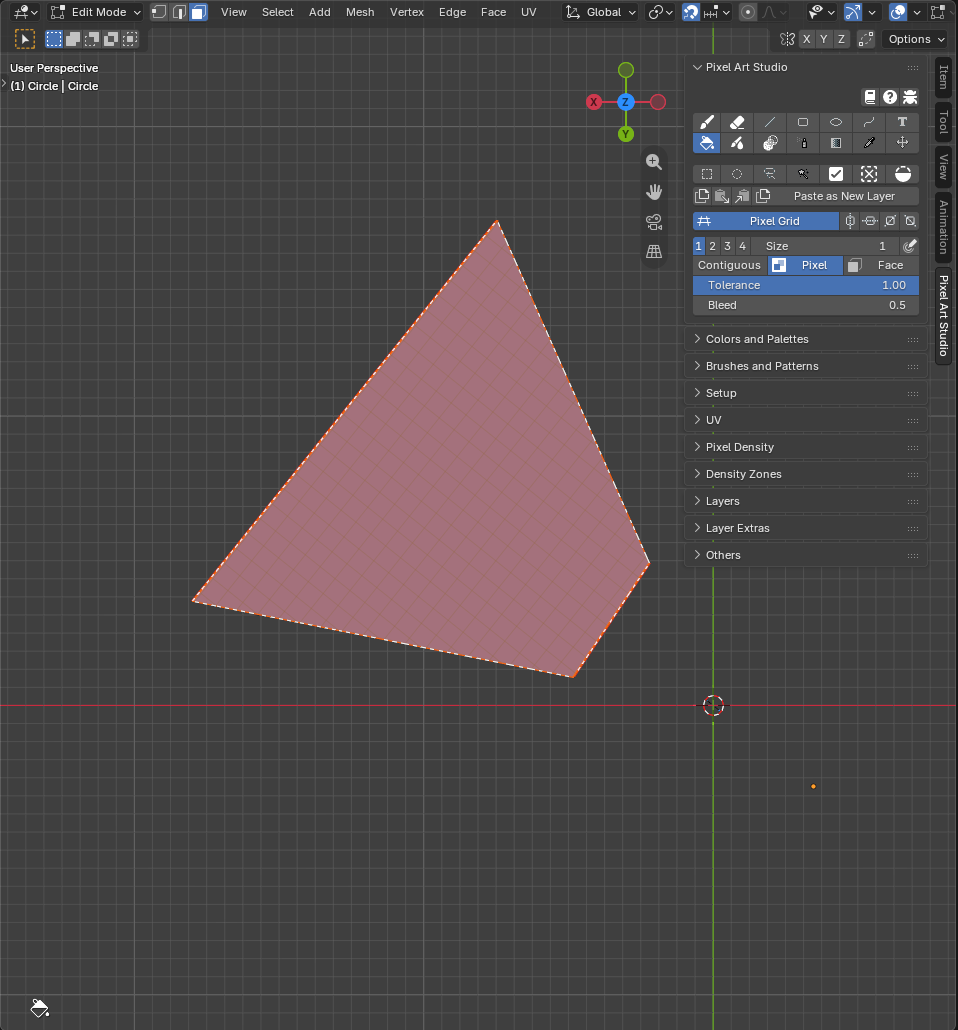
Along a diagonal UV edge, a selection made on the model is a staircase of whole texels, and the half covered texels along the edge stay empty (they show as a jagged line of the color underneath). Three ways to fill them:
Bucket in
Facemode (first section above): it fills them already.Bucket
Bleedat0.5: inPixelmode, the fill also reaches the half covered texels next to it, and nothing else (see Bleed).Select by Topology, to fill exactly the area you select:
In the 3D Viewport, arm a selection tool and turn
TopologyonSelect over the faces: the selection turns orange and takes the half covered texels too
Select the
Buckettool (Shift+Alt+F) inPixelmode, untoggleContiguousand increase theToleranceto1.00Choose a color and click inside the selection
Turn
Topologyoff again before you move pixels (a topology selection can’t be moved)
See Select by Topology for more details.
Blockout with Patterns and Texture
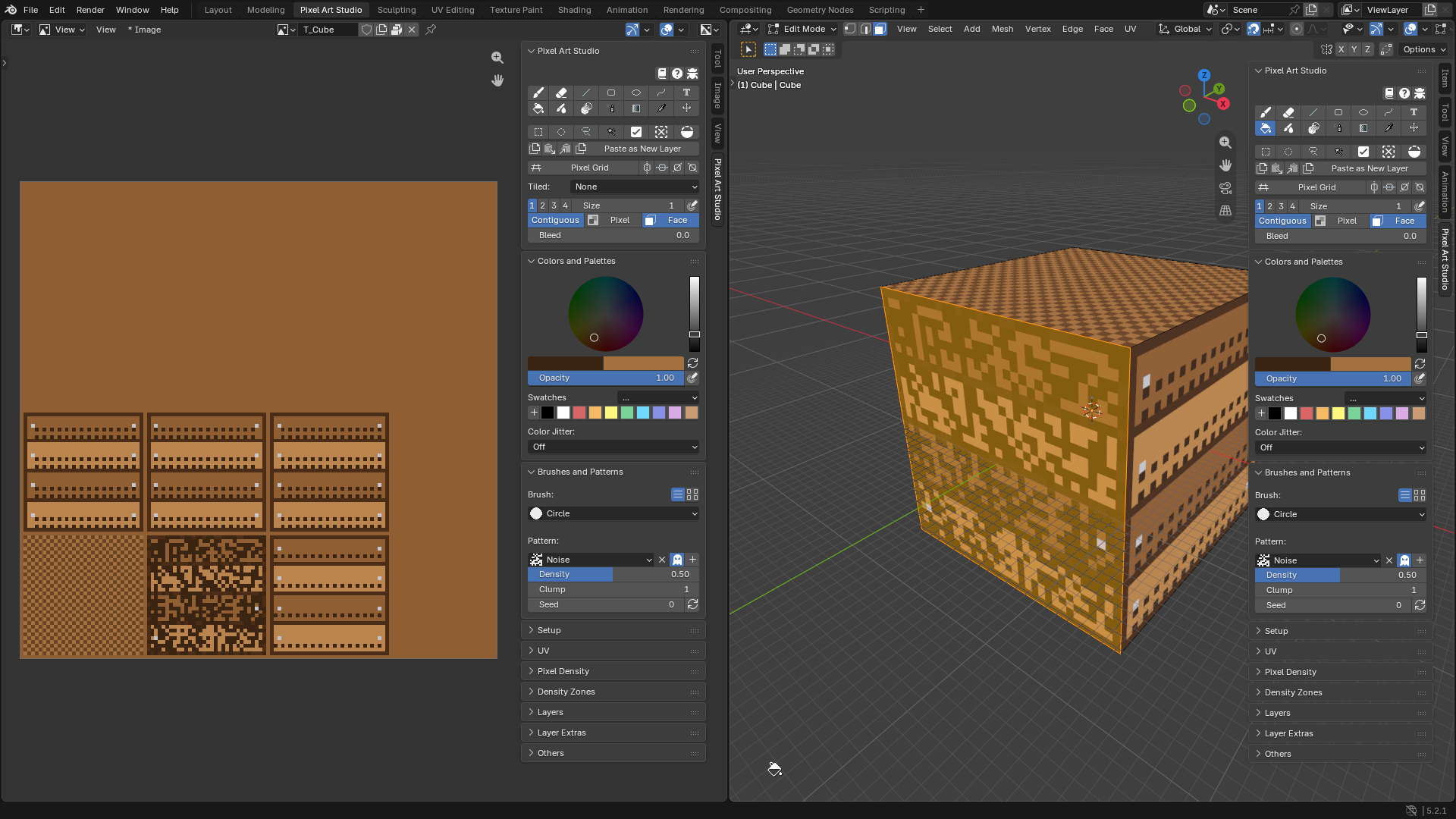
The Bucket works with fill patterns and Color Jitter too, so a whole face can get a dither, a noise or a hand placed looking texture in one click:
Open the
Brushes and Patternspanel and pick a pattern underPattern:(Checker 50%,Dither 25%,Noise, or one of your own)Set the primary color (the pattern’s set texels) and the secondary color (the gaps)
Toggle
Transparent(the ghost icon) to leave the gaps untouched, and lay the pattern over a color you already filled
Fill with the
Bucket, inFaceor inPixelmode
Noisewith a lowDensityand a higherClumpis great for grass, grime and rust.Color Jitter(inColors and Palettes) scatters shades of the color, or a few of your swatches, over the fill: set it toShadesand fill the planks of a crate, for example.The patterns are locked to the pixel grid, so two fills next to each other meet without a seam.
See Brushes and Patterns for every pattern setting.