Game Engines
Paint in Blender, press Ctrl+S and the model is in your game engine, unlit, with crisp pixels and hard edged transparency: Godot, Unity and Unreal Engine get an integration each, and the Generic Exporter writes GLB, glTF or FBX into any folder for everything else. No export dialogs and no reimporting by hand.
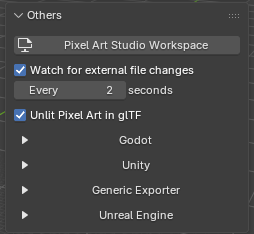
Everything lives in the sidebar (N), tab Pixel Art Studio, panel Others (it’s closed by default), in the 3D Viewport and in the Image Editor alike:
Unlit Pixel Art in glTF(checkbox, on by default), above the engine sections.One section per integration:
Godot,Unity,Generic ExporterandUnreal Engine. Click a header to open it.
Tip
First time? The From Blender to the Game Engine on Every Save takes a painted model into Godot step by step, then shows what changes for Unity and Unreal.
Unlit Pixel Art in glTF
With Unlit Pixel Art in glTF on, every glTF and GLB export from the file comes out as pixel art, your own File > Export > glTF 2.0 included:
Unlit: the canvas shows the colors exactly as you painted them, with no lighting on top (the standard glTF unlit material,
KHR_materials_unlit).Crisp pixels: nearest filtering, so no blur up close and no mipmap blur far away.
Hard edged transparency: only when the canvas really has transparent texels (cut at 50% alpha). A fully opaque canvas stays opaque.
Your own materials keep their shader: a material of yours that samples a canvas (a
Principled BSDF, for example) stays lit, and only gets the crisp pixels and the hard edged transparency.Materials that don’t use a canvas are not touched.
Godot reads all of that with no import script (nearest filter, unshaded, alpha scissor), and so does any engine or glTF viewer that supports unlit materials.
Turn it off and the glTF exports from this file are Blender’s own, untouched.
It’s saved in the .blend, per scene, and the
Game Enginespreferences never hide it.
Note
A canvas material that could not be converted is exported the way Blender writes it, and an integration’s last result line says The material <name> was left as it was.
What every integration has in common
Save the .blend first: every integration starts from a saved file (an unsaved one answers
Save the file first).Export on save: once integrated, every Ctrl+S writes the model into the project. The export runs after the save and never makes the save fail: a problem becomes one red line in the panel.
Re-export(Update Godot FilesandUpdate Unity Fileswhen the engine imports the .blend itself): writes now, without saving. Strokes you haven’t saved yet go along.The last result line under the buttons: a check mark or a red error, what was written, how long it took and when (for example
Exported Crate.glb in 0.1 s (14:32:05)).Export:Visible objects(default) orObjects with a canvas. Modifiers are applied, cameras and lights stay out.Canvases are found at each export: a canvas you add, rename or remove later needs no new setup.
The folder was deleted? A refresh button shows up beside the red line: it makes the folder again at the same path and exports.
Nothing in your project is ever deleted by any button, and a file is written in one go (the engine never imports a half written file).
Paths are relative to the .blend when both are on the same drive, so a project and a .blend that move together keep working. A project on another drive works too.
Several at once: one .blend can be integrated with Godot, Unity, Unreal and the
Generic Exporterat the same time, one save serves all of them. Settings are per scene, so two scenes in one file can ship two models.Undo: finishing an integration,
Remove IntegrationandStop Exportingare one undo step each (Ctrl+Z brings a removed integration back, the files already written stay).Only the canvas travels (the composite of your layers), never the layer images.
Godot
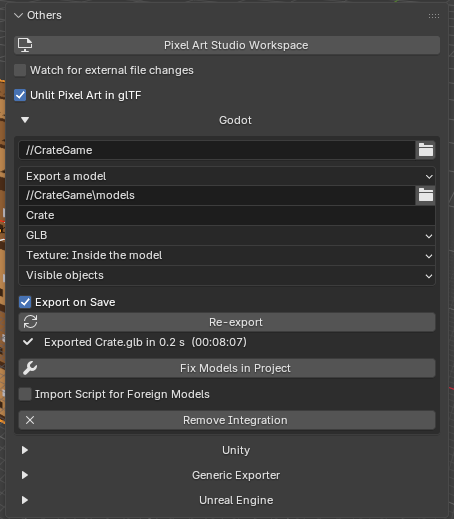
Needs a Godot 4 project (a Godot 3 project is refused). Godot can read your model in two ways, and where the .blend is saved decides which ones you get:
.blend outside the Godot project: Pixel Art Studio exports a model into the project (
Export a model)..blend inside the Godot project: you pick
Godot imports this .blend(Godot opens the .blend itself) orExport a model.
Integrate with Godot
Save the .blend.
In
Others>Godot, clickIntegrate with Godot.In the file browser, go to your Godot project (the folder with
project.godotin it, a subfolder is fine) and clickSelect Project.The
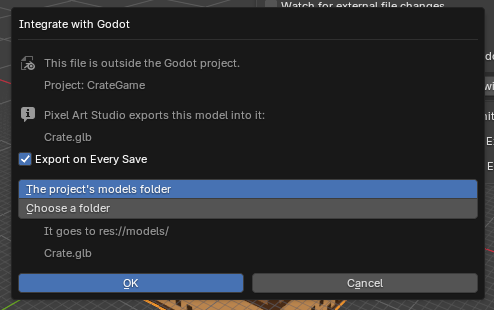
Integrate with Godotdialog opens:.blend outside the project: keep
Export on Every Saveticked and pick where the model goes,The project's models folder(res://models, made if it’s not there yet) orChoose a folder(a folder picker follows, and the folder has to be inside the project)..blend inside the project: pick
Godot imports this .blendorExport a model(the model goes tores://models, and you can change the folder in the panel afterwards).
Click
OK. The first export runs right away.
Export a model
The model arrives in Godot nearest filtered, unshaded, with alpha scissor only when the canvas has holes, and the texture uncompressed with no mipmaps. The settings in the panel:
The folder and the file name (without the extension, the .blend’s name by default).
File Type:GLB(default, one binary file) orglTF(a text file, easy to read and edit).Texture:Texture: Inside the model(default): the texture rides inside the model file, byte for byte, and no image file lands in the project.Texture: Beside the model: a PNG in atexturesfolder next to the model (what a canvas shared by several models wants).
Export:Visible objectsorObjects with a canvas.Import Script for Foreign Models(off by default): only needed for a model a teammate exported from a Blender without Pixel Art Studio.
Import settings you changed yourself in Godot (LODs, the root name and so on) are kept.
Godot imports this .blend
Godot opens the .blend with the Blender set in its own editor settings (
Editor > Editor Settings > FileSystem > Import > Blender). That Blender must be able to open your file: the same version you use, or newer.On every save Pixel Art Studio keeps Godot’s import settings and the texture up to date, plus a small import script (always on for this way). It makes the material pixel art even when Godot’s Blender has no Pixel Art Studio.
The panel warns you when Godot can’t open the file:
Godot has no Blender path set.Godot runs Blender X, which cannot open a file this Blender saves.Both come with
Copy Blender Path: it copies this Blender’s path, to paste into Godot’s editor settings.
The panel, once integrated
The project folder (red, with
This folder is not there any more., when it’s gone).The way Godot reads the model (
Godot imports this .blendorExport a model), which you can switch any time, and that way’s own settings.Export on Save(Update on Save),Re-export(Update Godot Files) and the last result line.Fix Models in Project(below).The import script row: its version,
Show in File Manager(folder icon) andSync Import Script(refresh icon). It turns red when the project holds an older script than this add-on ships.Remove Integration: forgets the project. Nothing in the project is touched.
Fix Models in Project
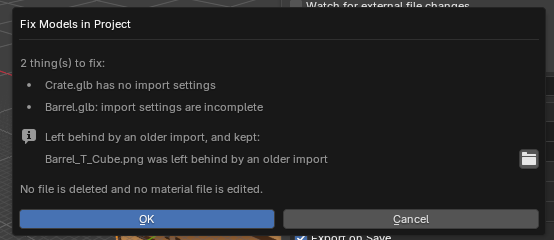
For models you imported before integrating, or by hand: it looks for the models Pixel Art Studio made that Godot is reading wrongly, lists what it found and fixes it on OK.
Models with no import settings or incomplete ones, a texture that is compressed or blurred, and a material extracted in Godot that wins over the model’s own.
Textures left behind by an older import are listed with a button to see them, and kept.
No file is deleted and no material file is edited. With everything right it says
Nothing to fix in the project.
Unity
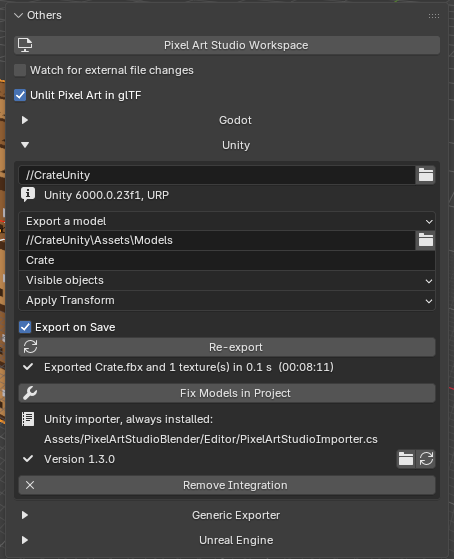
Unity reads models through FBX, and Blender’s FBX can’t say “unlit” or “point filter” (the canvas material even arrives black). So every Unity integration puts one small editor script into your project, Assets/PixelArtStudioBlender/Editor/PixelArtStudioImporter.cs, and that’s what makes the models arrive as pixel art. Checked with Unity 2022.3 and Unity 6, on the built in render pipeline and on URP.
Integrate with Unity
Save the .blend.
In
Others>Unity, clickIntegrate with Unity.Go to your Unity project (the folder with
AssetsandProjectSettingsin it, a subfolder is fine) and clickSelect Project.In the
Integrate with Unitydialog:.blend outside
Assets: keepExport on Every Saveand pickThe project's Models folder(Assets/Models) orChoose a folder(any folder insideAssets)..blend inside
Assets: pickUnity imports this .blendorExport a model.
Click
OKand switch to Unity: it compiles the script, then imports the model.
What you get in Unity
Canvas textures: point filter, no mipmaps, uncompressed.
Each canvas slot of the model gets an unlit material of its own (in
Assets/PixelArtStudioBlender/Materials), with transparent texels cut out only when the canvas has them.Your scenes and prefabs keep their references: Unity’s IDs for the model and the textures never change across saves.
Models and textures that don’t come from Pixel Art Studio are left exactly as Unity made them, and so is a material you extracted or remapped to your own.
Removing the script later leaves the models drawing right (the materials are ordinary assets).
Several .blend files can feed the same project.
Export a model
Writes
<name>.fbxand one PNG per canvas beside it (named after the canvas).The folder (inside
Assets), the file name andExport.Transform:Apply Transform: the model arrives upright, at scale 1. Blender marks this export option experimental, and it can break a rigged model.Keep Armature Safe: safe for a rigged model, it arrives turned -90 on X (the same way Unity’s own .blend import gives it).Picked for you the first time:
Keep Armature Safewhen the scene has an armature,Apply Transformotherwise.
Unity imports this .blend
The .blend has to be inside
Assets. On every save Pixel Art Studio writes the canvas PNG beside it, with its import settings.Unity opens the .blend with the Blender your system opens .blend files with (on Windows, the
Open withchoice), and that Blender has to be able to open your file. On Windows the panel warns when it’s too old:Unity opens .blend files with Blender X.Y.
The panel, once integrated
The project folder, with the Unity version and render pipeline it found (for example
Unity 2022.3.38f1, URP).The way Unity reads the model, and that way’s settings.
Export on Save(Update on Save),Re-export(Update Unity Files) and the last result line.Fix Models in Project: finds the textures Unity is importing wrongly (compressed, blurred or mipmapped) and an importer script that is missing or older, and fixes them onOK. Materials you extracted by hand are listed and left alone.Unity importer, always installed: the script’s version,Show in File ManagerandSync Importer Script.Remove Integration: nothing in the Unity project is changed.
Note
Transparent holes on a closed model: URP shows the inside of the far side through them (its material is double sided), the built in pipeline shows what’s behind the model. Both are expected.
Unreal Engine
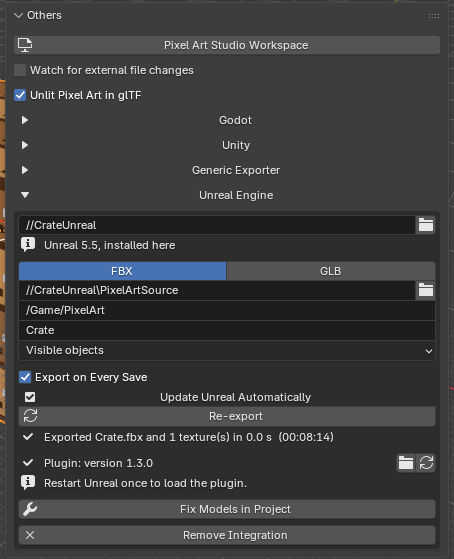
Unreal can’t open a .blend, so this one is always an export: FBX (default, with the canvas as a PNG beside it) or GLB (the canvas inside it). A small Unreal plugin goes into your project (Plugins/PixelArtStudioBlender) and does the fixing inside Unreal. Checked with Unreal 4.27, 5.5 and 5.8.
Integrate with Unreal Engine
Save the .blend.
In
Others>Unreal Engine, clickIntegrate with Unreal Engine.Go to your Unreal project (the folder with the
.uproject, or any folder inside it) and clickSelect Project.In the
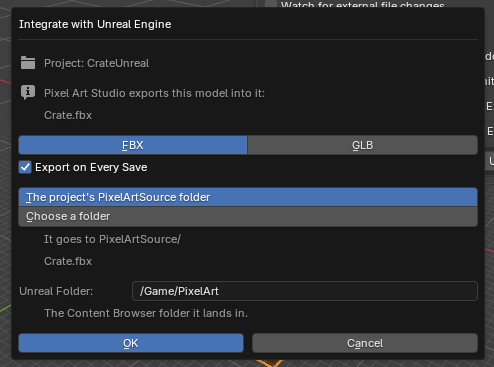
Integrate with Unreal Enginedialog:Format:FBX(every Unreal version imports it) orGLB(Unreal 4.27 needs its glTF importer, which the plugin turns on).Export on Every Save.Where the model file goes:
The project's PixelArtSource folder(default) orChoose a folder(in the project, outsideContent).Unreal Folder: the Content Browser folder the model is imported into (/Game/PixelArtby default).
Click
OK, then start (or restart) the Unreal editor once, so it loads the plugin. The model shows up in/Game/PixelArt.
Note
Why outside Content? Unreal imports everything in Content by itself and asks to reimport on every save. From outside, the plugin brings each save in with no prompt. Content, Saved, Plugins and Unreal’s other own folders are refused, and so is a folder on another drive than the project.
What you get in Unreal
Canvas textures: nearest filter, no mipmaps, sharp at any distance.
Each canvas slot of the model gets an unlit material, masked when the canvas has transparent texels and opaque otherwise.
Saves arrive in the open editor in a few seconds, with no prompt (while
Update Unreal Automaticallyis on).A slot you gave your own material is left alone, and so is every asset that doesn’t come from Pixel Art Studio. Your
.uprojectand config files are never edited.Removing the plugin later leaves the models drawing right.
In Unreal’s
Toolsmenu:Fix Pixel Art Studio Models: makes every model and texture Pixel Art Studio exported sharp and unlit again.Update From Blender Automatically: your own choice, over the project’s.
The panel, once integrated
The project folder and the Unreal version it uses (
installed hereornot installed here).FBX|GLB, the source folder, theUnreal Folder(it has to start with/Game/, with no spaces, dots or symbols), the file name andExport.Export on Every Save.Update Unreal Automatically: Unreal brings each save in a few seconds later, for everyone on the project. Off, reimport in Unreal by hand or restart the editor. Each person can still change it for themselves in Unreal’sToolsmenu.Re-exportand the last result line.The plugin row: its version,
Show in File ManagerandSync Unreal Plugin. After an install or an update it saysRestart Unreal once to load the plugin.Fix Models in Project: puts the plugin and this file’s models into the project, and Unreal fixes them at its next start (or right away withTools>Fix Pixel Art Studio Models).Remove Integration: the project keeps its models and the plugin.
Generic Exporter
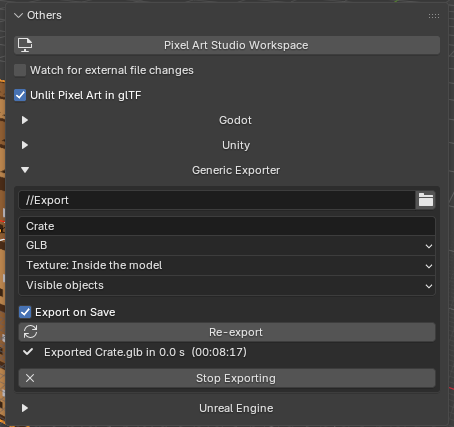
For any other engine or tool: GLB, glTF or FBX into a folder you pick, on every save.
Save the .blend.
In
Others>Generic Exporter, clickExport to a Folder.Pick a folder (a new one is fine). On the side of the file browser, pick the
Format(GLB,glTForFBX), where the texture goes, and keepExport on Every Saveticked.Click
Export Here. The first export runs right away, named after the .blend.
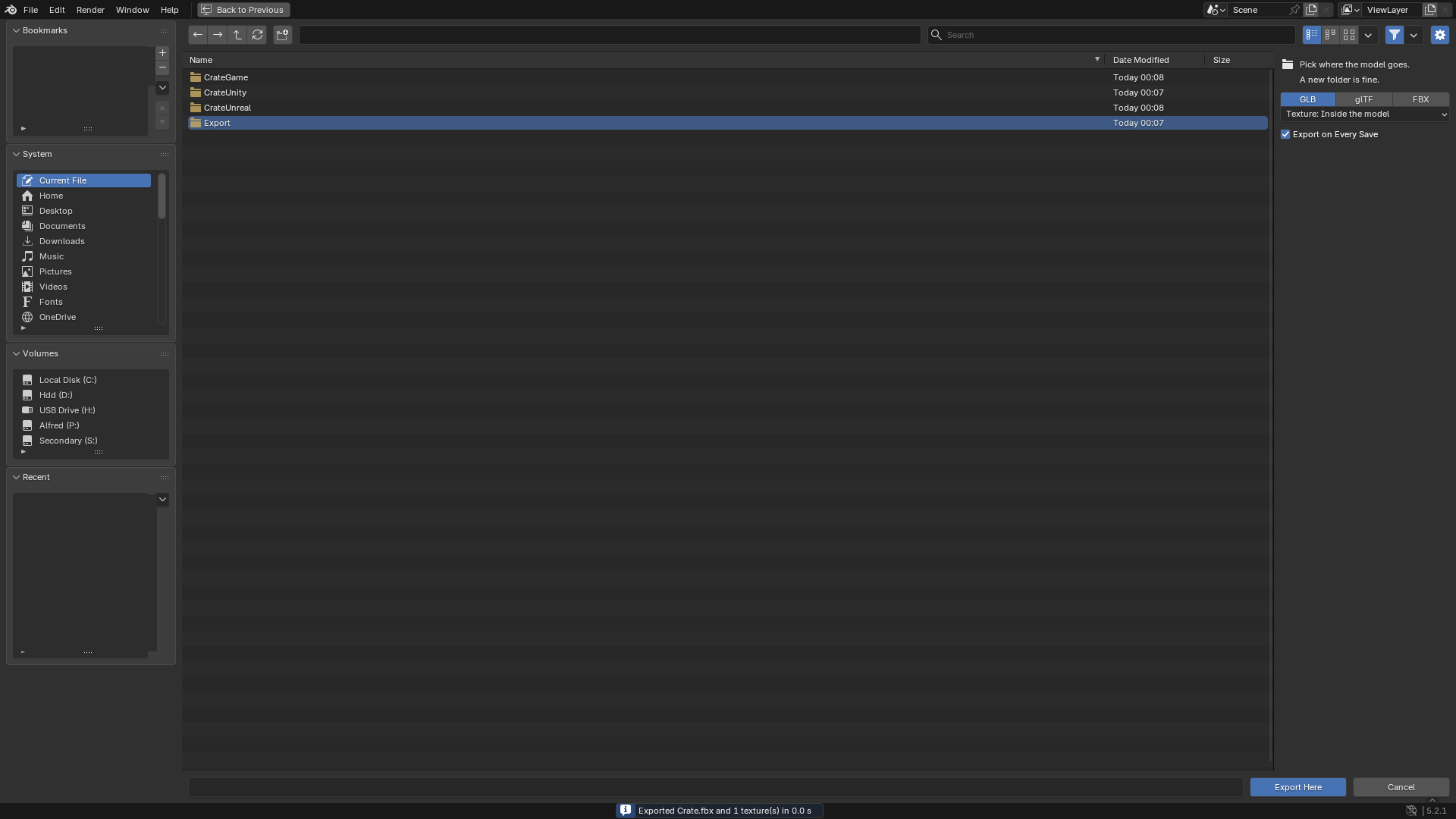
What lands in the folder:
Format |
Texture |
Files |
|---|---|---|
|
|
|
|
|
|
|
|
|
|
|
|
|
always beside |
|
GLB and glTF arrive unlit with crisp pixels (Unlit Pixel Art in glTF).
FBX can’t carry unlit or nearest filtering: the texture arrives, but the tool you import into has to be set to nearest (point) filtering itself.
FBX also has
Transform(Apply TransformorKeep Armature Safe, picked for you the first time, the same as Unity’s).Switching the format leaves the old files in the folder.
Stop Exporting: stops exporting this scene, and the files already written stay where they are.
Game Engines preferences
In Edit > Preferences > Add-ons > Pixel Art Studio > General, box Game Engines: Godot, Unity, Generic Exporter and Unreal Engine, all on by default.
Off: that section is hidden and nothing is written for it when you save.
The .blend keeps its integration: tick it again and everything is back, with no new setup.
Unlit Pixel Art in glTFis never hidden by them.
See Preferences for every other option.