Pixel Density
Pixel density (aka texel density) is how many texture pixels cover one meter of the model’s surface. Pixel Art Studio counts it in px/m, pixels per meter.
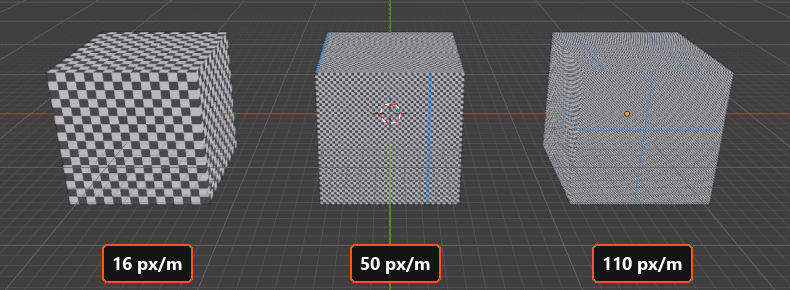
50 px/m: a 1 m wall is 50 pixels across, so one pixel is 2 cm on the model.
16 px/m: one pixel is 6.25 cm, and a 2 m tall character is 32 pixels tall.
Bigger number, smaller pixels (and more of them, so more detail and bigger textures).
The same density on every face means the same pixel size everywhere: no stretched pixels, no face with bigger pixels than its neighbor, and two models at the same density have pixels of the same size.
Note
Does the texture size set the pixel size?
No, the density does. At the same density a bigger model needs a bigger texture, and a smaller model leaves part of the texture empty. Fit Texture works the other way round: it picks the density from the texture (see Texel Density or Fit Texture).
You pick the density with a preset in Setup (see Pixel density presets), or type your own in the Pixel Density panel. To see a density on the model before choosing it, use Quick Setup or Try Pixel Densities (see Quick Setup and Try Pixel Densities).
The Pixel Density panel
In the sidebar (N), tab Pixel Art Studio, panel Pixel Density (closed by default), in the 3D Viewport and in the Image Editor:
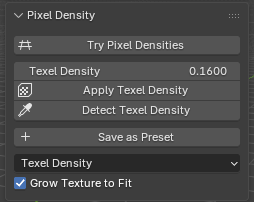
Try Pixel Densities: other pixel sizes on the model, live, then applied keeping your painting (see Quick Setup and Try Pixel Densities).Texel Density: your own density, in px/cm (0.50is 50 px/m,1.10is 110 px/m).Apply Texel Density: puts the selected models on that density.Detect Texel Density: measures the density a model already uses.Save as PresetandUpdate Preset: your own presets (see Pixel density presets).Unwrap density:
Texel DensityorFit Texture, what the unwraps use.Grow Texture to Fit.
Texel Density
The field is in px/cm, everything else says px/m:
0.16is 16 px/m,0.50is 50 px/m,2.20is 220 px/m.Always a whole px/m: whatever you type is rounded to the nearest whole px/m, so a model built on the grid lands on whole texels.
Typing a number switches the preset to
Custom(a preset of your own stays selected, soUpdate Presetcan save the new number).It doesn’t touch the model: on a model that already has a pixel size,
Apply Texel Densityturns red until you apply it.
Note
Keep the scene’s Unit Scale (Scene Properties > Units) at 1.0. Any other value multiplies every density.
Apply Texel Density
Scales the UVs of the selected models to the density and snaps them onto the texel grid. It keeps your UV layout: islands stay where they are, and every face keeps its shape (no slanted pixels).
Whole models: every face of every selected mesh, in Object Mode or Edit Mode (the face selection doesn’t matter).
Islands that grow into each other (closer than the margin) or past the texture edge: then every island is packed again, and with
Grow Texture to Fiton the canvas grows to hold them.Islands stacked on purpose (with
Stack UVs, or mirrored halves on one spot) move together.Applying the density a model already has moves nothing.
It follows the
Unwrap Optionsof theUVpanel: the margin, density zones, pixel aspect, face shapes and pinned UVs (see UV Tools).It always applies the scene’s density, whatever the unwrap density dropdown says.
Meshes on the same texture are one layout, so packing one can’t land it on another.
A texture with painting on it is asked about first:
Keep my painting(every layer scaled to the new pixel size) orStart with a blank texture. The button itself takes no undo step, the answer takes one (see The same question from Apply Texel Density and Setup Viewport).
Detect Texel Density
Measures the density the selected models already use (the whole model, averaged by area) and makes it the scene’s density: the preset goes to Custom, Texel Density takes the number, and the grid follows.
The model you’re matching: open somebody else’s textured model, click
Detect Texel Density, and everything you model and unwrap from then on (Pixel Art Unwrap,Quick Unwrap Model,Apply Texel Density,Add 1m Cube) gets the same pixel size.Painting doesn’t need it: a model with UVs and a texture only needs a tool (see Painting a texture the model already has).
Several textures on one mesh: each texture’s faces are measured against that texture’s own size.
F9after the click:Match the Viewport(on) sets the grid to the density just measured.
Tip
Setup Viewport does the same measure by itself, the first time it meets a textured model the add-on never measured. Painting never measures anything. On a model with several pixel sizes, use Density Zones instead.
Warning
Measure a model that has a texture. With no texture there’s nothing to count the pixels against, and the number says nothing about the model.
Texel Density or Fit Texture
The dropdown at the bottom of the panel picks what Pixel Art Unwrap, Quick Unwrap Model and Add 1m Cube use:
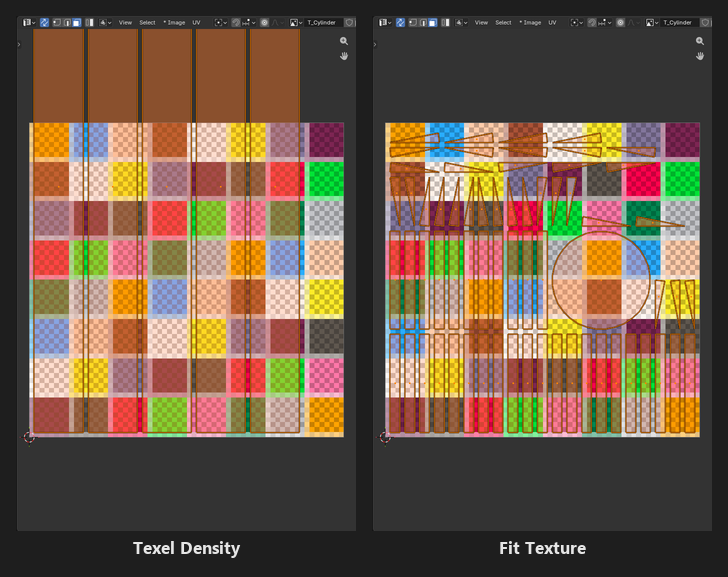
Texel Density(default): the density above, so the pixel size matches your other models. When the model doesn’t fit, the canvas grows (or the report says what size it needs).Fit Texture: the biggest density that fills the texture. It tries multiples of 16 px/m first (so a 1/16 m grid square stays whole texels), and the report says which one it picked, so you can match other models to it.
Note
After a Fit Texture unwrap, the model is at the fit density and the scene still asks for its own, so Apply Texel Density turns red. Clicking them rescales the model back to the scene’s density. To keep the fit, click Detect Texel Density (or type the number from the report).
Fit Texture ignores density zones: it’s one density for everything on that texture.
Grow Texture to Fit
When the layout doesn’t fit the texture at the density, the canvas grows (every layer with it) to the smallest square size that holds it, up to 1024 x 1024, and the layout is done again. On by default.
Your pixels are kept as they are, at the bottom left of the bigger canvas (the faces get new places, so paint after the unwrap).
Only a Pixel Art Studio canvas grows. A plain image never does.
One undo step with the unwrap, and the masks, the pixel grid layer and the
Backgroundgrow with it.Off, the unwrap still runs and the report says how big the texture needs to be (
Crate: does not fit the 64x64 texture T_Crate at 50 px/m, needs 256px).
Used by Pixel Art Unwrap, Quick Unwrap Model, Add 1m Cube and Apply Texel Density.
The grid that matches the pixel
After Setup Viewport (optional, see Setup Viewport for everything it changes), one square of Blender’s grid is exactly one texel at the scene’s density: model on the grid, and every edge on a grid line lands on a whole pixel (no thin strips of half pixels).
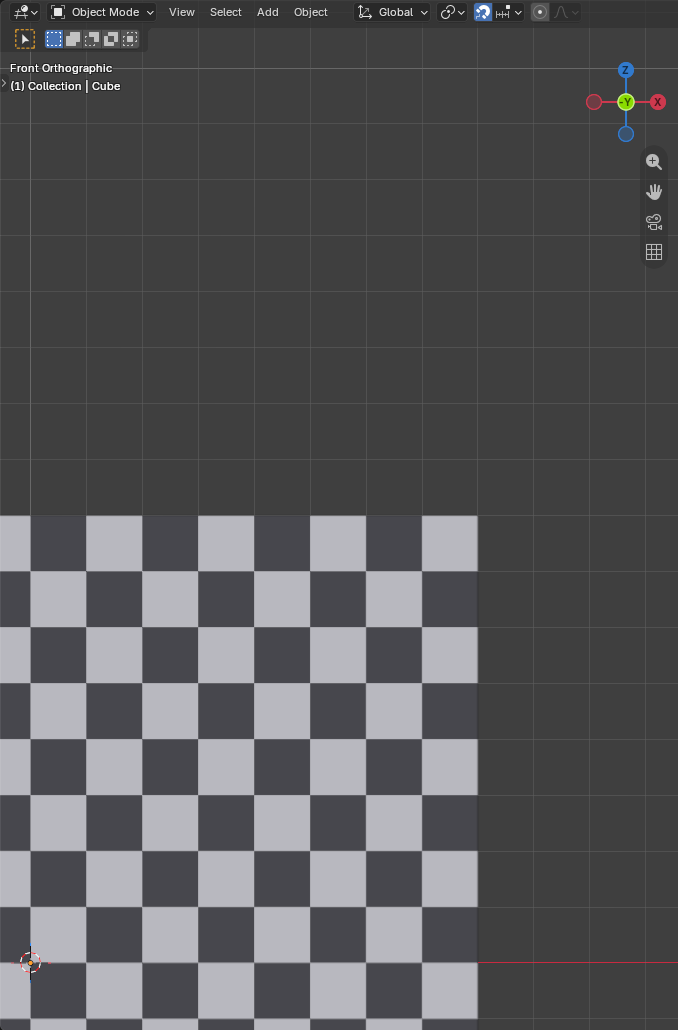
Snapping lands on the grid:
Setup Viewportturns onIncrementsnapping withAbsolute Grid Snap, so a move lands on grid positions.Add 1m Cube: the reference cube, every face exactly as many texels as the density.The smallest square texture that holds it: 64 at 16 px/m, 256 at 50 px/m, 512 at 110 px/m, 1024 at 220 px/m.
Snap Selection to Pixel Grid(Setuppanel): puts the selection exactly on the pixel grid, whatever the zoom. Blender’s own snapping follows the grid it’s drawing, which gets coarser as you zoom out; this one always uses one texel.Object Mode: moves the selected objects’ origins. Edit Mode: moves the selected vertices.
F9after the click:Every N Texels(1 to 64), for coarser steps.
A model with several pixel sizes: the grid can follow the face under the pointer while you paint (see Density Zones).
Note
Two more grids, and they’re different things:
The
Pixel Gridoverlay (\ while a tool is armed): lines on the texel borders, drawn over the canvas and the model, never in the texture (see Pixel Grid overlay).The
Pixel Art Canvasgrid layer from the canvas wizard: a real layer of the texture, to count pixels on the model (see Pixel grid layer).
How to
Change the pixel size of a model, keeping what you painted
Click
Try Pixel Densitiesand try the sizes on the model (Current Textureshows your painting at each of them).Apply New Density, thenKeep my painting. See Try Pixel Densities.
Change the pixel size of a model that’s already unwrapped, with the buttons
Pick another preset, or type a
Texel Density.Apply Texel Density (needed)turns red.Select the models and click
Apply Texel Density(orSetup Viewport, which also puts the grid on the new density).The report says
does not fit? Turn onGrow Texture to Fitand apply again, or pick a lower density.
Give two models the same pixel size
Select both and click
Apply Texel Density. Different object sizes, same px/m, same pixel size.
Fill a texture of a fixed size
Set the unwrap density dropdown to
Fit Texture.Quick Unwrap Modeland read the density in the report.Click
Detect Texel Densityto make it the scene’s density, so the next models match it.