Your First Model: a Crate
Let’s make a wooden crate out of Blender’s default cube, from a new file to a painted and saved model. On the way you are going to try the pixel size on the cube, create the texture and the UVs in one click, paint planks with the Line and the Bucket, add grime with a dither pattern and put the nails on a layer of their own.
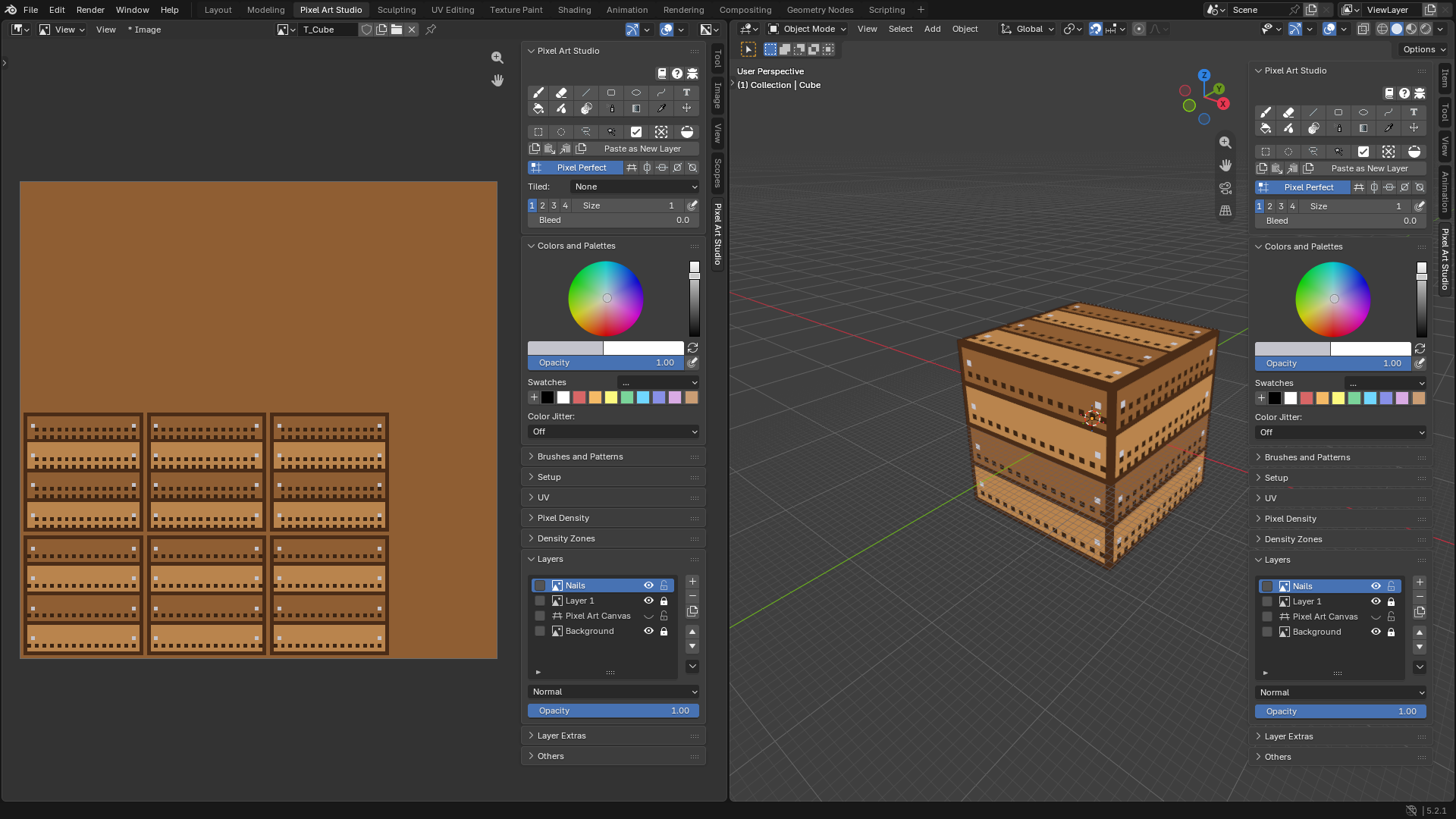
What you need: Pixel Art Studio installed (see Installation).
1. Open the workspace
Start a new file with
File > New > General.Click the
Pixel Art Studioworkspace tab at the top of the window. The texture goes on the left (Image Editor) and the model on the right (3D Viewport), both with thePixel Art Studiosidebar open.Click the cube in the 3D Viewport to select it.
2. Choose the pixel size
In the
Pixel Art Studiopanel, click the bigSetupbutton (it shows because the cube has no texture yet).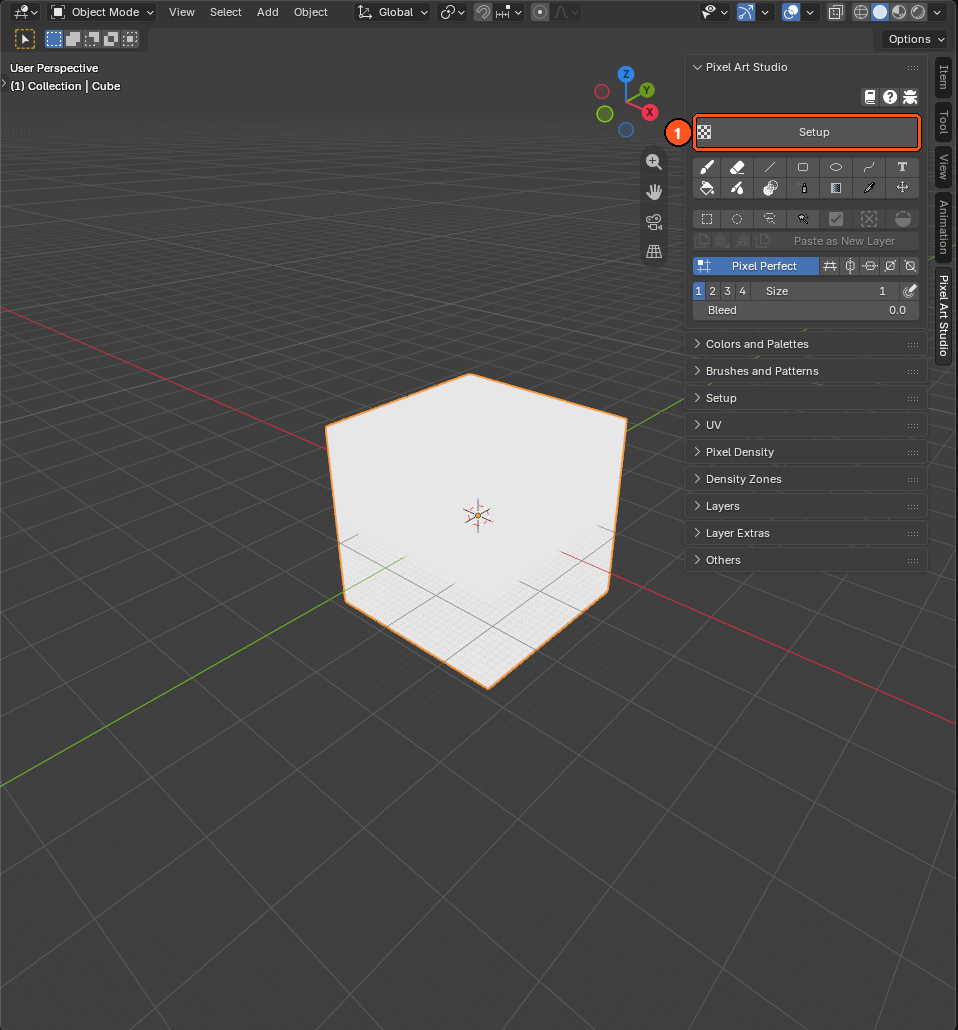
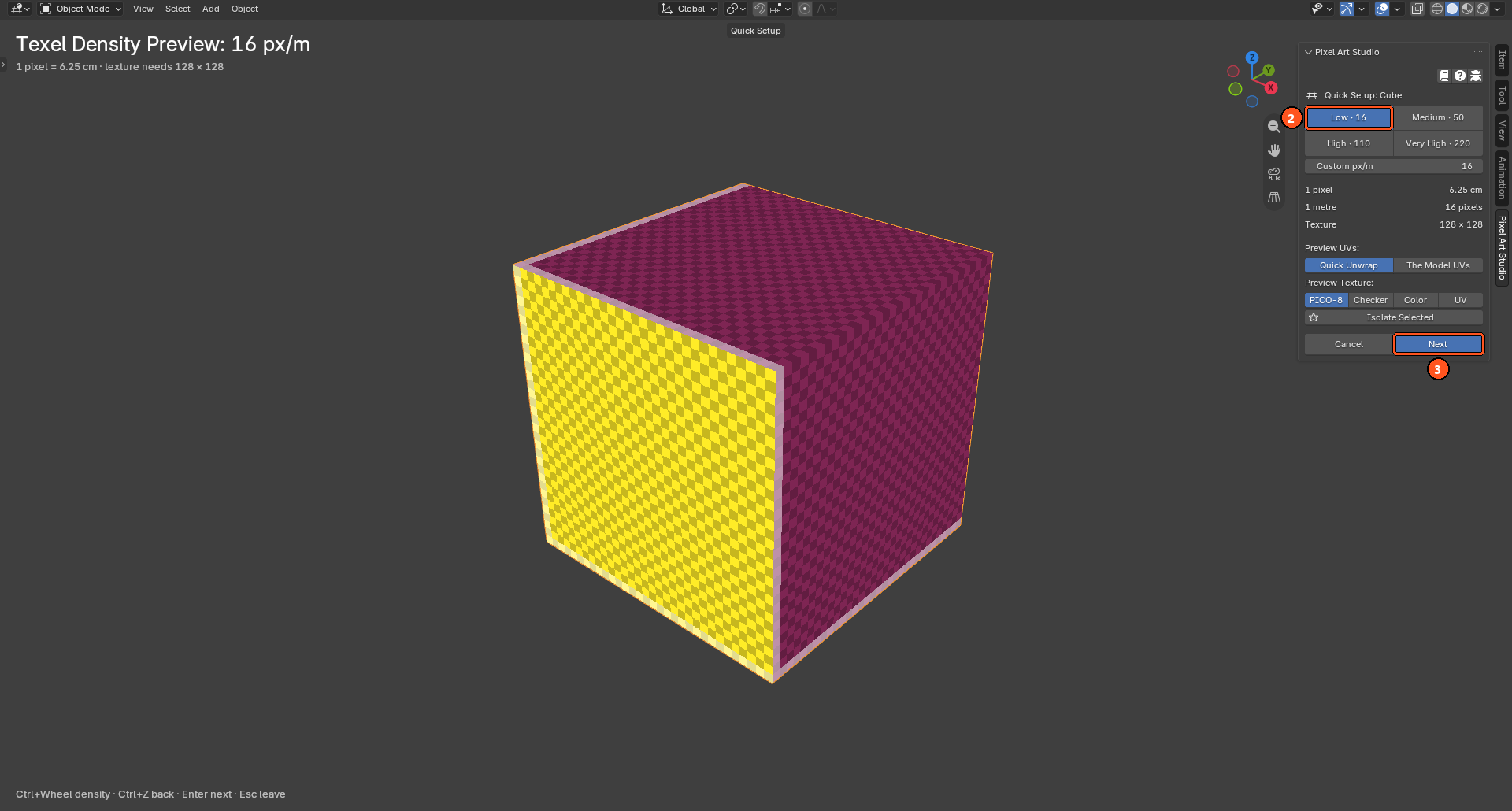
Quick Setupopens: the 3D Viewport fills the window and the cube wears a grid, one cell per pixel. ClickLow · 16. Blender’s default cube is 2 m wide, so every face is going to be 32 by 32 pixels: chunky pixels, great for a crate. The text at the top left says it too:1 pixel = 6.25 cm, and the texture it needs.Try the other sizes on the cube first if you like (Ctrl+Wheel goes through them), nothing is made until the next step.
Click
Next.
3. Create the texture
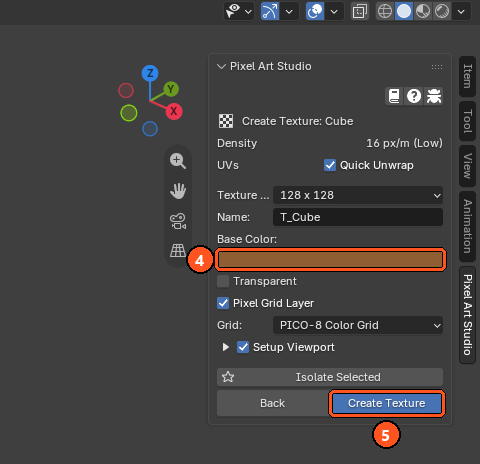
Keep the
Texture Sizeit opens on (128 x 128, the size this cube needs at 16 px/m) and theName(T_Cube).Set
Base Colorto a medium wood brown. It fills theBackgroundlayer, at the bottom of the layer stack.Leave
Quick Unwrap,Pixel Grid Layer(withPICO-8 Color Grid) andSetup Viewportticked.Click
Create Texture.
4. What you got
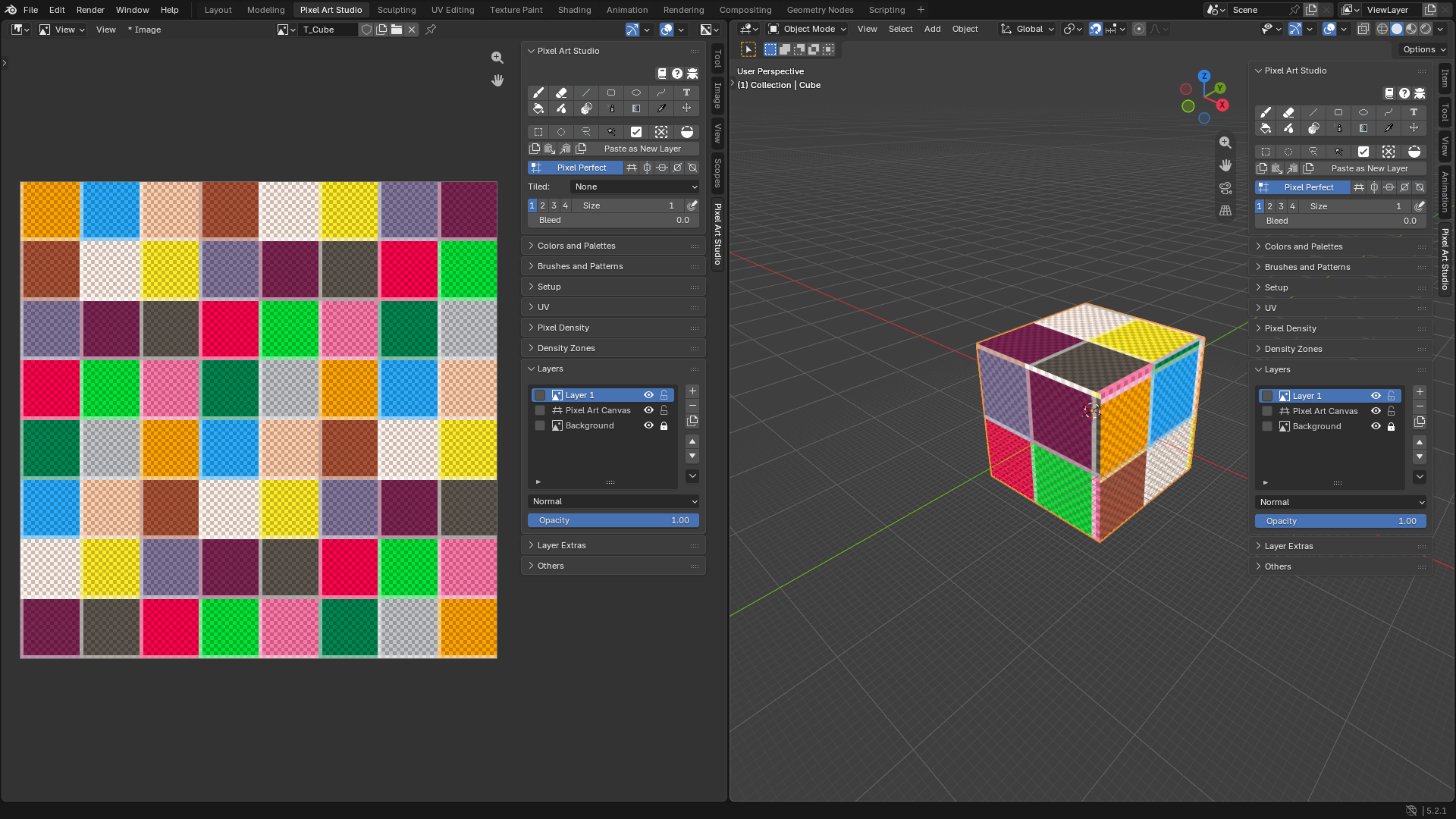
Create Texture did everything at once, as one undo step:
The UVs: every face is laid flat on its own island, 32 by 32 pixels, packed on whole pixels with a pixel of margin around it (
Quick Unwrap). You can see the six squares in the Image Editor.The texture, with three layers:
Layer 1(you paint on it), thePixel Art Canvasgrid (it lets you count the pixels on the model) and the locked wood brownBackground.The viewport: Blender’s grid shrank, one grid square is now one pixel (1/16 m), and the shading shows the texture’s real colors (
Setup Viewport).
5. Frame every face
The frame is easiest on the flat texture, where every face is a square.
In
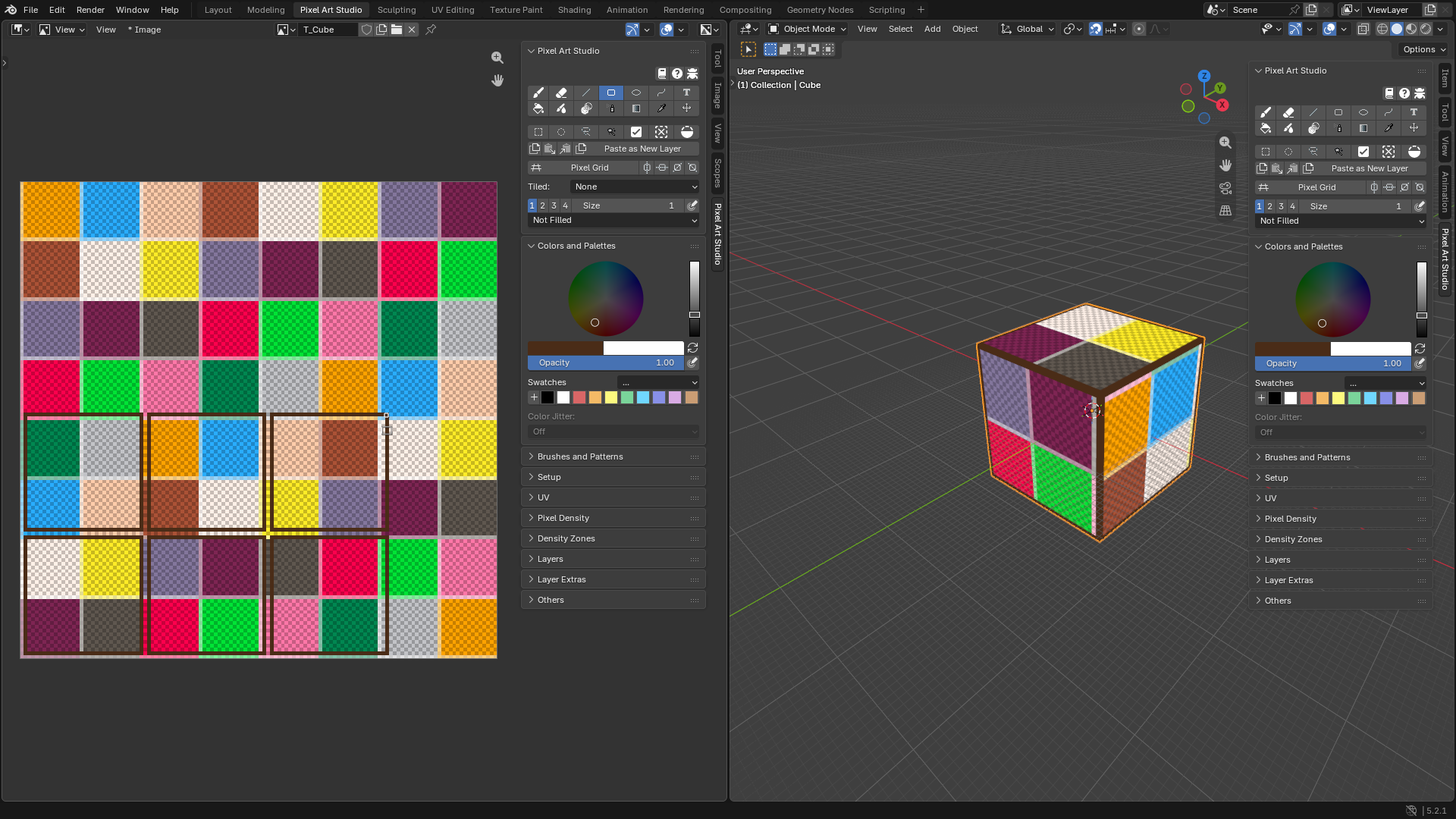
Colors and Palettes, pick a dark brown as the primary color.In the Image Editor’s sidebar, click the
Rectangletool. Under the toolbar, leave the fill onNot Filledand theSizeon1(or2for a thicker frame).On each of the six squares, drag from its bottom left pixel to its top right pixel. The frame shows up on the model while you draw.
6. Planks with the Line tool
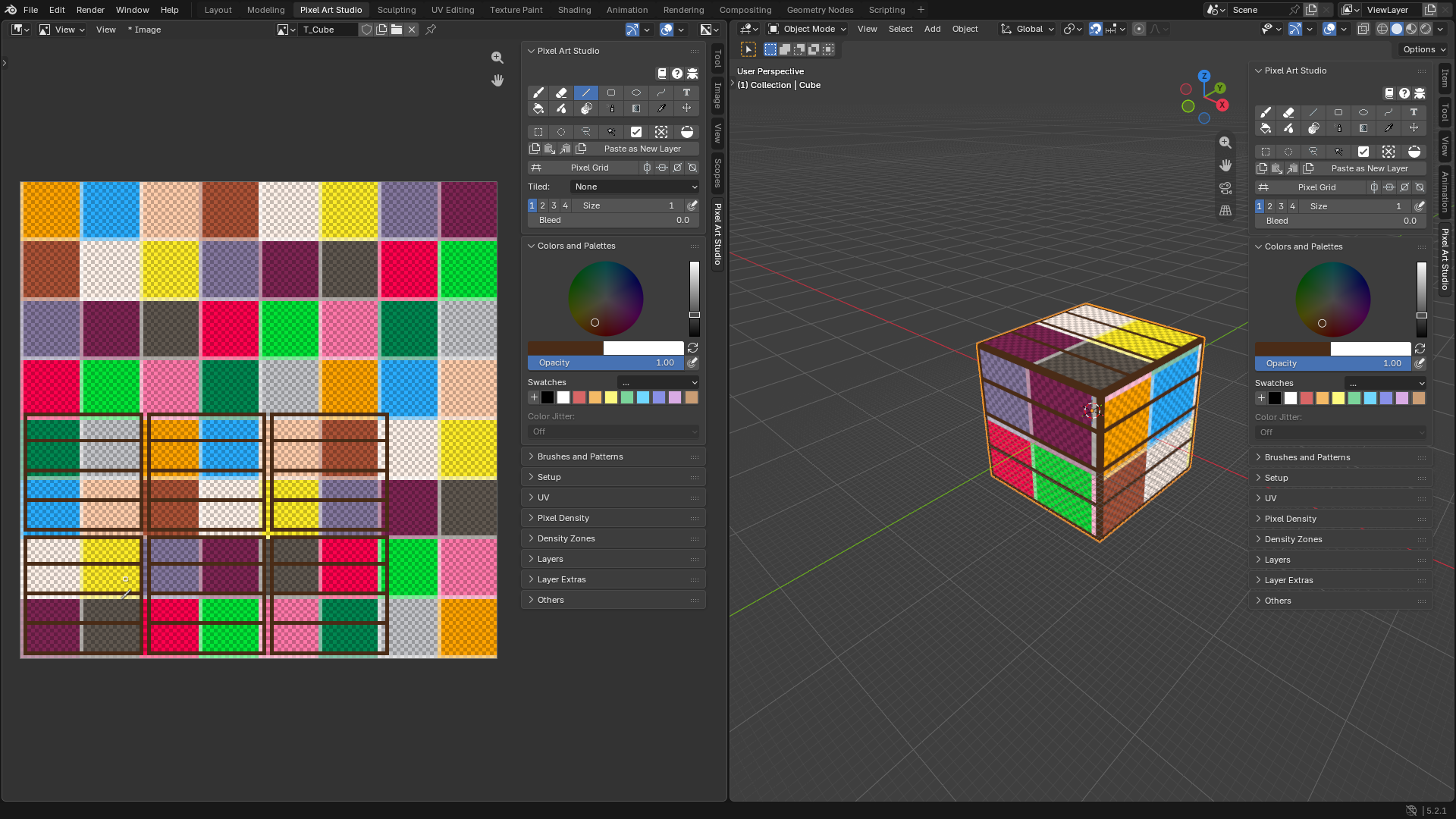
With the pointer over the Image Editor, press Shift+Alt+L for the
Linetool (or click it), same dark brown,Size1.Hold Shift and drag across each face, from frame to frame, to draw the seams between the planks (three seams make four planks). Shift keeps the line perfectly straight.
You can draw the seams on the flat texture or right on the model in the 3D Viewport: click the Line tool in the 3D Viewport’s sidebar too (or point at the model and press ;). The color and the tool settings are the same in both editors.
7. Shade the planks with the Bucket
In
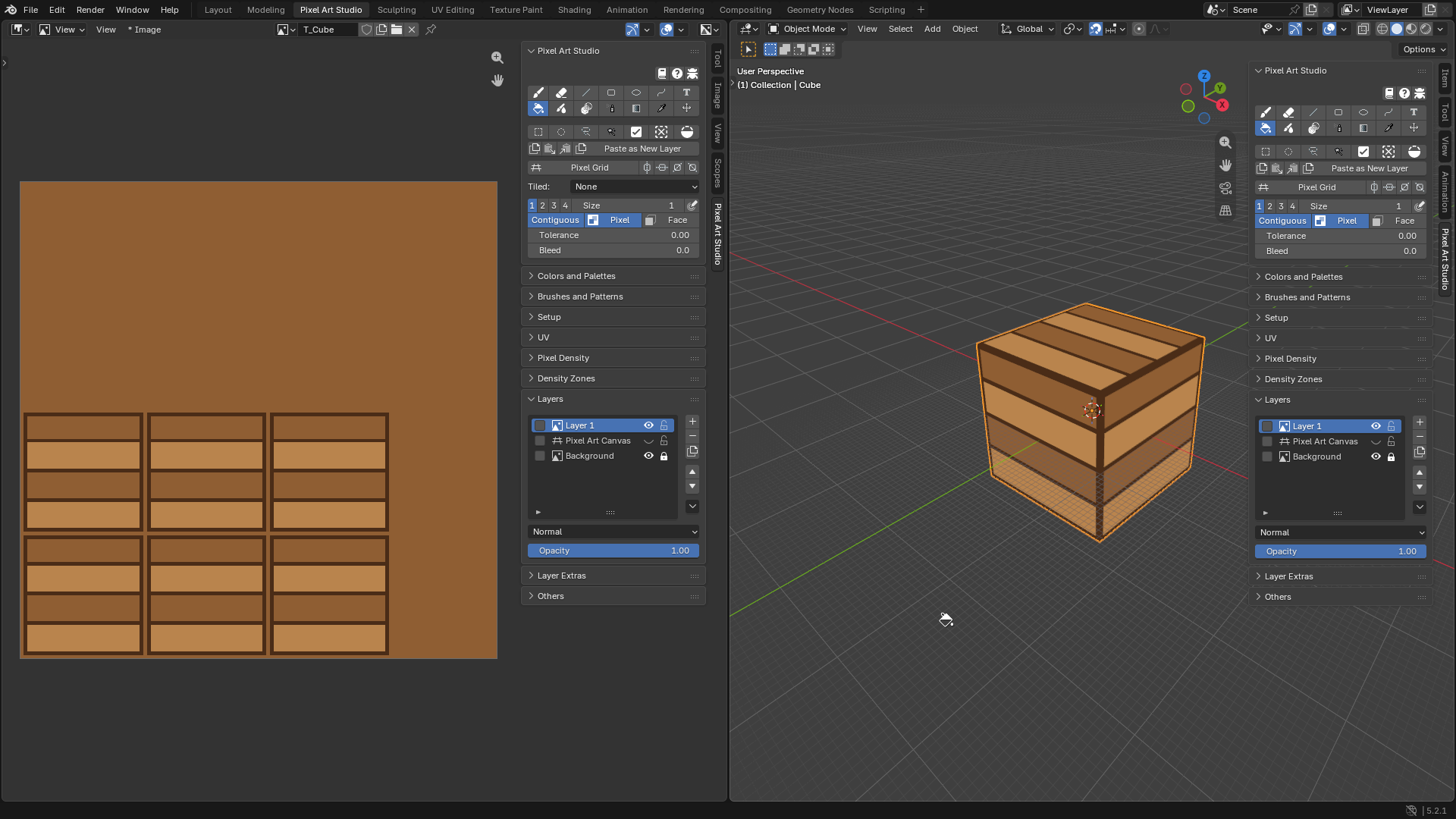
Layers, hide thePixel Art Canvaslayer (click its eye). The grid goes away and the wood color of theBackgroundshows through.In the 3D Viewport’s sidebar, click the
Bucket(or, with a tool already armed there, point at the model and press Shift+Alt+F). Under the toolbar, make surePixelandContiguousare on.Pick a slightly lighter (or darker) brown and click inside every other plank, right on the model. The fill stops at the frame and at the seams.
Note
The Bucket reads only the active layer: the frames and the seams you drew on Layer 1 are what hold the fill. A fill that leaked through a gap? Ctrl+Z, close the gap with the Line and fill again.
8. Grime with a dither pattern
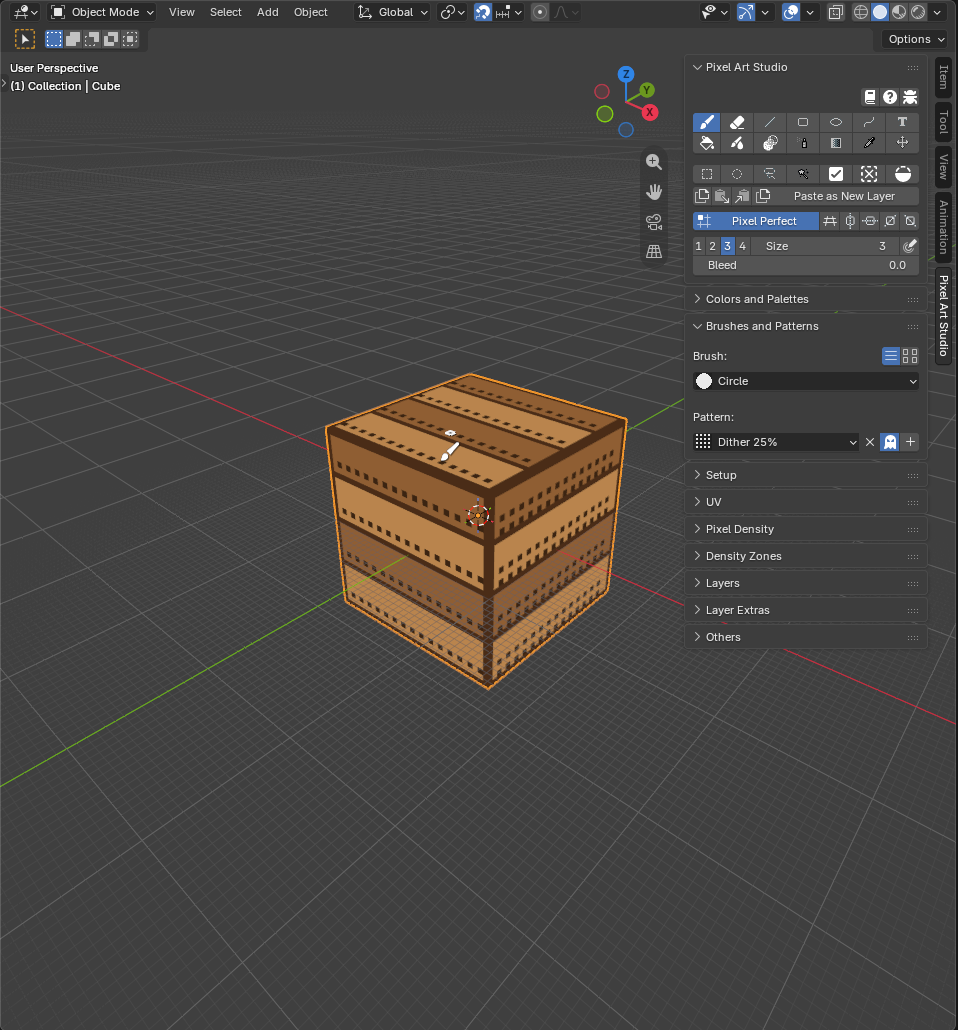
With the pointer over the model, press Shift+Alt+B for the
Brush, pick a dark brown and setSizeto3.Expand
Brushes and Patternsand, underPattern:, chooseDither 25%.Turn on the
Transparenttoggle (the ghost icon) right of the pattern. The gaps of the pattern are left untouched, instead of being painted with the secondary color.Paint along the bottom of the planks and into the corners of the frame. The preview under the pointer shows the exact pixels before you click.
When you are done, set the pattern back to
No Pattern.
Tip
Patterns are locked to the pixel grid, so overlapping strokes and fills never show a seam.
9. Nails on their own layer
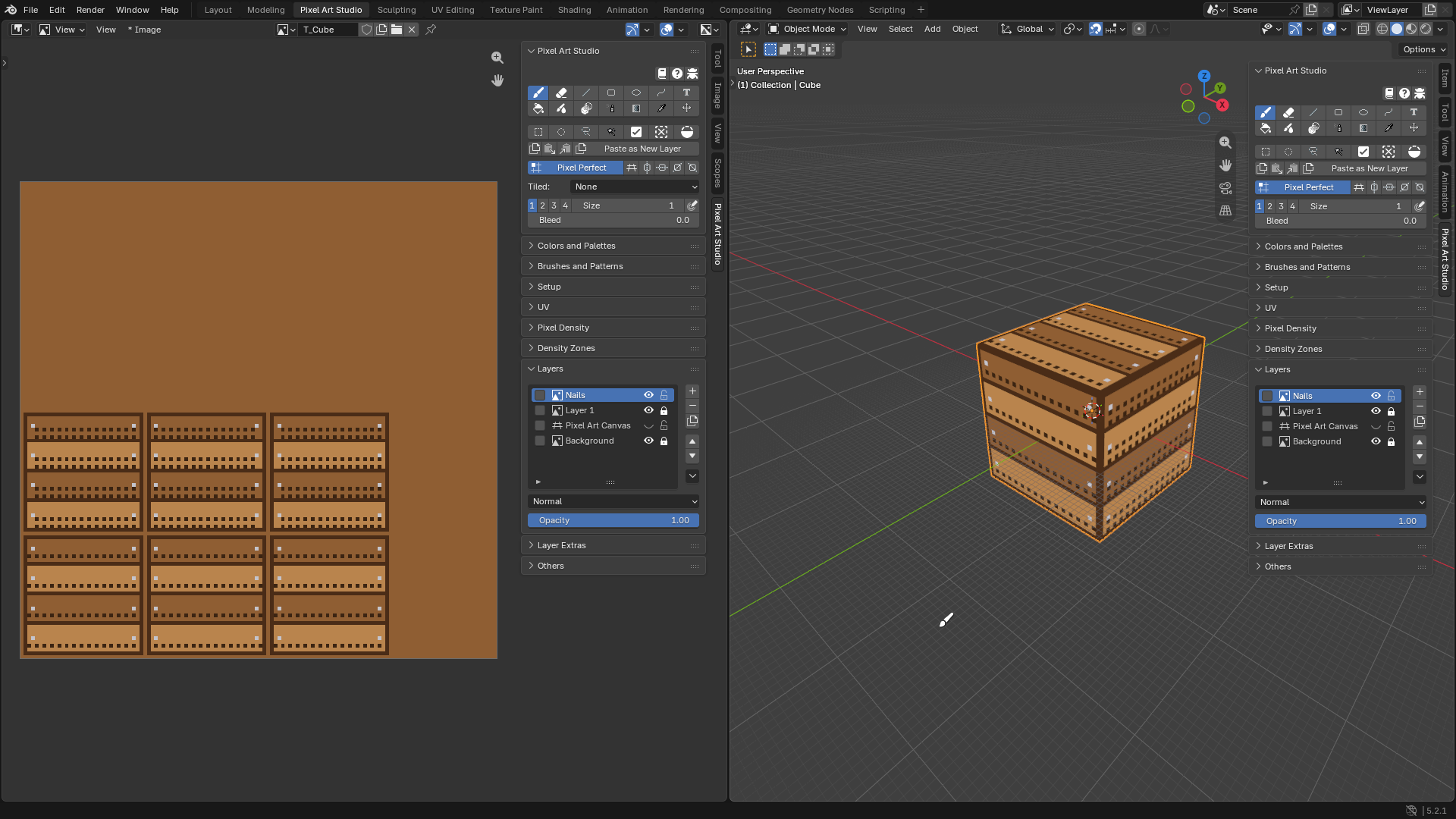
In
Layers, click+(Add Layer). A new layer shows up aboveLayer 1. Double-click its name and call itNails.Pick a light grey, set the brush
Sizeto1and click a nail at both ends of every plank.Toggle the eye of
Nailsto compare with and without, or lower itsOpacity.
Tip
Click the padlock of Layer 1 to lock it, and stray clicks can’t touch the planks anymore.
10. Save
Press Ctrl+S. The texture and all its layers are saved inside the
.blendfile.Need a PNG? In the Image Editor,
Image > Save As, orExport PNG>Export TextureinLayer Extras. The visible layers are what goes in the PNG (that’s why thePixel Art Canvasgrid layer is hidden).Making a game? See Game Engines: Godot, Unity and Unreal Engine can get the crate on every save.
Where to go next
Bigger or smaller pixels for the crate, keeping what you painted:
Try Pixel Densities, see Quick Setup and Try Pixel Densities.A model that already has a texture: A Model That Already Has a Texture.
Paint one plank face and see it on all of them with
Stack UVs: UV Tools.Everything about layers (blend modes, masks, adjustments): Layers.
More patterns, custom brushes,
NoiseandColor Jitter: Brushes and Patterns.