Shortcuts
Pixel Art Studio’s shortcuts live inside the tool you have armed. Shortcuts only work while a Pixel Art Studio tool is active and they never conflict with Blender’s own keys. Every shortcut can be customized and re-bound, see Custom shortcuts.
Note
On macOS every Ctrl shortcut below maps to Cmd.
Activator Shortcut
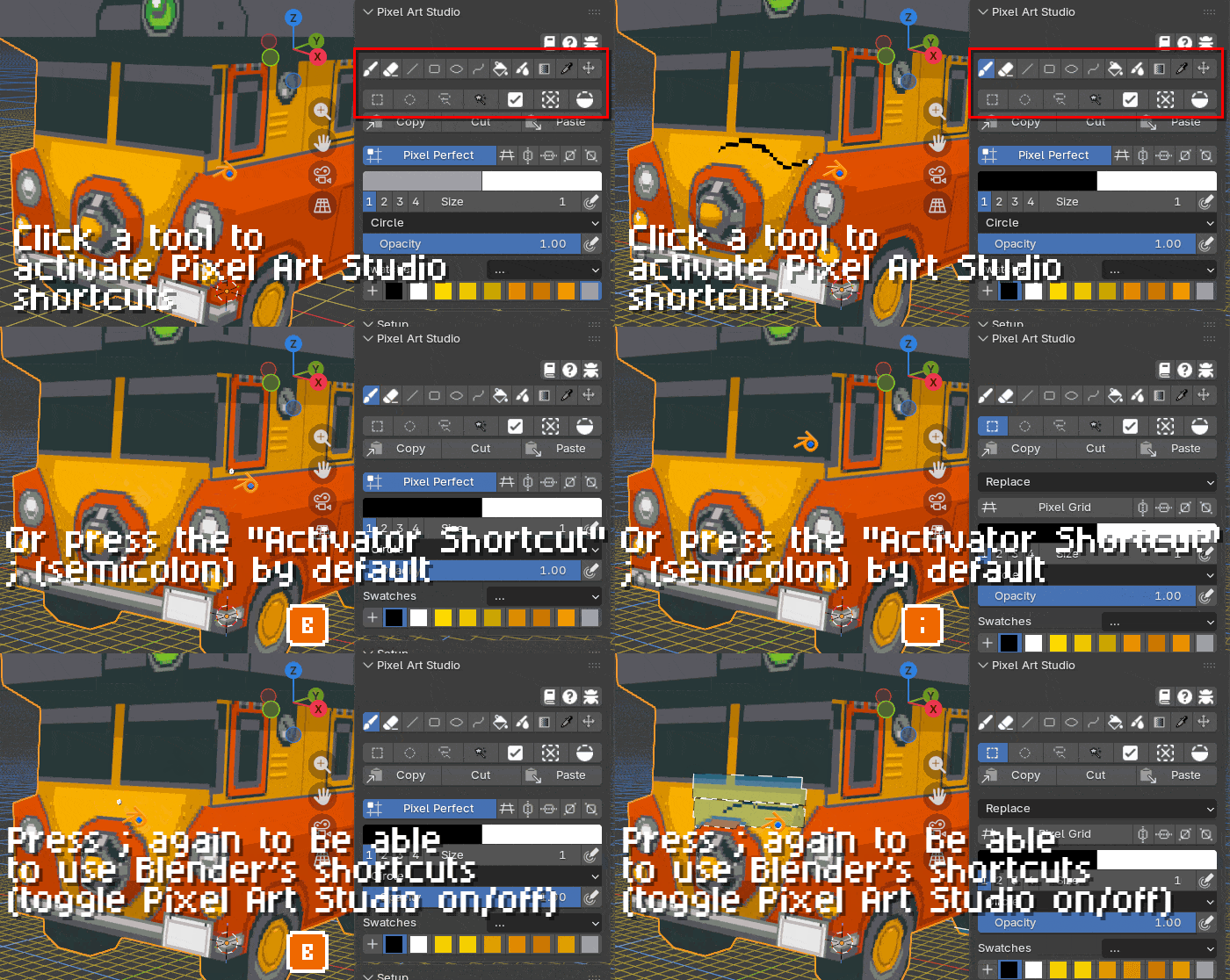
For Pixel Art Studio shortcuts to work, you have to activate a tool first by clicking its button in the sidebar or better yet, you can press “;”, the Activator Shortcut (by default ; semicolon). By default, the activator toggles on the Brush and if you had a previously used tool, it will activate your last used tool.
That means you can alternate between Pixel Art Studio and Blender shortcuts back and forth by pressing ; over the viewport:
Press ; to activate a Pixel Art Studio tool, then freely use Pixel Art Studio shortcuts.
Press ; again to deactivate the tool and use Blender shortcuts.
Press ; again to activate Pixel Art Studio and the tool you had last used, so on and so forth.
You can freely alternate back and forth, it always re-activates the tool you were using last, this way the workflow can be pretty dynamic without needing to click buttons in the sidebar.
The Activator Shortcut can be changed in .
Tip
You can also ESC ESC (two presses of ESC quickly) as the Activator Shortcut to toggle the tool on and off.
Tools
Action |
Keybinding |
|---|---|
Brush |
B |
Eraser |
E |
Line |
L |
Rectangle |
U |
Ellipse |
O |
Path and Polygon (bezier curve tool) |
C |
Bucket fill |
G |
Gradient |
D |
Blur |
H |
Eyedropper |
I |
Move |
V |
Marquee select |
M |
Ellipse select |
Shift+M |
Lasso select |
K |
Magic Wand |
W |
To de-activate, click the armed tool’s button again, or press ESC over the viewport.
Brush and colors
Action |
Keybinding |
|---|---|
Increase brush size |
] |
Decrease brush size |
[ |
Swap primary and secondary color |
X |
Walk to the next swatch |
Ctrl+Shift+X |
Pixel Perfect on / off |
P |
Selection
Action |
Keybinding |
|---|---|
Select all |
Ctrl+A |
Deselect |
Alt+A |
Invert selection |
Ctrl+I |
Add to the selection |
Shift while dragging |
Remove from the selection |
Alt while dragging |
Duplicate the selection |
Ctrl while dragging |
Move the selection along one axis |
Shift while dragging from inside the selection |
Copy the selected pixels |
Ctrl+C |
Cut the selected pixels |
Ctrl+X |
Paste |
Ctrl+V |
Delete the selected pixels (or the whole layer when nothing is selected) |
Backspace or Delete |
Paste writes into whatever layer is active, which is how you move pixels from one layer to another: select on one layer, cut, pick another layer, paste.
View and canvas
Action |
Keybinding |
|---|---|
Pixel grid overlay on / off |
\ or Shift+3 |
Floating tools and settings popup on the viewports |
F |
Undo |
Ctrl+Z |
Redo |
Ctrl+Shift+Z or Ctrl+Y |
Cancel the stroke you are drawing, then de-activate the tool |
ESC |
Path and Polygon tool
Action |
Keybinding |
|---|---|
Start a new path |
Left click |
Add a new hard corner to the path |
Left click and release |
Add a new smooth corner to the path |
Left click, hold and drag the mouse |
Close polygon |
Left click and release at the first point |
Finish the path as drawn, leaving it open |
Enter or Space |
Undo a point and go back to the last point |
Ctrl+Z (undo) |
Cancel and clear the path |
ESC, Backspace or Delete |
Mouse
Action |
Mouse |
|---|---|
Paint, draw the shape, drag out the selection |
Left click and drag |
Temporary eyedropper / color picker (from any paint tool) |
Shift+X + left click (Blender’s default) |
Move the selected pixels |
Drag from inside the selection |
Duplicate the selected pixels instead of moving them |
Ctrl + drag from inside the selection |
Move or duplicate the selected pixels along one axis (horizontal or vertical, whichever you drag further; on the model, along the pixel rows of the face) |
Shift / Ctrl+Shift + drag from inside the selection |
Constrain: 45 degrees for the line, square for the rectangle, circle for the ellipse |
Shift while dragging |
Drag a symmetry ruler (Image Editor) |
Left click and drag the ruler |
Remove a swatch |
Ctrl + click the swatch |
Orbit, pan and zoom the viewport |
Middle mouse and the wheel, as always |
Custom shortcuts
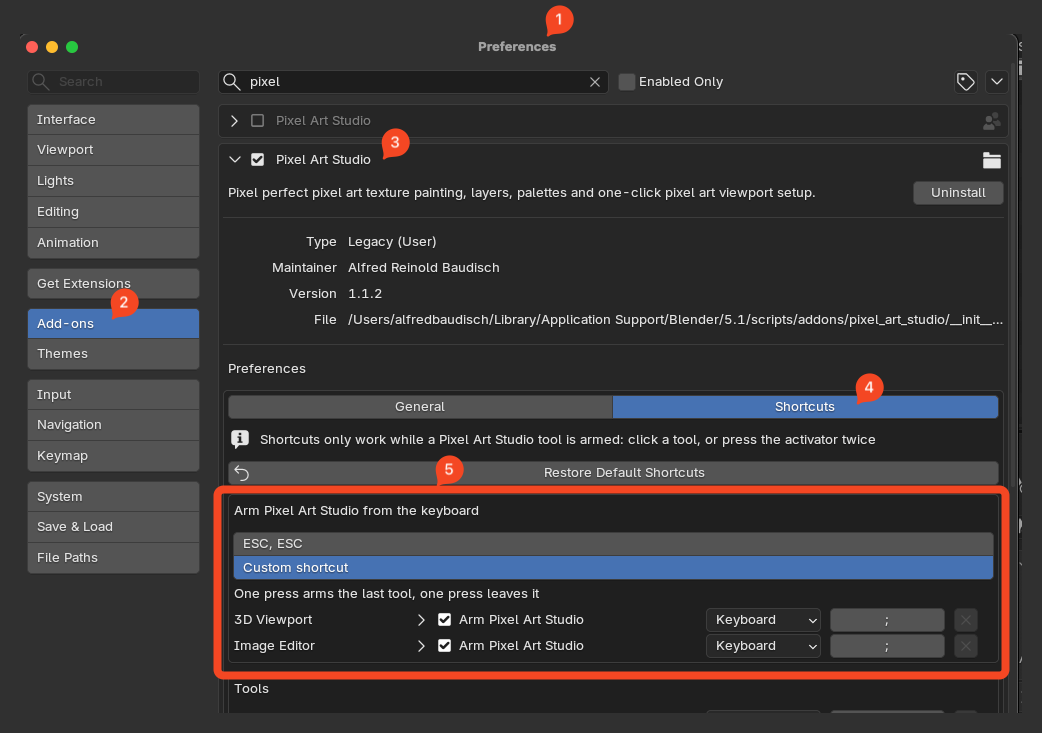
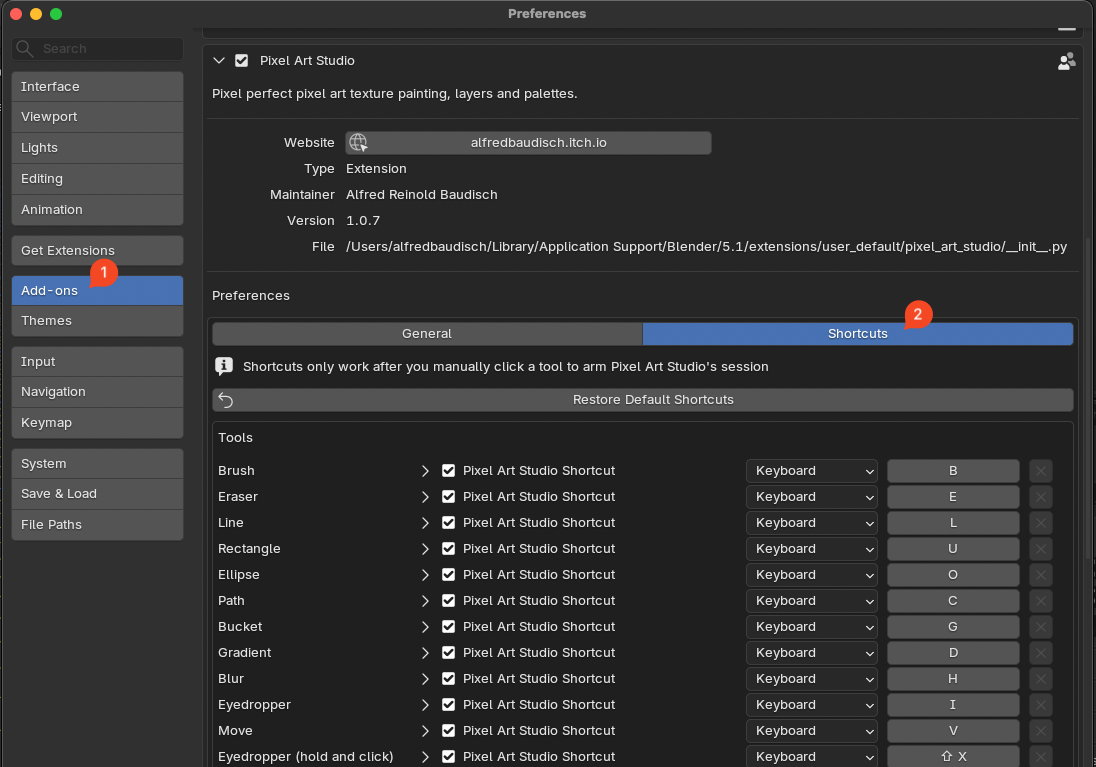
It’s possible to customize every shortcut used by Pixel Art Studio in .
Tip
Click Restore Default Shortcuts to restore all shortcuts to their default values.
Tools and settings popup
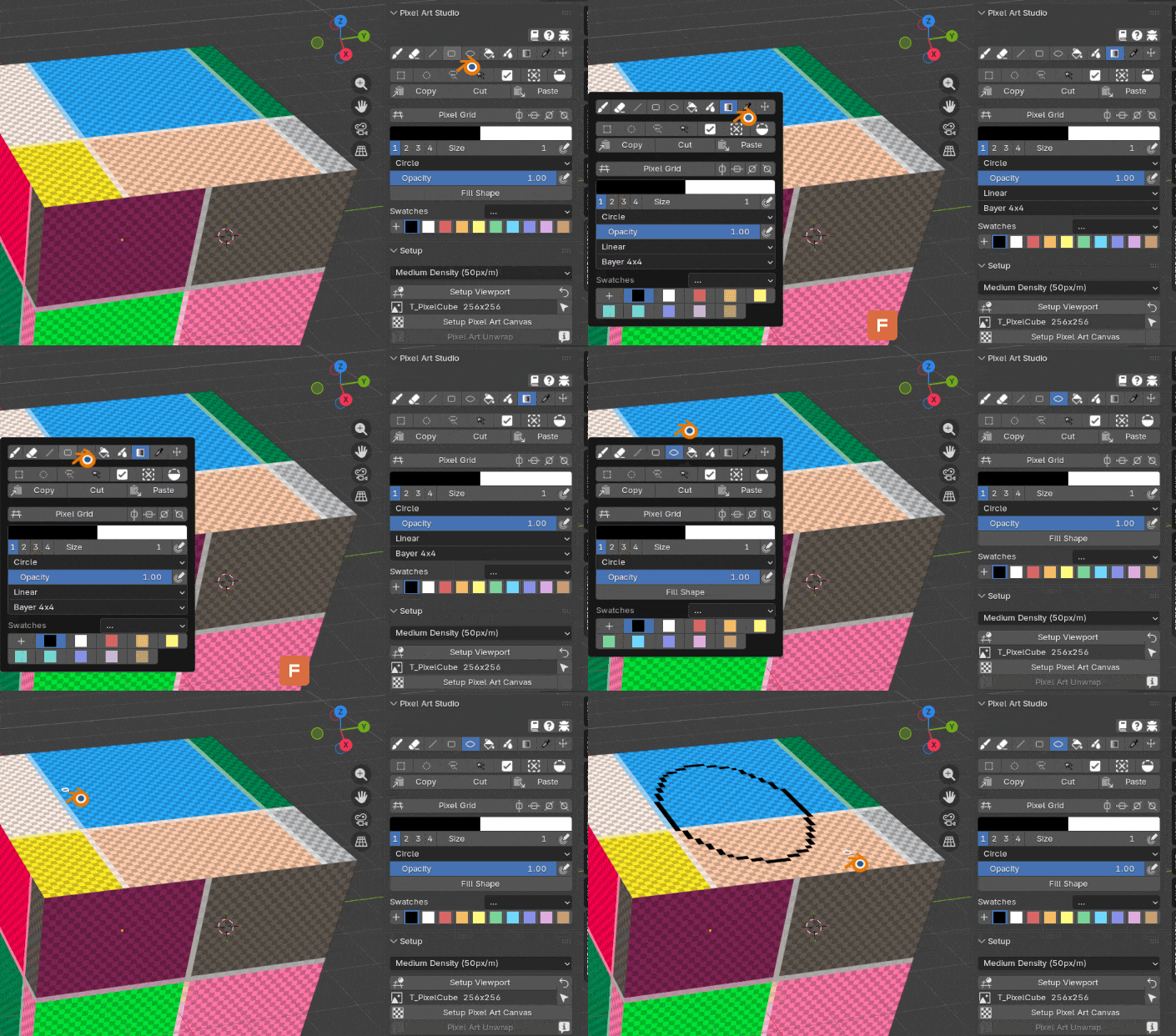
Everything can be quickly accessed with F, to open the tools and settings popup over the viewports, at mouse position (again, just make sure a tool is armed first by clicking its button, then the F shortcut works):