Layers
Real layers on a Blender texture, like in painting programs: groups, blend modes, opacity, lock and visibility, clipping, masks and non destructive adjustments, painted on the model or in the Image Editor.
The Layers panel (open) and the Layer Extras panel (closed by default) are in the sidebar (N) > Pixel Art Studio tab, in the 3D Viewport and in the Image Editor.
In the Image Editor they show the layers of the canvas the editor shows. In the 3D Viewport, the layers of the active object’s canvas texture.
Each canvas texture has its own layer stack, saved inside the .blend. The texture itself is the flattened picture of the stack, so it renders and exports like any other texture.
A canvas made with
Setup Pixel Art Canvasstarts withLayer 1(empty, active), the pixel grid layer, and a lockedBackground(when the canvas isn’t transparent). A texture the model already had starts withLayer 1holding the texture as it was, made by the first thing you do on it (see Painting a texture the model already has). Before that,Layersshows the texture as the one layer it’s going to be, with+and the other buttons ready to use.
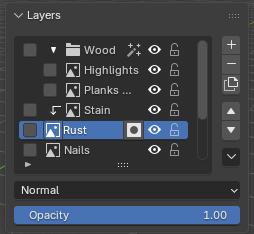
The Layers panel
Each row of the list, from left to right:
Checkbox: marks layers for
Merge SelectedandGroup Layers(the list itself picks one row at a time).Arrow (groups only): folds and unfolds the group.
Bent arrow (clipped layers only): click it to stop clipping.
Icon: a paint layer, a group (folder) or the pixel grid layer. On a layer with a mask, the icon and the mask icon beside the name pick what you paint: the layer’s pixels or its mask.
Name: double-click to rename.
fx: shown while an adjustment is on.Eye: shows and hides the layer or group.
Padlock: locks and unlocks it.
The column of buttons right of the list:
+: adds a layer above the active one (inside the same group).-: removes the active layer (a group takes its layers along), or its mask while the mask is the one being painted.Duplicate: copies the active layer above it, with its blend mode, opacity, adjustments and mask.
Up and down arrows: move the active layer in the stack. A group moves as a block, and a layer at the top or bottom of its group steps out of it. Where a group is in the way, a small menu asks:
Move Up (Skip Group)/Move Down (Skip Group), orMove Inside Group(the one way into a group that already exists).Down arrow: the
Layer Operationsmenu (below).
Under the list, for the active layer or group:
Blend mode dropdown (
Normalby default).Opacity.
Groups
A group is a folder: it holds no pixels of its own, and it has its own eye, lock, opacity, blend mode, clip and adjustments. Groups nest at any depth.
Hiding a group hides everything inside it.
Group opacity and blend mode work like Photoshop’s: the layers inside are composited together first, then the group is blended as one picture (overlapping layers don’t double fade).
Folding a group that holds the active layer makes the group itself active.
A group can’t be painted, but the Move tool and the transform box move and transform every layer inside it.
-on a group deletes it with all its layers.Ungroupkeeps the layers.
Blend modes
All 19 blend modes of Aseprite, on layers and on groups: Normal, Multiply, Darken, Color Burn, Lighten, Screen, Color Dodge, Addition, Overlay, Soft Light, Hard Light, Difference, Exclusion, Subtract, Divide, Hue, Saturation, Color and Luminosity.
A blend mode never changes alpha: it can’t make a texel appear or vanish.
Where nothing is underneath, the layer shows as painted (
Multiplyon the bottom layer doesn’t turn the drawing black).
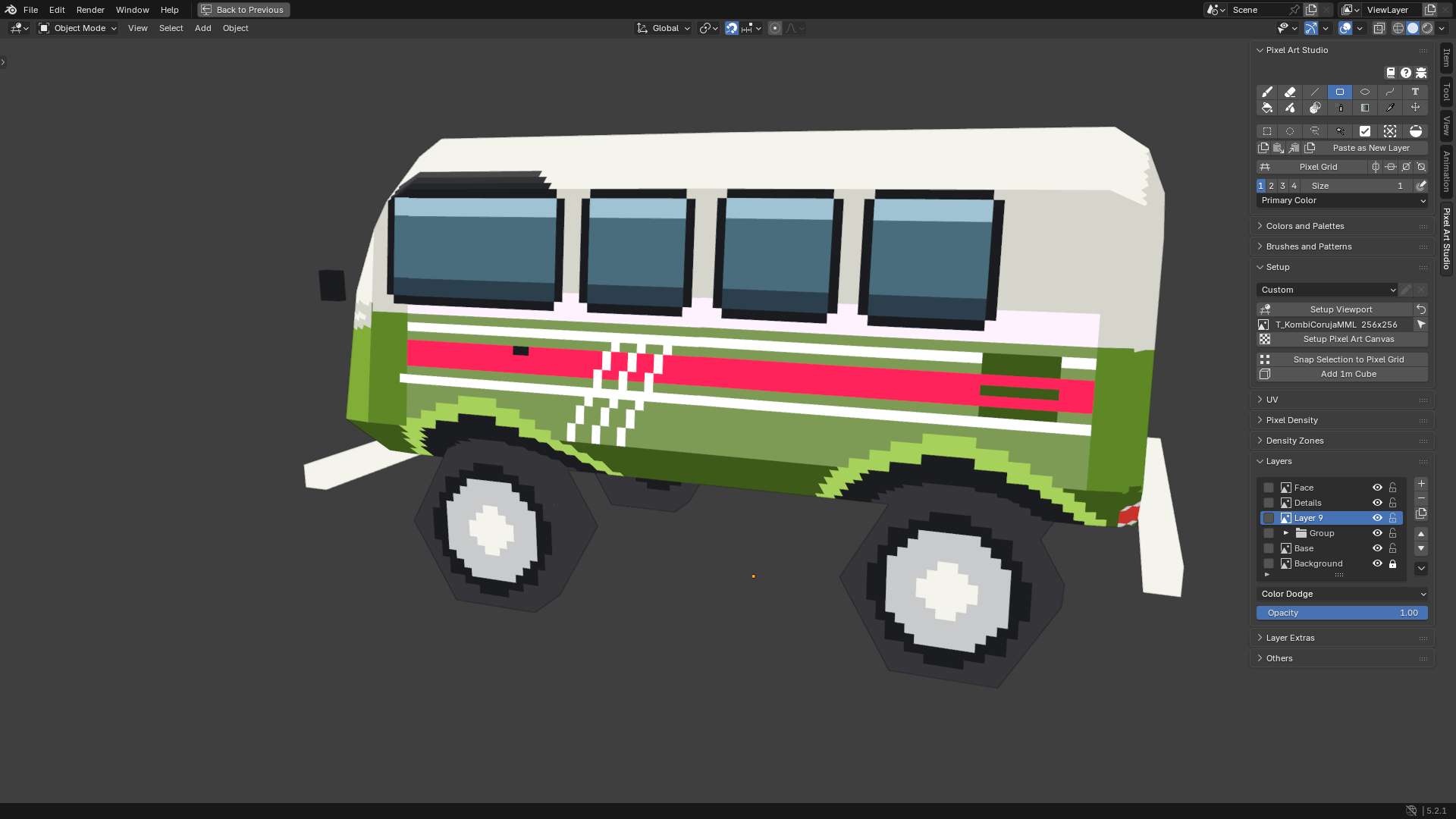
Clipping layers
Like Photoshop and Krita: a clipped layer only shows where the layer below it has pixels. Paint the base shape on one layer, paint the details on the layer above, and clip it: the details stay inside the shape.
Layer Operations>Clip to Layer Below, and the bent arrow in the row stops clipping. It works on layers and on groups.A run of clipped layers all clip to the same base (the first layer under them that isn’t clipped).
The clipped layer keeps its own blend mode over what is under it.
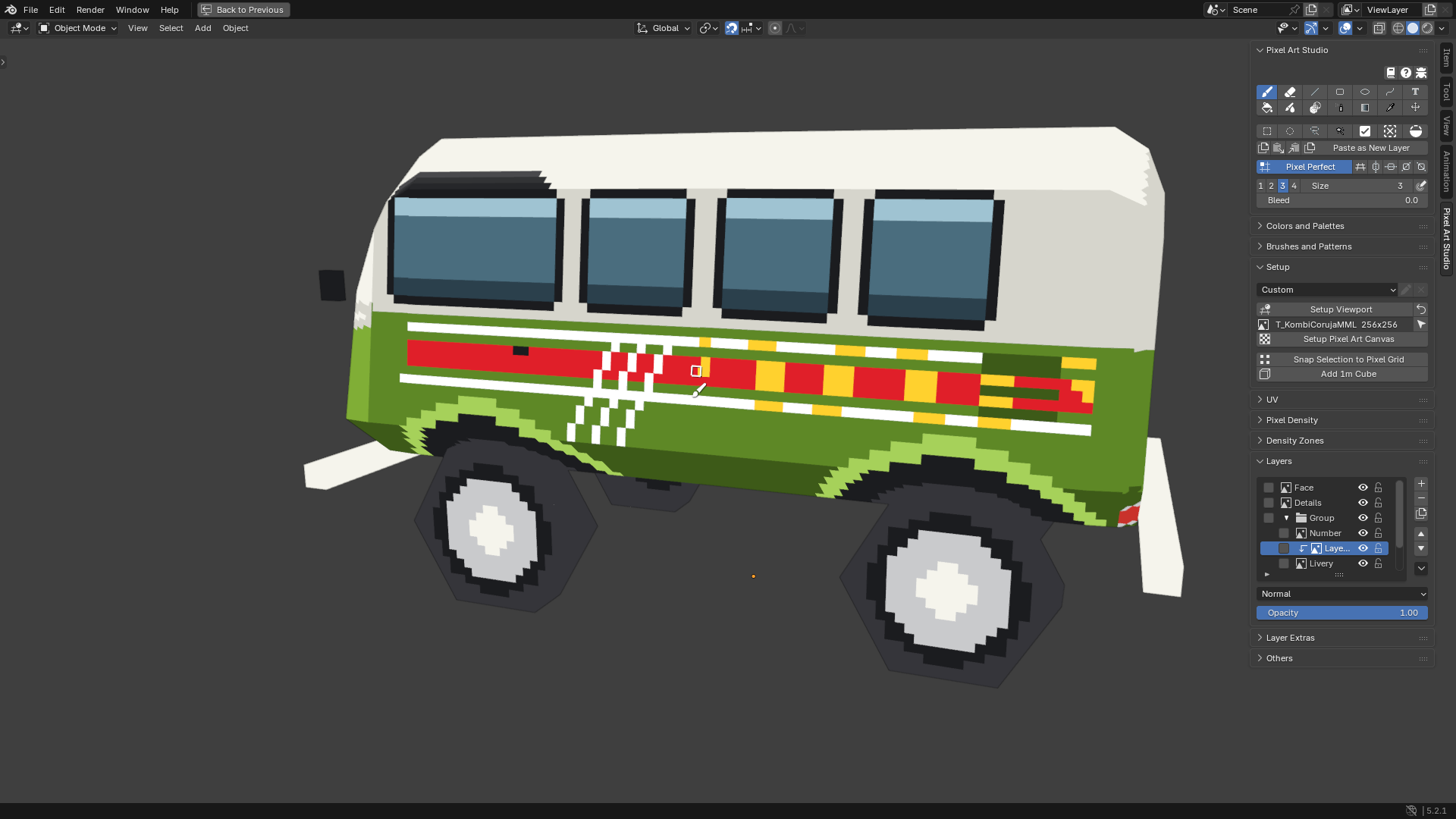
Layer masks
Hide part of a layer without erasing it, and change your mind later.
Optionally, select what should stay visible.
Layer Operations>Add Layer Mask. With a selection, everything outside of it is hidden. Without one, the whole layer shows.The mask is now what the tools paint: black hides, white shows, grey hides partly, and the Eraser brings back what was hidden.
Click the layer’s own icon (or its name) to paint the layer’s pixels again, and the mask icon to go back to the mask.
While the mask is being painted, a
Maskrow shows under the layer, with its own eye (Mask Enabled).Apply Layer Maskbakes the mask into the layer’s pixels,Delete Layer Maskthrows it away.-(or Ctrl+Backspace) while the mask is being painted removes the mask, not the layer.The mask follows its layer: the Move tool and the transform box move both, and
Duplicatecopies it.
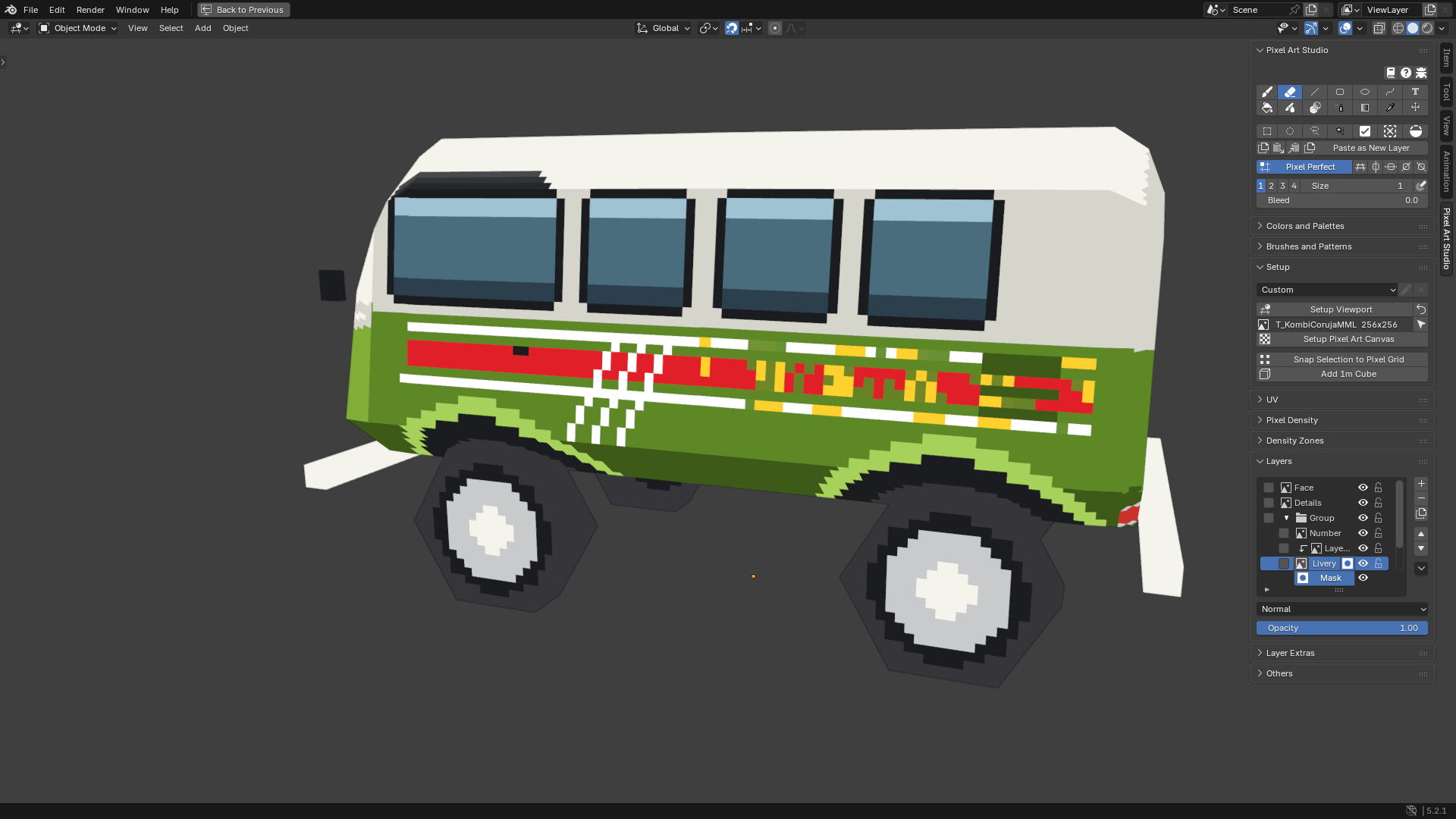
Note
Paint goes nowhere? The mask is the paint target (the Mask row is showing). Click the layer’s icon to paint its pixels.
Adjustments
Non destructive adjustments, stackable, on a layer or on a whole group. The pixels are never rewritten, so you can switch them off or remove them any time.
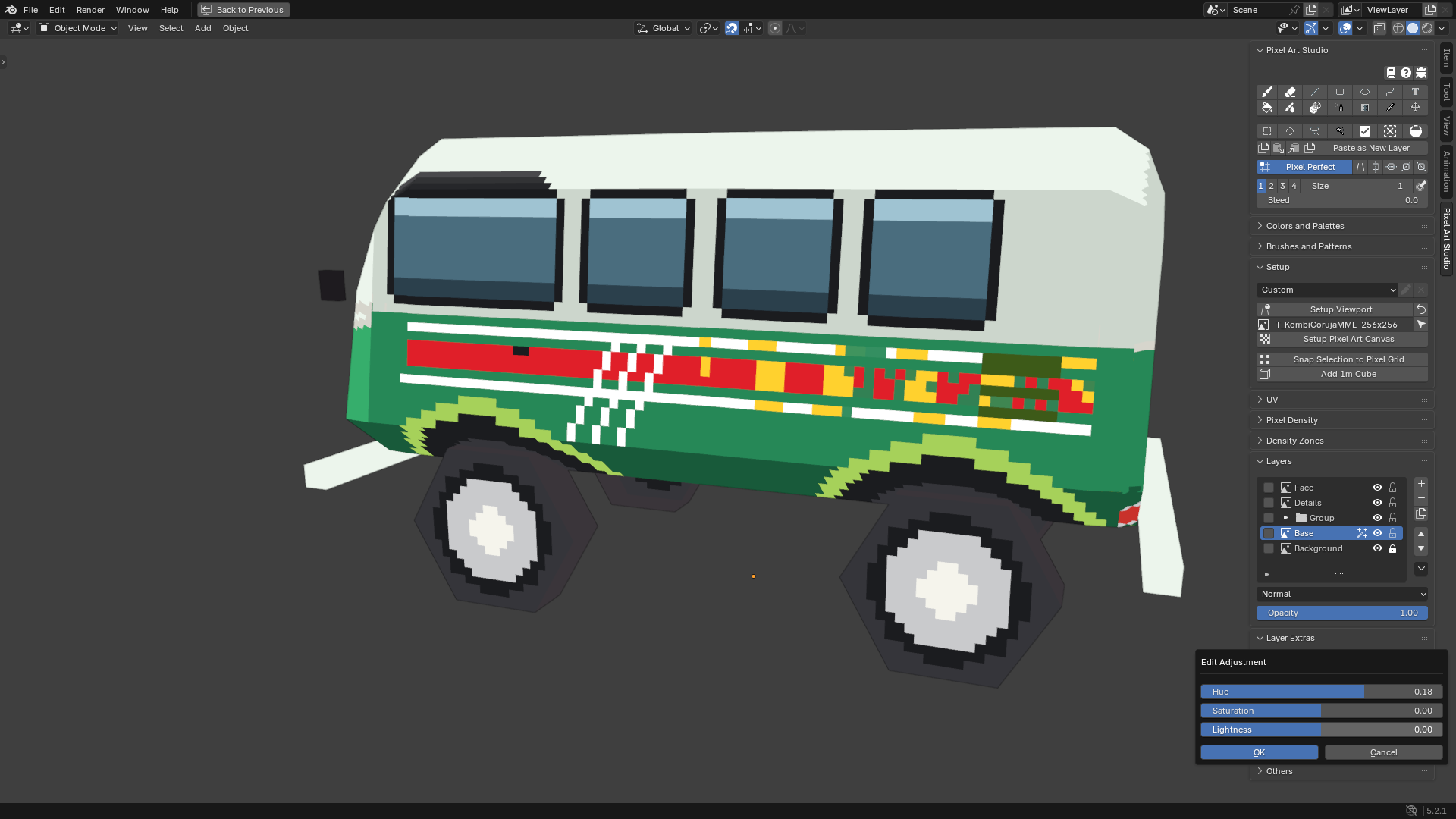
Open
Layer Extras.Click
+besideAdjustments, pick one and clickOK:Brightness/ContrastHue/Saturation(Hue,SaturationandLightness)Color Curve(Blender’s color curve, combined and per channel)
Click the adjustment’s name to edit it. The canvas updates while you drag the sliders and bend the curve.
The checkbox switches an adjustment off without removing it,
Xremoves it.They run top to bottom, in the order they were added. On a group, they run over everything inside it.
Paint lands as it always does, and the adjustment runs over what you paint.
Alpha is never touched.
Note
Closing Edit Adjustment keeps the values (they apply as you drag). Ctrl+Z or set them back by hand.
Layer Extras
Under Adjustments, the Layer Extras panel has:
Import PNG: adds an image (.png,.jpg,.bmpor.tga) as a new layer above the active one, at its own size, never scaled. It’s centered on the 3D cursor when the cursor sits on the model (3D Viewport) or on the Image Editor’s 2D cursor, otherwise it goes to the bottom left corner.Export PNG: asks what to write, then opens the file browser. The colors go out byte for byte.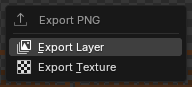
Export Layer(Export Groupwhen a group is selected): the active layer or group, cropped to what is painted. A layer exports its own pixels, without its mask, opacity, blend mode or adjustments. A group exports as one picture of everything in it (blend modes, masks, clips and the group’s adjustments included, hidden layers left out).Export Texture: the whole texture at its full size, the same fileImage > Save Aswrites (every visible layer, the pixel grid layer while it shows).On a texture that isn’t a canvas yet, there’s nothing to ask: it writes the texture’s own pixels, and doesn’t make a canvas.
Texture Dilation: fills the transparent texels around the art with the color of the nearest painted texel, see Texture Dilation.Paste Image as Layer: adds the image on the system clipboard as a new layer namedPasted(an image copied in another program, or with Blender’s ownCopy Image). It comes up selected with the Marquee armed, ready to move, cut or transform. From the 3D Viewport it needs an Image Editor open somewhere (thePixel Art Studioworkspace has one).Add Pixel Grid Layer/Toggle Grid Layer: see below.
When the image is bigger than the canvas, a dialog asks:
Crop to Canvas(default): keeps only the part that lands on the canvas.Keep Full Size: keeps every pixel on a layer bigger than the canvas, and you slide the rest into view with the Move tool.
Paste as New Layer, for pixels copied inside Pixel Art Studio, is in the main panel, see Copy, cut and paste.
Texture Dilation
Every transparent texel around the art takes the color of the nearest painted texel, so the edges of the UV islands don’t pull the background in when the texture gets filtered or scaled down later (mipmaps in a game engine, for example). The fill is hard edged pixel art, never blended or blurred.
Select the layer or the group in the
Layerspanel.Click
Texture DilationinLayer Extrasand select what it applies to: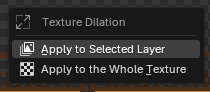
Apply to Selected Layer: fills the layer itself.Apply to Selected Group: fills around what the group shows. The fill goes into a newTexture Dilatedlayer at the bottom of the group, and the group’s own layers stay as they are.Apply to the Whole Texture: fills around everything you see, into a newTexture Dilatedlayer at the bottom of the stack. Every layer above stays editable, and hidingTexture Dilatedturns the fill off.
Set
CropandRadius(the canvas shows the result as you change them) and clickApply.
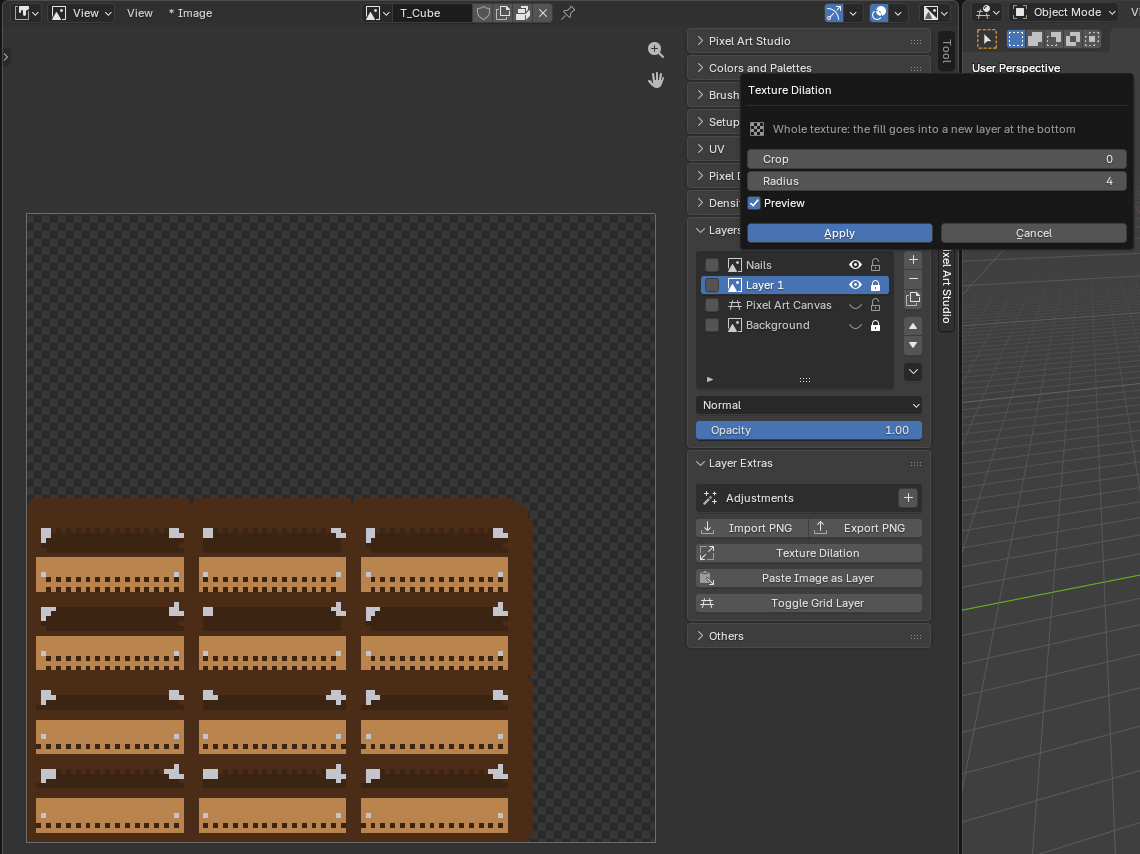
Above: the crate with its Background hidden, Apply to the Whole Texture at Radius 4: a rim of each island’s colors grows into the empty texture around it.
Settings:
Crop(0): painted texels this close to a transparent one are thrown away first and filled again from further in (for edges that came out blurry or dark).Radius(400): how far, in texels, the colors reach into the transparent texels. Farther ones stay transparent.Preview(on): shows the result on the canvas while the dialog is open.
Note
With a selection, only the selected texels are filled. Apply is one undo step, and Cancel (or Esc) leaves the canvas exactly as it was. The pixel grid layer is left out of the whole texture.
Note
On a texture that isn’t a canvas yet, the dialog has no preview (No preview on a texture nobody has painted yet): Apply makes the canvas, then fills, as two undo steps, and Esc leaves the texture untouched.
Pixel grid layer
A real layer with one cell per texture pixel, so every texel is countable on the model.
Add Pixel Grid Layer(Layer Extras) asks for the grid:PICO-8 Color Grid(default),Pixel Checker(one checker square per texel),Color GridorUV Grid. The layer is namedPixel Art Canvasand goes at the bottom of the stack (above theBackground, if there is one).Once the canvas has one, the button becomes
Toggle Grid Layer(shows and hides it).It’s an ordinary layer otherwise: paint on it, move it, delete it. The eyedropper never samples its colors.
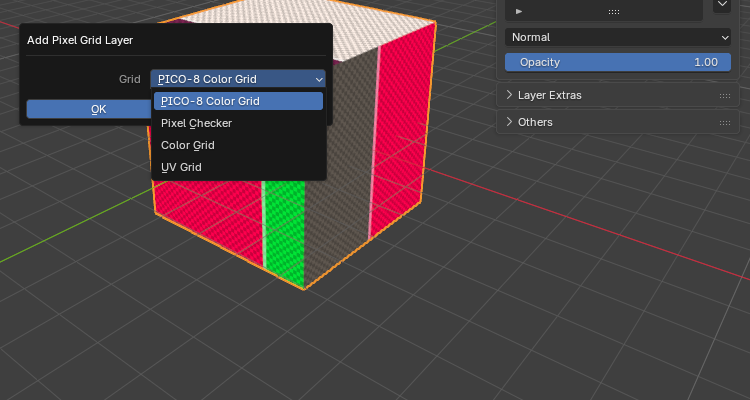
Note
The pixel grid layer is part of the texture while it’s visible. The Pixel Grid overlay (\) only draws lines in the viewport and never touches the texture, see Pixel Grid overlay.
Layer shortcuts
All rebindable (see Shortcuts), and the Pixel Art Studio Only ones are Photoshop and Krita’s. They work while a Pixel Art Studio tool is armed, with the pointer over the editor.
Action |
Alongside Blender |
Pixel Art Studio Only |
Button |
|---|---|---|---|
New Layer |
Shift+Alt+N |
Ctrl+Shift+N |
|
Duplicate Layer |
Ctrl+Shift+J |
Ctrl+J |
Duplicate |
Delete Layer (or its mask while painting the mask) |
Ctrl+Backspace |
Ctrl+Delete, Ctrl+Backspace |
|
Merge Down |
Ctrl+Shift+E |
Ctrl+E |
|
Group Layers |
None |
Ctrl+G |
|
Ungroup |
None |
Ctrl+Shift+G |
|
Paste as New Layer |
None |
Ctrl+Shift+V |
|
Every layer action is one undo step, mixed with Blender’s own undo: adding, removing, merging, grouping, moving, masks, clips, imports and pastes, and also renaming, the eye, the lock, the opacity and the blend mode.